
Installation #
Download VAT Return form and VAT FAF from the Marketplace. The same forms are compatible with both the on-premises and cloud versions.
Required Settings #
- Enable VAT in Tax Settings.
- In the Taxes list, add the VAT rates.
- Create tax groups including VAT rates, then assign them to relevant Items, Customers, and Vendors for automatic computation on transactions.
- Maintain the Address and Tax registration number for the Customers and for the Vendors.
- Enable the Statutory Reporting in the Accounting Settings.
- Install the form.
Generating the VAT Return #
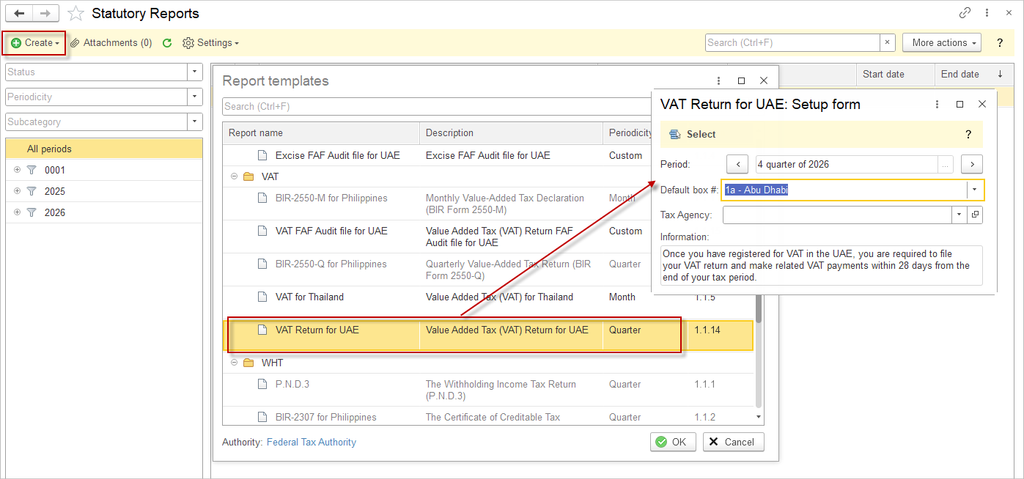
- Navigate to Statutory Reports and click Create
- Select the VAT Return form (or VAT FAF file)
- Specify the Period, Default box. As the UAE VAT return is split by emirate for output VAT, where a customer has no emirate specified, the system will report the tax in this box. Specify the Tax Agency (if applicable).
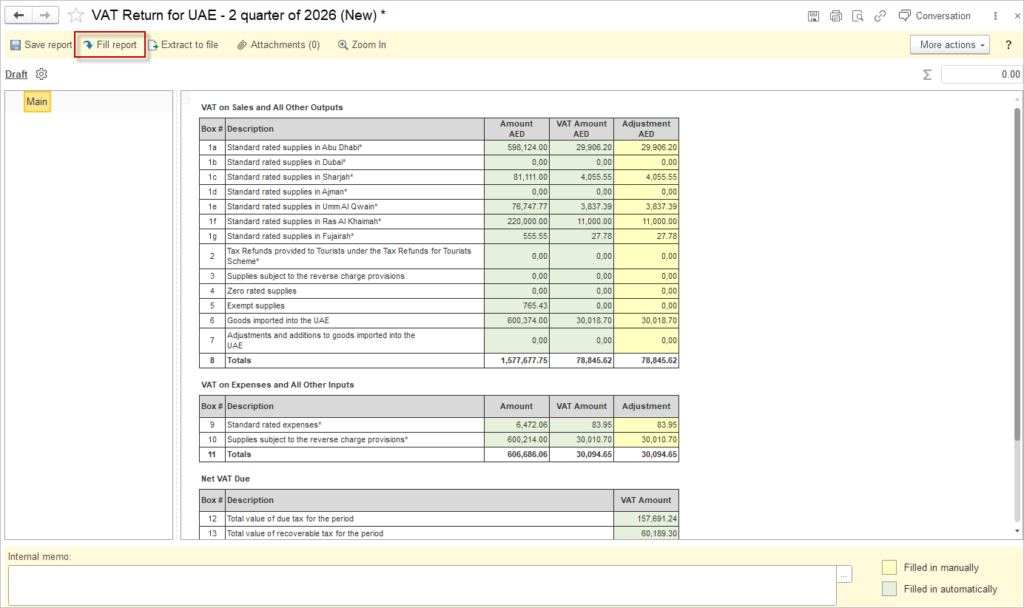
- Click Fill report
Settings #
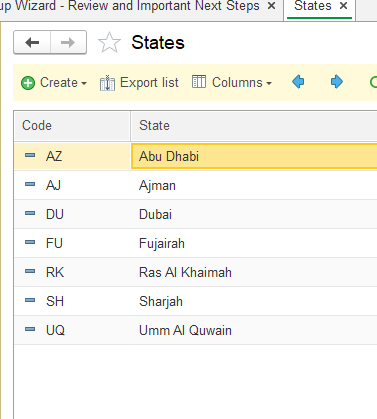
- States should have codes assigned
- Countries to be marked as GCC countries
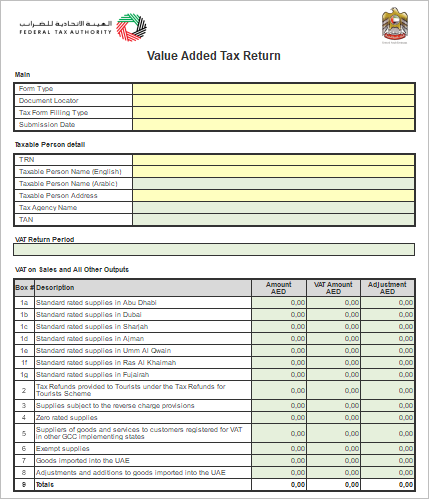
Form Sample #
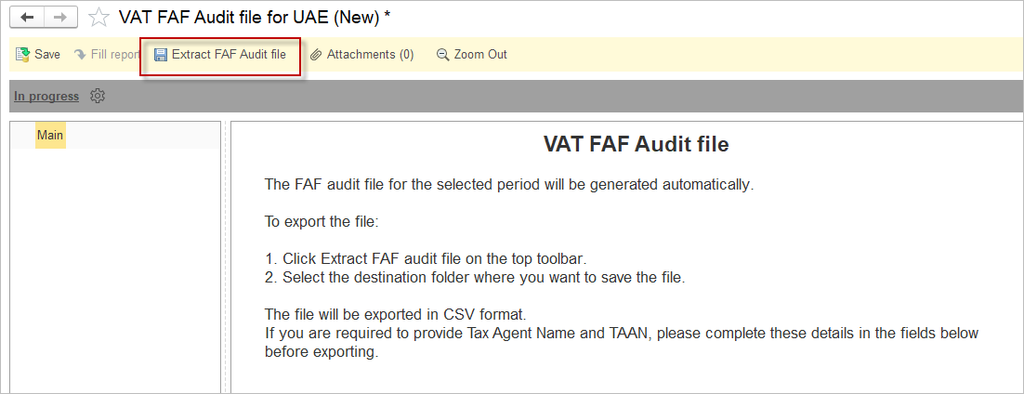
Generating the VAT FAF file #
- Navigate to Statutory Reports and click Create
- Select the VAT FAF
- Click Extract FAF Audit file and specify the folder
- FAF file will be saved in the selected destination
Difference between VAT Return and FAF figures #
The figures in the FAF file may differ from the figures in the VAT Return. The VAT Return includes only input VAT that is deductible according to the applicable local tax legislation. The FAF file includes all input VAT, regardless of whether the conditions for deductibility are met.