
Navigate to Admin panel – Tax settings. Some of the settings will already be in place if you have successfully run the Setup wizard.
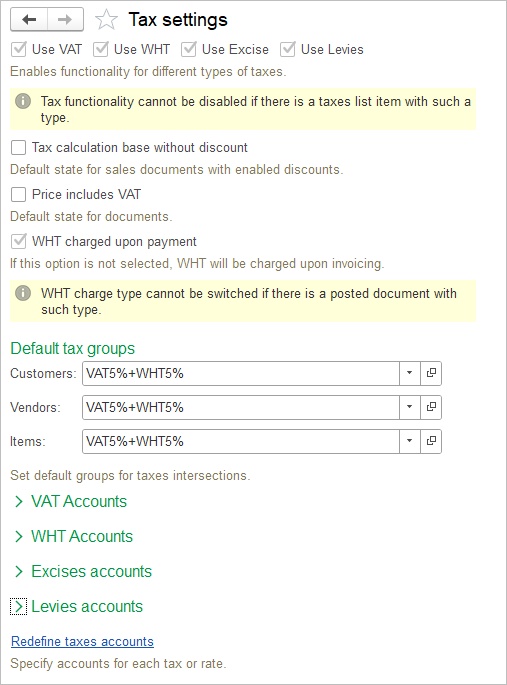
This page displays settings available for configuring tax calculation and default tax behavior in AccountingSuite.
- Use VAT / WHT / Excise / Levies: Enables or disables the use of each respective tax type in documents. A tax type cannot be disabled while tax records of that type exist. Please refer to a separate pages Taxes and Tax Groups, VAT accounting, Withholding tax, Excises and Levies to learn more.
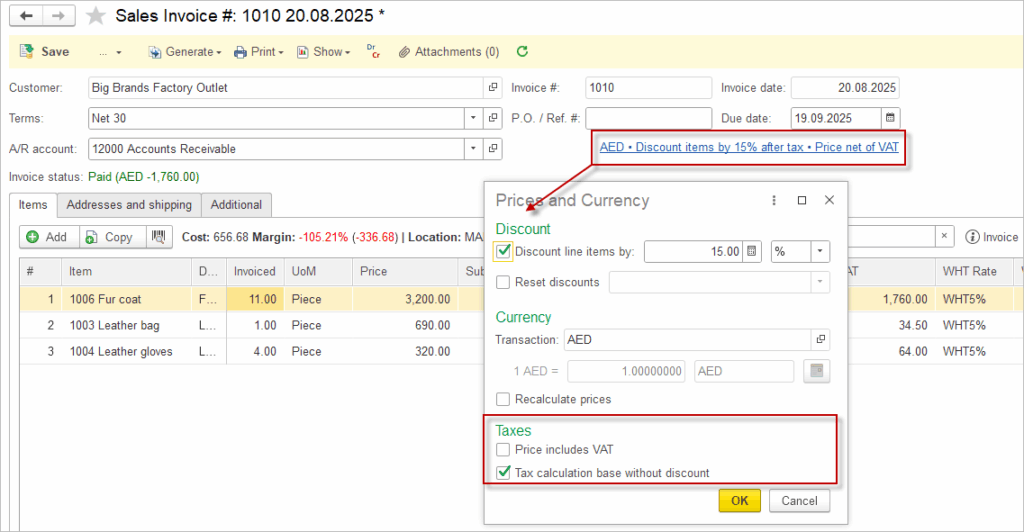
- Tax calculation base without discount: When enabled, taxes are calculated on the original document amounts before discounts, rather than on discounted amounts. This is an overall setting that can be changed in individual sales documents.
- Price includes VAT: When enabled, item and document prices are treated as VAT‑inclusive, and the system allocates the VAT portion from the entered price instead of adding VAT on top. This is an overall setting that can be changed in individual sales or purchase documents.
- WHT charged upon payment: When enabled, withholding tax is recognized at the time of payment; when disabled, it is recognized at the time of invoicing. This setting cannot be changed after documents using the current method have been posted.
- Default tax groups (Customers, Vendors, Items): Specifies the default tax group to be automatically assigned to new customers, vendors, and items, ensuring consistent application of tax rates and combinations. Please refer to a separate pages Taxes and Tax Groups.
- Default tax accounts
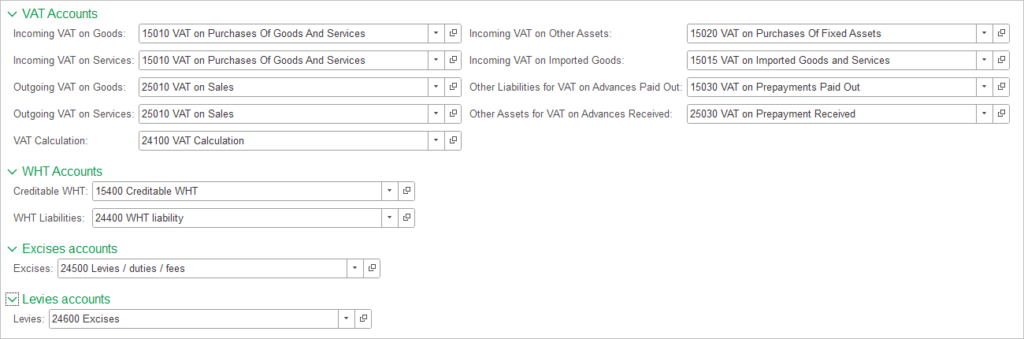
The user can assign different GL accounts to these tax categories shown in the setup screen: VAT, WHT, Excises, and Levies.
VAT accounts
VAT can be mapped separately for incoming and outgoing tax flows, including goods, services, fixed assets, and imported goods, plus accounts for VAT on advances paid out/received and a VAT calculation account.
WHT accounts
Withholding tax uses separate accounts for Creditable WHT and WHT liabilities.
Excises and levies
There are also dedicated GL mappings for Excises and Levies, each assigned to its own account.
Setting different G/L accounts for Tax Rates #
Some businesses use more than one tax rate for the same tax type. In that case, assigning different G/L accounts to different tax rates helps the system post each transaction to the right ledger account automatically. This option is useful because different tax rates often mean different accounting treatment. For example, a standard rate and a reduced rate may need to be tracked separately for reporting, reconciliation, or statutory filing. It also reduces manual work. When the correct G/L account is assigned to each rate, users do not need to reclassify tax entries later, which lowers the risk of posting errors and saves time during month-end close.
Under Redefine tax accounts menu in Tax settings, user may specify the G/L accounts for each tax rate. The list is preliminary filled with default accounts. If a G/L account is assigned to a specific tax rate, the system will use it only for transactions posted with that rate. All other tax rate of this tax will be posted to G/L account set in the Default accounts.
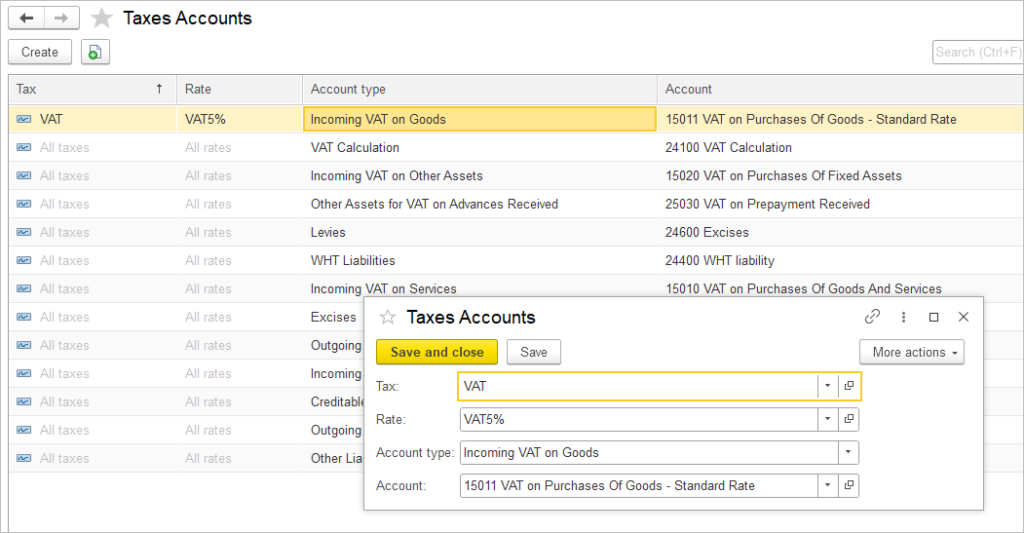
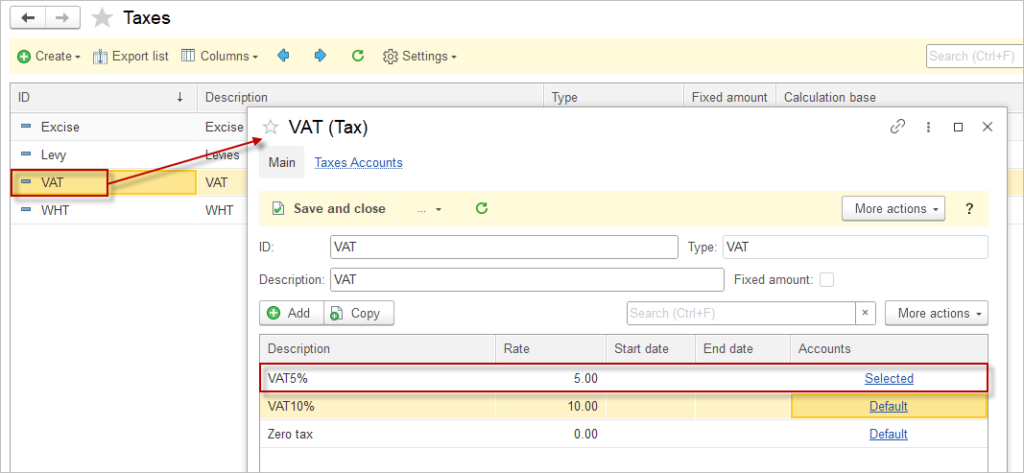
If a custom G/L account is assigned to a tax rate, it will also be displayed on the tax card. This gives users a clear view of which account is linked to each rate without needing to open the setup separately. By clicking the hyperlink, users can quickly navigate to the account setup form and review or update the assigned G/L account.
On the screenshot below, the 5% VAT rate has “Selected” in the Accounts column because it has been assigned a separate G/L account, 15011 (see screenshot above). The other VAT rates (10% and 0%) will use the default account for postings, as they have not been assigned any specific G/L account.
Please refer to a separate pages Taxes and Tax Groups, VAT accounting and Withholding tax to learn more.