
Bank Transfers record the movement of funds between two accounts for which you are tracking transactions in AccountingSuite.
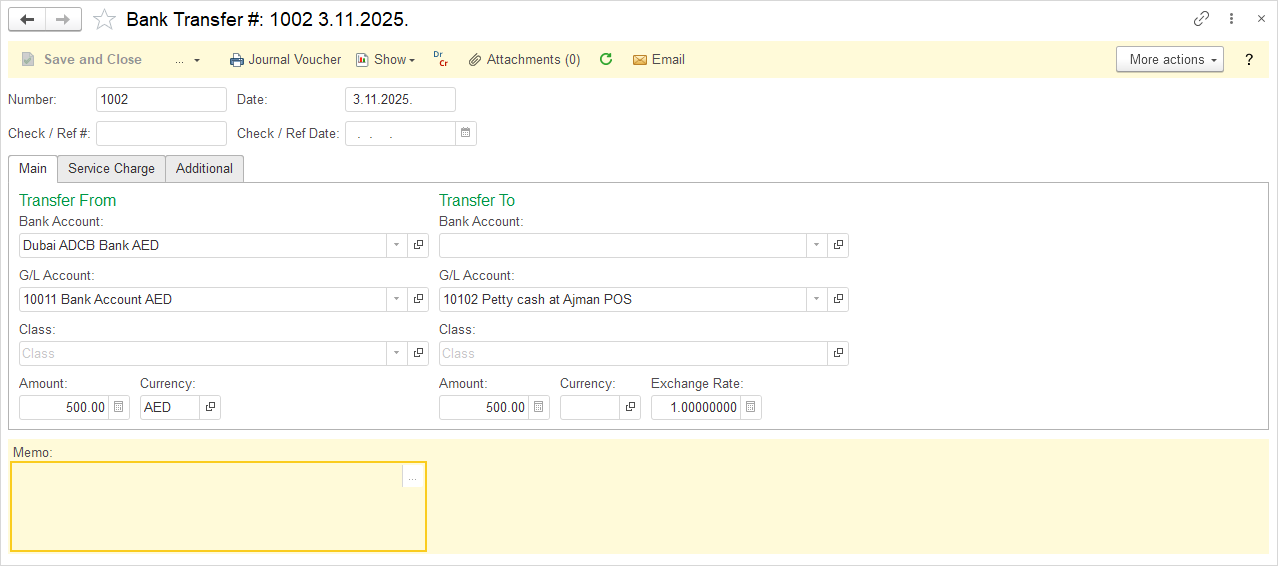
The Bank Transfer feature enables you to efficiently manage internal fund movements. Use it to transfer money between Bank Accounts, move funds to or from a Cash on Hands / Petty Cash G/L account, or reconcile issued checks (Post Dated Checks G/L account). To record a transfer to cash on hands, simply leave the Bank Account field blank and select the G/L account to Cash on Hands / Petty Cash. To use with Post Dated Checks follow the Handling Post-Dated Checks guide.

Create Bank Transfer #
- Navigate to Bank → Bank Transfer.
- Change the Bank Transfer Number, if necessary. The Bank Transfer document numbering is defined in Admin panel → Tools → Auto-Numbering and will increment automatically. For more information, see Document Numbering.
- Adjust the Date, if necessary.
- Enter Check / Ref # (optional). For more information, see Handling Post-Dated Checks.
- Enter Check / Ref Date (optional). For more information, see Handling Post-Dated Checks.
- Enter the Transfer from and Transfer to bank accounts. G/L accounts will be populated automatically from the Bank account card.
- Enter the Class, if required.
- Enter the amount that is being transferred in the Amount field. For transfers between accounts with different currencies, the Exchange rate will be filled in automatically,
- Enter a Memo (optional)
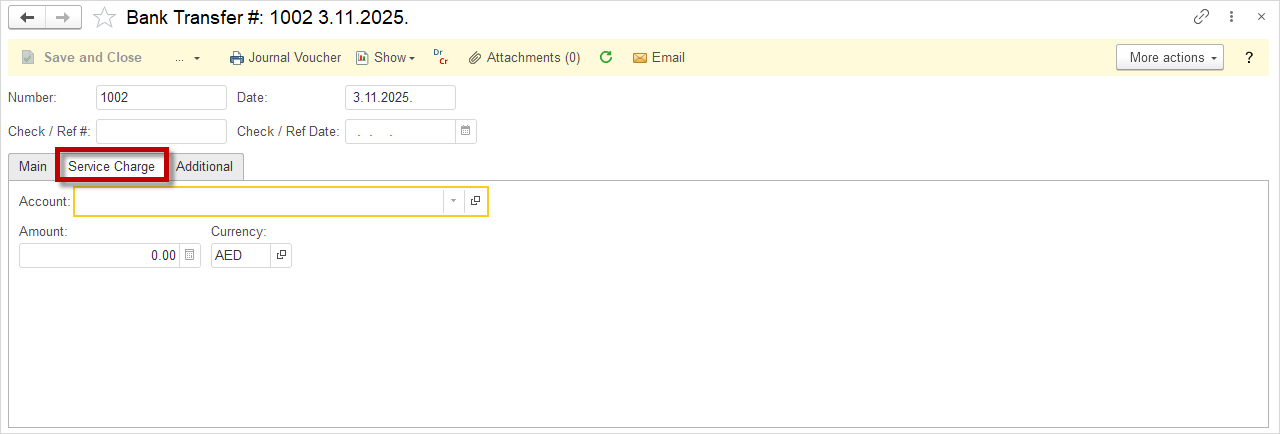
- On the Service Charge tab, select the Account for the banking fees.
- Save the document.
Accounting #
Recording a Bank transfer creates the following transactions in the General Journal:
- Debits: Bank account (chosen in the document as Transfer to account)
- Debits: Expense account for bank fees (from the Service Charge tab)
- Credits: Asset account (chosen in the document as Transfer from account)