
This guide explains how to manage post-dated checks (PDCs) using the specific G/L accounts Post Dated Checks (for buyers) and Undeposited Funds / Issued Check (for sellers) in AccountingSuite.
When processing payments with future dates, use the Post Dated Checks G/L account. This account acts as a holding account and must be used in conjunction with the specific Bank Account from which the funds will ultimately be debited when the check is cleared or matures.
Use the Check/Ref # and Check/Ref Date fields to enter the basic details of the check, while the Memo field is used for additional information not covered by the standard fields.
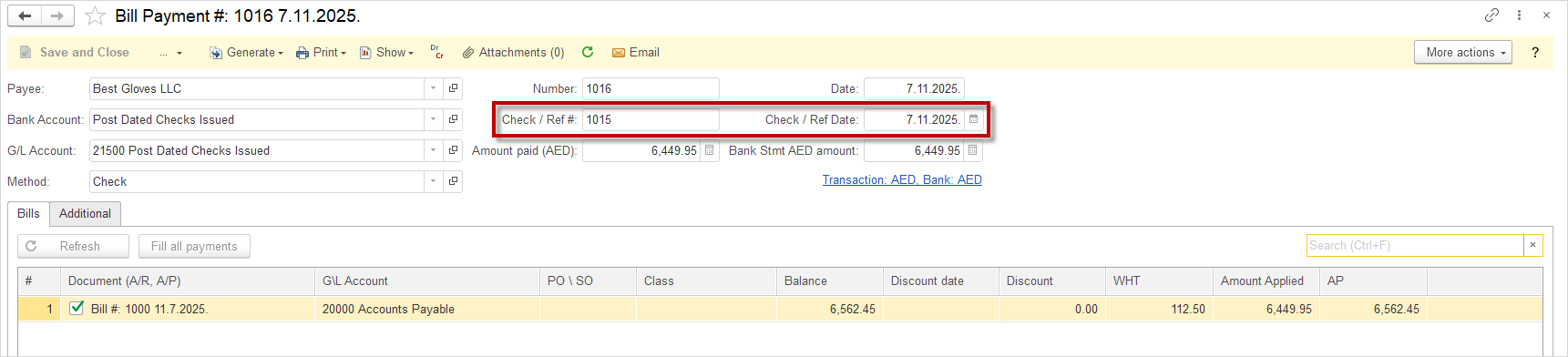
You can create your own G/L accounts for Bank Checks Issued but please use category Liabilities and subcategory Post Dated Checks for such G/L accounts. It is a special subcategory to work with Bank Accounts and Bank Payment/Transfer documents.
Reconciling the Checks #
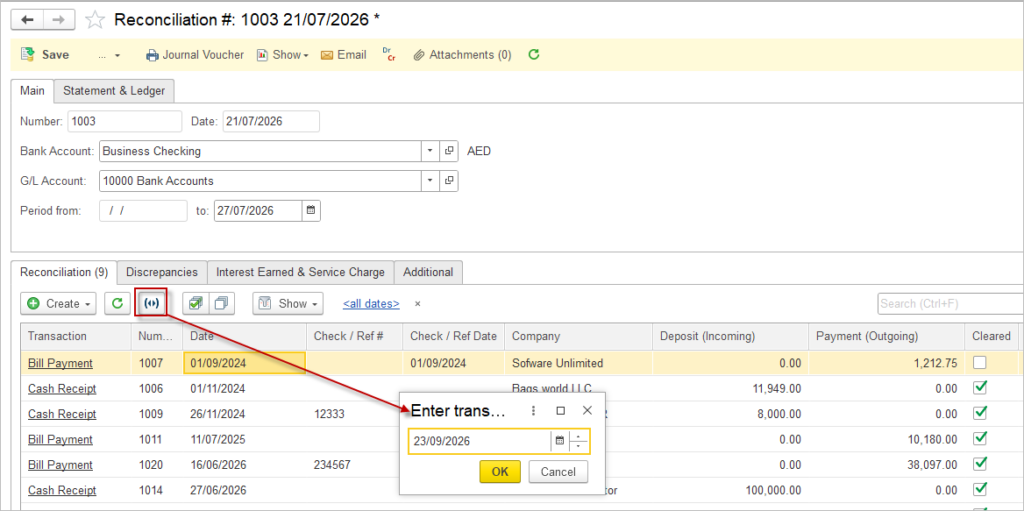
In the Bank reconciliation document, the checks can be postponed to a later date, so that they are cleared in the upcoming bank reconciliations.
For the BUYER (Issuing a Post-Dated Check) #
When you issue a PDC, you are creating a liability that is not yet due. Use the Post Dated Checks G/L account to track this.
Process:
- Create a Bill: Record the vendor invoice as you normally would.
- Pay the Bill with a PDC:
- Go to Bill Payment document.
- Select the bill to pay.
- As the payment account, choose “Post Dated Checks“ instead of your regular Bank account.
- Enter the PDC details (check number, future date) in the Check/Ref # and Check/Ref Date fields.
Accounting Effect (G/L Impact):
- Debit: Accounts Payable (clears the debt to the vendor)
- Credit: Post Dated Checks (records the new liability for the check)
When the Check Date Arrives & It Clears:
- The funds move from the “Post Dated Checks“ account to your bank. This is done via a Bank Transfer document.
- Bank Transfer:
- From Account: Your Bank Account
- To Account: Post Dated Checks
- This transaction closes the PDC liability and reduces your cash.
If you need to cancel the Check Issued
- Open the original Bill Payment document with Post Dated Checks Click Generate – Void Payment to create Storno/Voiding and to open Bill Status back.
- Voiding Entry:
- Debit: Accounts Payable (clears the debt to the vendor) with negative amount
- Credit: Post Dated Checks (records the new liability for the check) with negative amount
For the SELLER (Receiving a Post-Dated Check) #
When you receive a PDC, you have an asset that you cannot deposit immediately. Hold it in the “Undeposited Funds / Issued Check“ G/L account.
Process:
- Create a Sales Invoice: Record the sale as you normally would.
- Receive Payment with a PDC:
- Go to Cash Receipt document.
- Select the customer and invoice.
- As the G/L account, choose “Undeposited Funds / Issued Check“ instead of your regular Bank account.
- Enter the PDC details (check number, future date) in the Check/Ref # and Check/Ref Date fields.
Accounting Effect (G/L Impact):
- Debit: Undeposited Funds / Issued Check (records the asset of the held check)
- Credit: Accounts Receivable (clears the customer’s debt)
On the Check’s Date When You Deposit It:
- Move the funds from “Undeposited Funds / Issued Check“ to your bank account using the Deposit document.
- Create a Deposit:
- Select the Cash Receipt or Cash Sale documents in a lines from “Undeposited Funds / Issued Check” that you are now depositing (the PDC that has matured).
- Deposit them into your actual Bank Account.
Accounting Effect (G/L Impact):
- Debit: Bank Account (increases your cash)
- Credit: Undeposited Funds / Issued Check (decreases the held funds asset)
If you need to cancel the Check Received
- Open the original Cash Receipt document with Undeposited Funds. Click Generate – Void Payment to create Storno/Voiding and to open Sales Invoice Status back.
- Voiding Entry:
- Debit: Undeposited Funds / Issued Check (records the asset of the held check) with negative amount
- Credit: Accounts Receivable (clears the customer’s debt) with negative amount
Summary Workflow #
| Role | Action | Document in AccountingSuite | G/L Account Used |
|---|---|---|---|
| Buyer (Issuer) | Issue a PDC to a Vendor | Bill Payment | Post Dated Checks (as the payment account) |
| Buyer (Issuer) | Clear the PDC on its date | Bank Transfer | From: Bank Account To: Post Dated Checks |
| Seller (Receiver) | Receive a PDC from a Customer | Cash Receipt | Undeposited Funds / Issued Check (as the deposit account) |
| Seller (Receiver) | Deposit the matured PDC | Deposit | From: Undeposited Funds / Issued Check To: Bank Account |
By following this process, you ensure that post-dated checks are properly tracked in your accounting records without distorting your actual bank balance until the payment is legally due. Use the Check/Ref # and Check/Ref Date fields to enter the basic check details (number and future date), while the Memo field is used for any additional remarks. These fields – Check/Ref # and Check/Ref Date can also be used as a reference during Bank reconciliation and Import Bank Transactions processes.