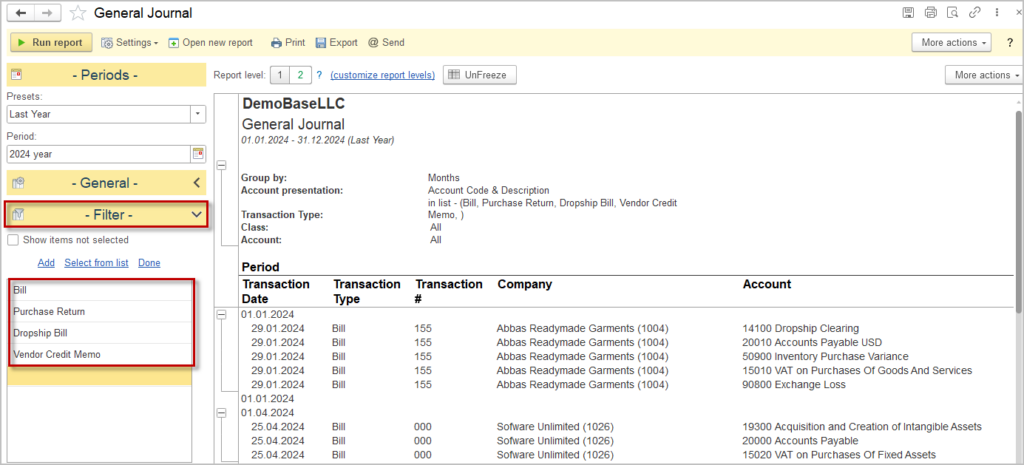
General Journal is a report that groups all financial transactions. It serves as a comprehensive analysi tool, capturing a wide range of activities including dates, accounts involved, amounts, and descriptions. Unlike specialized journals that focus on specific types of transactions, the general journal encompasses all financial activities, making it invaluable for monitoring and identifying trends or discrepancies.
Please refer to the How to use repors article to learn more about applying filter, grouping etc.
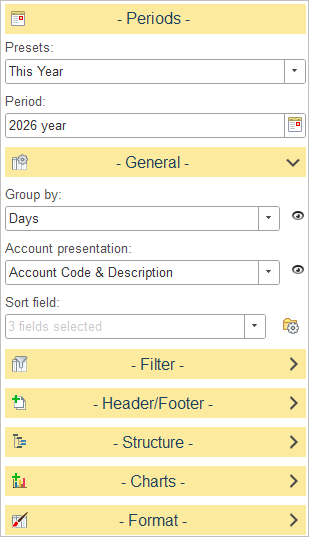
Available settings:
The General section of the AP Aging report controls how accounts are grouped and how accounts are displayed.
Group By
Determines how journal entries are grouped in the report.
Select one of the available grouping options from the drop-down list. All journal entries are grouped by posting date, allowing transactions recorded on the same period to be displayed together.
Account Presentation
Defines how account information is displayed in the report.
Available options:
- Account Description Only – Displays only the account description.
- Account Code & Description – Displays both the account code and the account description.
- Account Code Only – Displays only the account code.
Sort Field
Determines the order in which journal entries are displayed within each group.
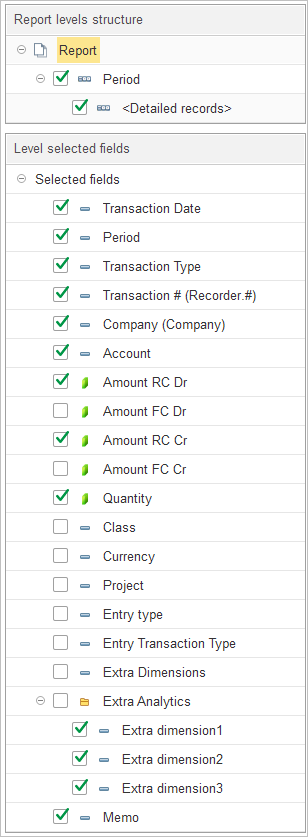
In Report levels structure, select how journal entries are grouped in the report.
The default report structure groups data by Period, with Detailed Records displayed under each reporting period. This allows users to review all journal entries posted within each accounting period.
To customize the report structure, expand the Structure section and select or clear the checkboxes next to each level to include or exclude it from the report hierarchy. You can also drag and drop levels to change the order in which data is grouped.
In Level selected fields, choose which columns are displayed for the selected report level.
The available fields include:
If multicurrency is enabled in General Settings and you have transactions in foreign currencies, tick the checkboxes
Amount FC Cr – Displays the credit amount in the foreign currency, when applicable.
Amount FC Dr – Displays the debit amount in the foreign currency, when applicable.
Memo – Displays the memo or description entered for the journal entry.
Transaction Date – Displays the posting date of the journal entry.
Period – Displays the accounting period in which the transaction was recorded.
Transaction Type – Displays the type of transaction that generated the journal entry.
Transaction # (Recorder.#) – Displays the number of the document confirming financial transaction.
Company (Company) – Displays the customer, vendor, or other company associated with the transaction, if applicable.
Account – Displays the general ledger account affected by the transaction.
Amount RC Dr – Displays the debit amount in the reporting (base) currency.
Amount RC Cr – Displays the credit amount in the reporting (base) currency.
Quantity – Displays the quantity associated with the journal entry, when applicable.
Class – Displays the assigned accounting class or classification.
Currency – Displays the transaction currency.
Project – Displays the project associated with the transaction.
Entry Type – Displays the journal entry type.
Entry Transaction Type – Displays the originating transaction type from which the journal entry was created.
Extra Dimensions – Displays additional dimension values assigned to the journal entry.
Extra Analytics – Displays user-defined analytical dimensions configured in the system. Available fields include Extra Dimension 1, Extra Dimension 2, and Extra Dimension 3.
Ledger books #
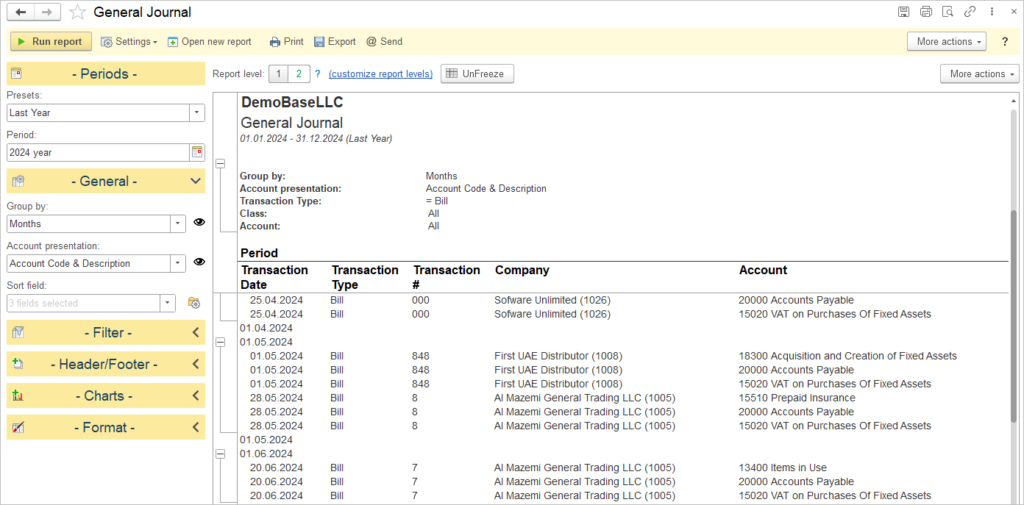
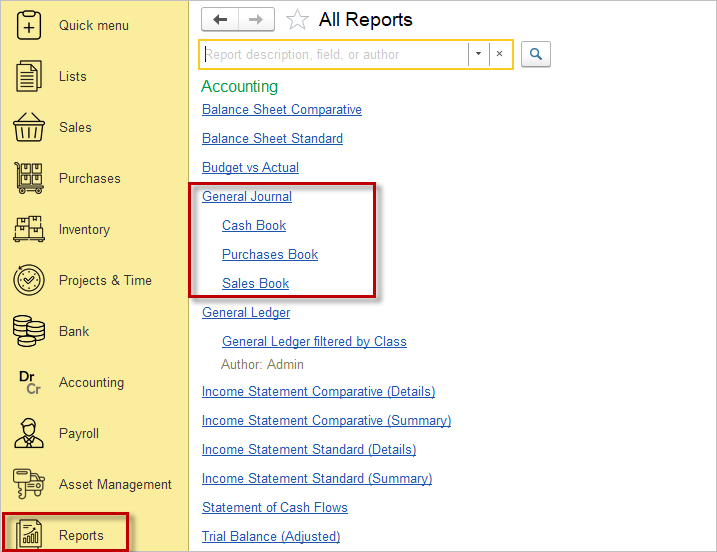
General Journal can be used as a basis to build to different Ledger books, e.g. Sales book or Purchase book.
Sales book, Purchase book and Cash book are available as separate menu items under Reports – Accounting.

Set custom Ledger Book #
However, user may save any custom settings. Filter must be set by Transaction type:
- For the Sales book select the following types: Sales Invoice, Cash Sale, Consignment Sale, Sales Return, Dropship Sales Invoice, Customer Credit memo;
- For the Purchase book select: Bill, Purchase Return, Dropship Bill, Vendor Credit memo;
- For the Cash Disbursement book select: Payment, Vendor Prepayment, Customer Refund, Refund Payment, Deposit, Bill Payment, Payroll Payment;
- For the Cash Receipts book select: Customer Prepayment, Vendor Refund, Refund Receipt, Cash Receipt, Cash Sale.