
Statutory Reporting in AccountingSuite streamlines compliance with local tax and financial requirements. This tool centralizes reporting forms tailored to specific countries, supporting automation at various maturity levels.
AccountingSuite’s Statutory Reporting module is designed to transform compliance from a manual chore into a streamlined, automated process. It moves beyond simple form generation, offering a clear evolutionary path from basic manual data entry to fully automated electronic submission.
The system centralizes country-specific reporting forms and allows you to track their status through a clear workflow. As your needs mature, you can enable partial or full auto-filling of forms from your existing accounting data. Ultimately, the platform supports direct digital filing via file (PDF/CSV/TXT/FAF/XML), ensuring you meet regulatory deadlines with accuracy and minimal manual intervention, all while maintaining full traceability and control.
Core Functionality #
This feature can be enabled in the Accounting Settings.
Statutory Reporting stores local reporting forms that can be added based on country-specific needs. Forms evolve through stages, from basic manual entry to full automation. These stages include:
- Stage 1: Basic – only manual entry. At this stage, the form serves primarily as a printable template with the correct structure, fields, and formatting required by local authorities. Users must manually enter all data, since no automation or data population occurs. This ensures compliance through visual fidelity: logos, tables, fonts, and sections replicate the authority’s format precisely. No backend integration exists yet, making it ideal for jurisdictions with basic digital submission needs or as a starting point for evolution to higher stages.
- Stage 2: Partially or fully auto-filled from system data In this phase, key fields within the statutory form are automatically populated using existing accounting or transactional data stored in AccountingSuite. Users can still review and adjust figures manually. This approach increases efficiency while preserving compliance and maintaining the official presentation format.
- Stage 3: Fully automated completion and electronic submission At the final stage, the process achieves full automation. Digital filing standards (such as XML, XBRL, or web-based submission APIs) are supported, enabling direct communication with government portals (if it is available in the country of operations). This stage delivers end-to-end compliance automation, minimizing manual intervention while ensuring reliability and traceability.

We are developing statutory reporting forms for the requirements we are aware of and greatly value local expertise in this process. You are most welcome to submit any forms required in your country and we would be delighted to collaborate and incorporate them into AccountingSuite.
Workplace Oveview #
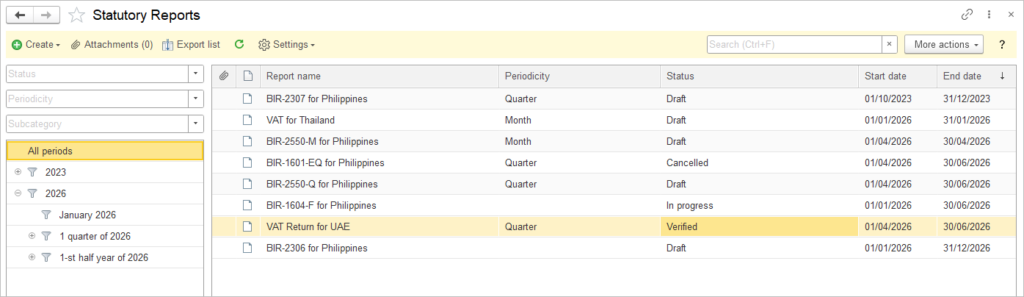
This workplace shows the list of generated statutory (tax) reports and their statuses. It is divided into a filter panel on the left and a reports list on the right. The screen title in the header is “Statutory Reports”.
Left panel – filters and periods
- At the top there are three drop‑down filters: Status, Periodicity, and Subcategory. They filter the report list on the right.
- Below, there is a tree of periods. The root item is All periods. Under it, there are years (for example, 2023, 2026).
- Each year can be expanded to show nested periods, such as January 2026, 1 quarter of 2026, 1‑st half year of 2026. Selecting a period filters the reports list.
Toolbar above the list
- On the left of the toolbar there are buttons: Create, Attachments (0), Export list, and Settings for working with reports and customizing the list.
- In the center/right part, there is a Search (Ctrl+F) field for quick search by report name, and a More actions drop‑down with additional commands.
- A help button with a question mark opens context help for this workplace.
Reports list
- The main area contains a table with one report per row. Columns include:
- Report name – the name of the statutory report (for example, “VAT Return for UAE”, “BIR‑2307 for Philippines”).
- Periodicity – how often the report is submitted (Month, Quarter, etc.).
- Status – the current state (Draft, In progress, Cancelled, Verified or custom status).
- Start date and End date – the reporting period boundaries.
Form Statuses #
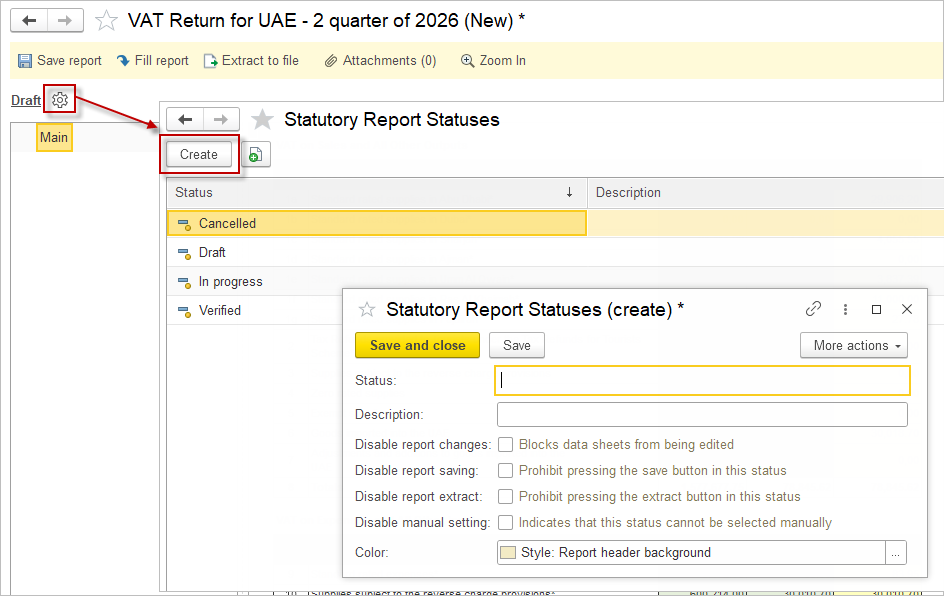
Form statuses help track the current stage of a statutory report and control which actions users can perform in that stage. They can be used both for workflow -visibility and for restricting changes when a report reaches a controlled or final status. The pre-installed statuses are: Cancelled, Draft, In progress, and Verified.
To create a new status:
- Click Create.
- Enter the Status name and optionally enter a Description to explain when the status should be used.\
- Select the required control options for the status:
- Disable report changes — blocks data sheets from being edited while the report is in this status.
- Disable report saving — prevents users from pressing the save button when the report has this status.
- Disable report extract — prevents users from pressing the extract button when the report has this status.
- Disable manual setting — indicates that this status cannot be selected manually.
4. Choose a Color to make the status easier to identify.
5. Click Save or Save and close.
Available Reporting Forms #
Two types of forms are supported:
- Country-specific forms developed by ACS team, and
- Custom developments
In the ACS demo database, all available forms are pre-connected without country separation for testing.
Connecting Forms #
For on-premises version:
- Download from Partner’s Personal Account and follow the installation guide.
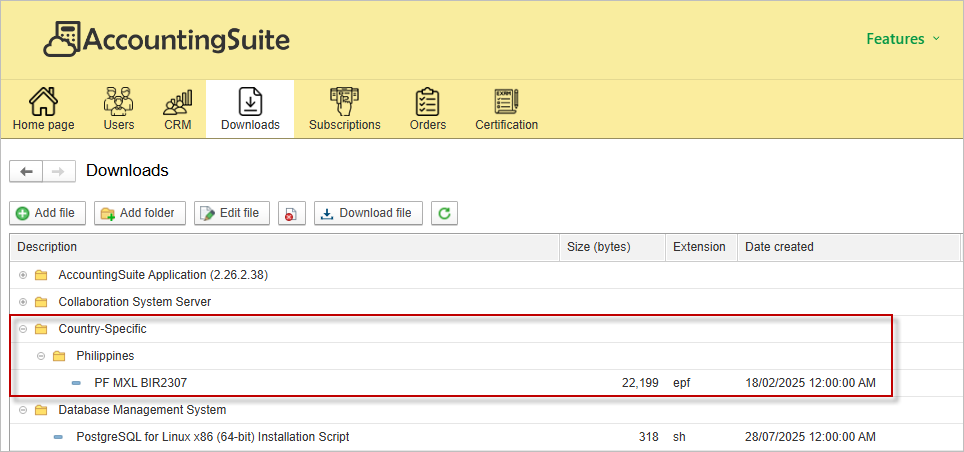
For Cloud version:
- Contact support with your database number.