
Personnel Order Document in AccountingSuite is a crucial tool used by HR and finance departments to manage employee lifecycle events such as hiring, transferring, and dismissing employees.

Create an Employee #
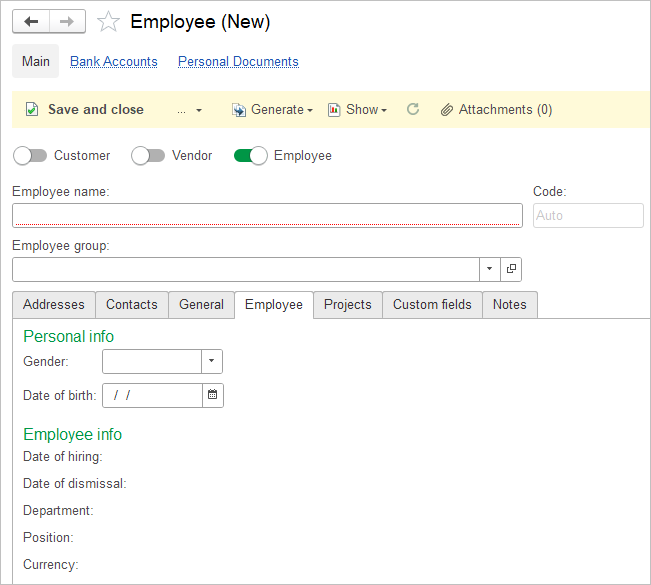
- Navigate to Payroll – Lists – Employees. Employee is an entry type in the Companies list, which brings together the relationship with all counterparties – Vendors, Customers and Employees. Your Employee can be your Customer (in case they buy anything) or an Employee can be your Vendor (e.g. if he rents the car to your Company).
- Create a New entry.
- Tick the checkbox Employee.
- Specify the name, Gender and Date of birth.
- Save the entry.
- Employee info (Date of hiring / Dismissal, Department etc.) will be filled in automatically, once the Personnel order is posted.
Hire an Employee #
- Navigate to Payroll → Personnel Orders.
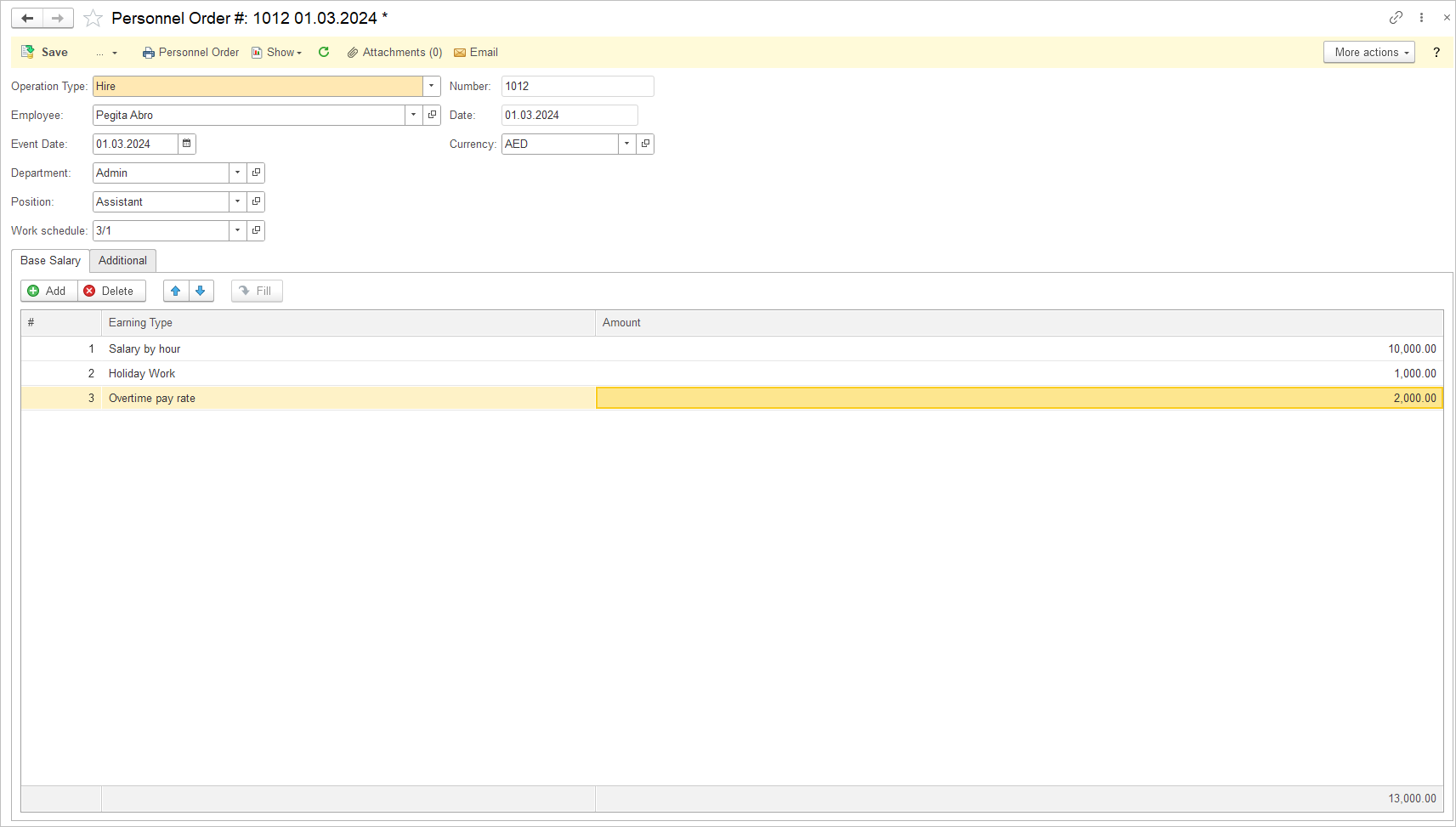
- Click Create and select Hire Employee document type.
- Specify the hiring date in the Event date field.
- Select an Employee (Employees are stored in the Companies list).
- Specify the Department (optional) and Position (required).
- Specify the Work Schedule (required).
- Add all the necessary earning types. The Amount field shows the rate for the selected period (per hour, day, month, etc.). This field corresponds to the Basic Salary variable in the formula editor for the Earning Type.
- Save the document.
Transfer an Employee #
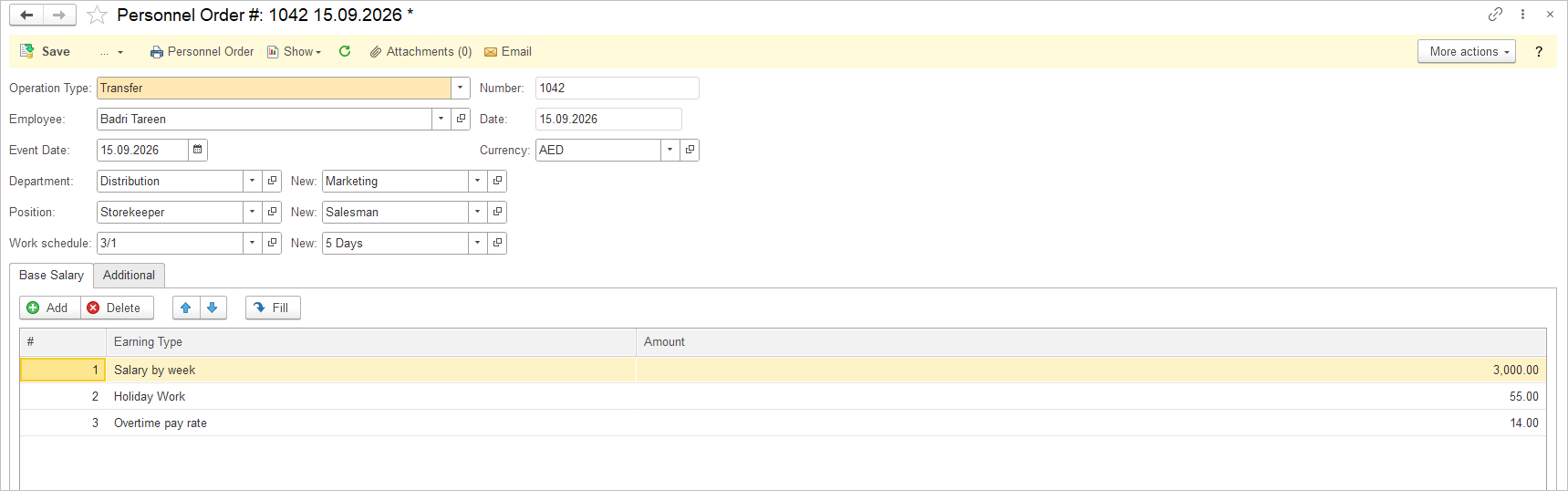
Use the Transfer document to change an employee’s employment information.
- Navigate to Payroll → Personnel Orders.
- Click Create and select Transfer document type.
- Specify the transfer date in the Event date field.
- Current information will be automatically populated from the previous document of type Hire or Transfer.
- A dialog box will then appear, offering you the option to populate the Base Salary table based on the previous document.
- Make the necessary changes to the employment information. The Position field is mandatory. If you do not need to change the position, select the same position from the list.
- Save the document.
Dismiss an Employee #
- Navigate to Payroll → Personnel Orders.
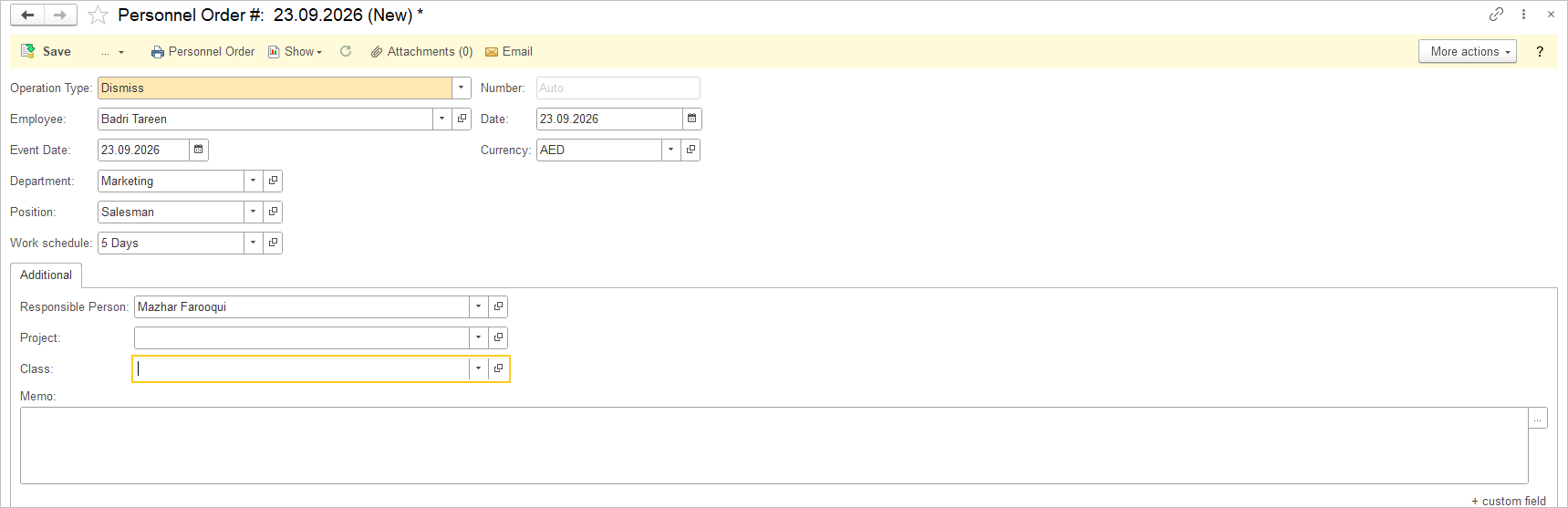
- Click Create and select Dismiss document type.
- Select an Employee (Employees are stored in the Companies list).
- Specify the dismissal date in the Event date field.
- All the necessary information will be populated from the last Hire or Transfer docuemnt
- Save the document.
Business Trip #
The Business trip Personnel Order records an employee’s business trip.
- Navigate to Payroll → Personnel Orders.
- Click Create and select Business Trip document type.
- Select an Employee (Employees are stored in the Companies list).
- Specify the trip dates in the Start Date and End Date fields.
- Add the appropriate Earning Type and enter the Amount. (An Earning Type marked as Base salary cannot be selected for the Business Trip order.)
- Save the document.
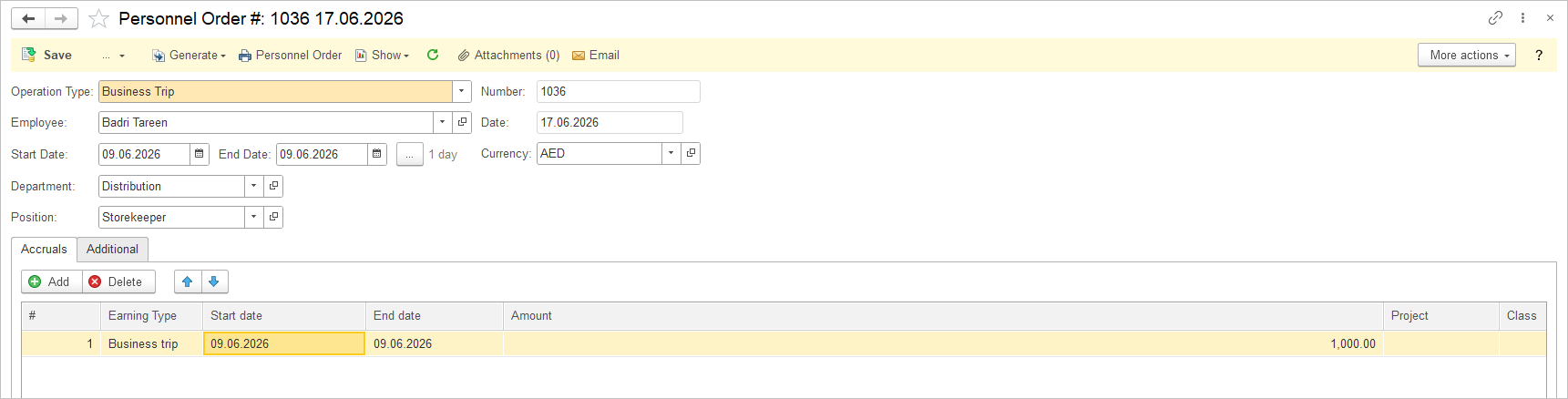
When a corresponding Earning Type is specified in the Business Trip order, the Timesheet displays Payroll Time Code associated to that Earning Type instead of the standard Regular hours for the affected period.
This allows the business trip period to be distinguished from regular working time.
Vacation #
The Vacation Personnel Order records an employee’s vacation period.
- Navigate to Payroll → Personnel Orders.
- Click Create and select Vacation document type.
- Select an Employee (Employees are stored in the Companies list).
- Specify the vacation dates in the Start Date and End Date fields.
- Add the appropriate Earning Type and enter the Amount. (An Earning Type marked as Base salary cannot be selected for the Vacation order.)
- Save the document.
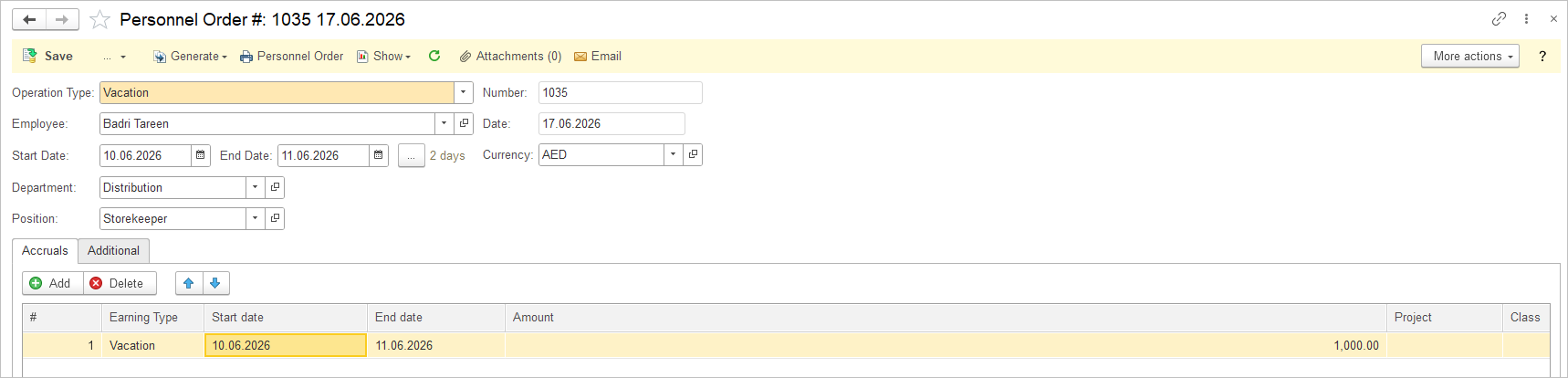
When a corresponding Earning Type is specified in the Vacation Personnel Order, the Timesheet displays Payroll Time Code associated to that Earning Type instead of the standard Regular hours for the affected period.
This allows the vacation period to be distinguished from regular working time.
Sick Leave #
The Vacation Personnel Order records an employee’s vacation period.
- Navigate to Payroll → Personnel Orders.
- Click Create and select Sick Leave document type.
- Select an Employee (Employees are stored in the Companies list).
- Specify the vacation dates in the Start Date and End Date fields.
- Add the appropriate Earning Type and enter the Amount. (An Earning Type marked as Base salary cannot be selected for the Sick Leave Personnel Order.)
- Save the document.
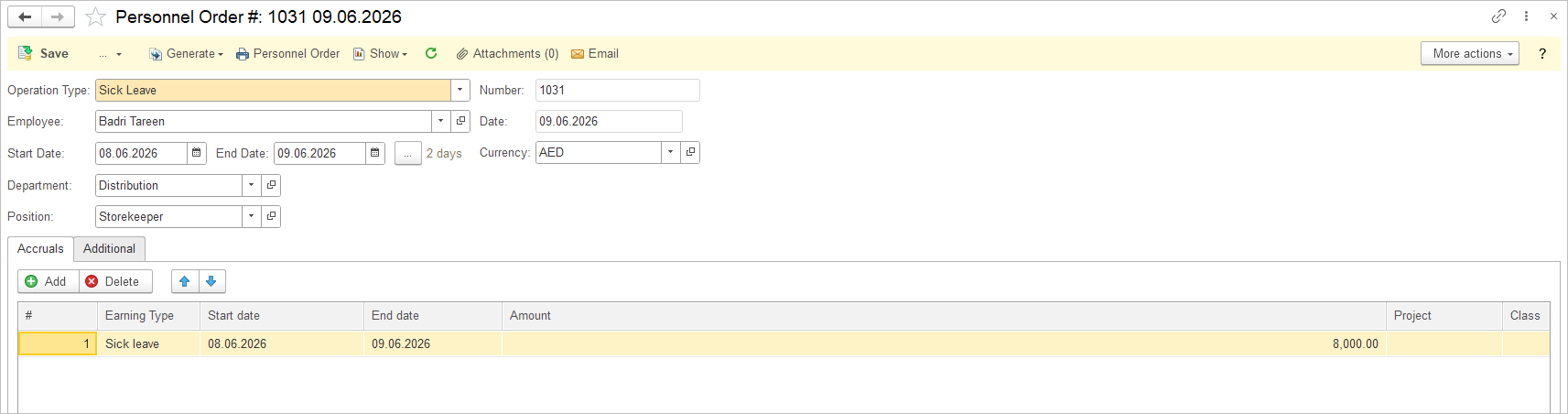
When a corresponding Earning Type is specified in the Sick Leave Personnel Order, the Timesheet displays Payroll Time Code associated to that Earning Type instead of the standard Regular hours for the affected period.
This allows the sick leave period to be distinguished from regular working time.
Maternity Leave #
- Navigate to Payroll → Personnel Orders.
- Click Create and select Sick Leave document type.
- Select an Employee (Employees are stored in the Companies list).
- Specify the vacation dates in the Start Date and End Date fields.
- Add the appropriate Earning Type and enter the Amount. (An Earning Type marked as Base salary cannot be selected for the Maternity Leave Personnel Order.)
- Save the document.
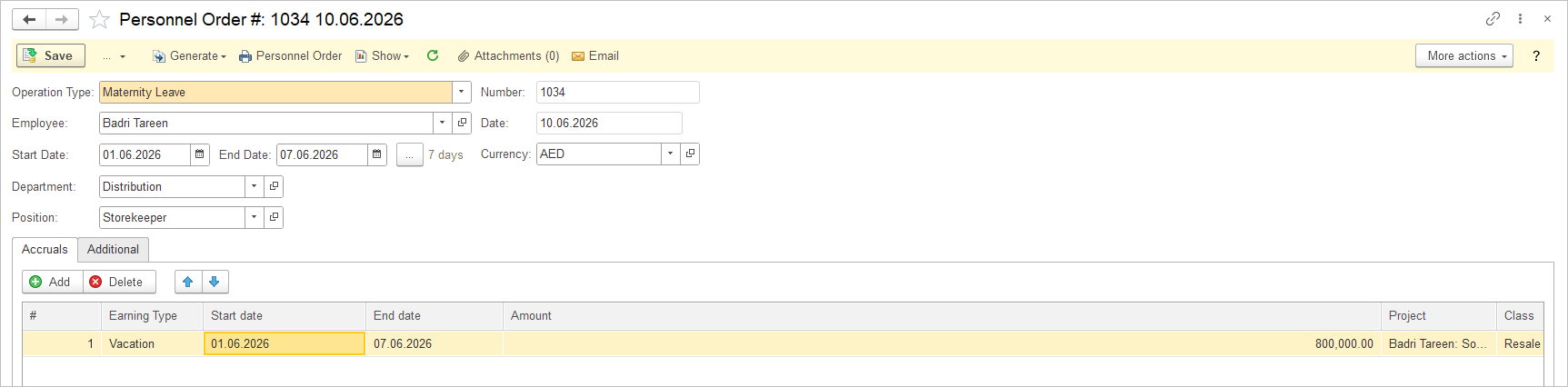
When a corresponding Earning Type is specified in the Maternity Leave Personnel Order, the Timesheet displays Payroll Time Code associated to that Earning Type instead of the standard Regular hours for the affected period.
This allows the maternity leave period to be distinguished from regular working time.
Unauthorized Absence #
- Navigate to Payroll → Personnel Orders.
- Click Create and select Unauthorized Absence document type.
- Select an Employee (Employees are stored in the Companies list).
- Specify the vacation dates in the Start Date and End Date fields.
- An Earning Type cannot be entered for this Personnel Order.
- Save the document.
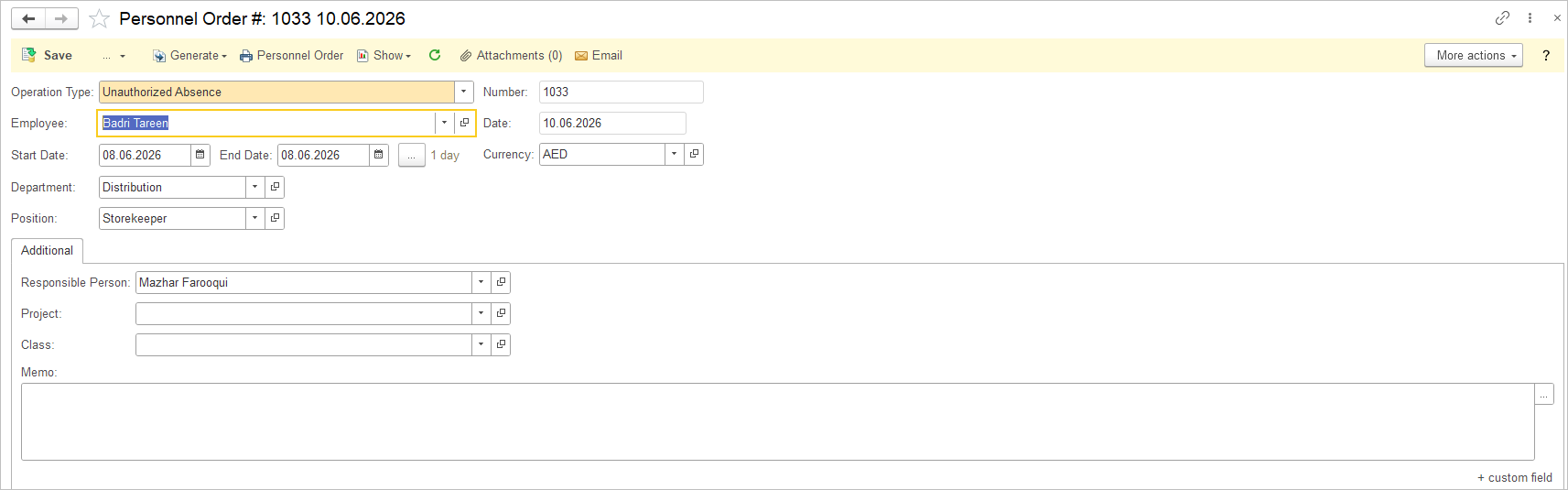
For an Unauthorized Absence period:
- no Earning Type is entered;
- the corresponding payment in Payroll document is 0.