
This guide explains how to account for checks that have not yet cleared the bank using the Undeposited Documents tab in the Bank Reconciliation module. It covers both sides of the transaction: checks you issue to vendors (outgoing) and checks you receive from customers (incoming).
For outgoing checks, the process uses the Outstanding Checks G/L account as a holding account until the check clears. For incoming checks, the process uses the Undeposited Funds G/L account until the funds are deposited into your bank account.
User can create their own G/L accounts for Outstanding checks and Undeposited funds. It is crucial to use:
- account category Liabilities and subcategory Post Dated / Outstanding Checks for Outstanding checks;
- account category Assets and subcategory Undeposited funds for Undeposited funds.
Use the Check/Ref # and Check/Ref Date fields to enter the basic details of the check, while the Memo field is used for additional information not covered by the standard fields.
The Undeposited tab is available in the Bank Reconciliation module. For more information about the functionality and the types of transactions displayed in this tab, please refer to the Undeposited Documents.
If you do not treat uncleared payments as issued or received checks, and these payments were not included in the bank statement, this will lead to distortions in the G/L accounting records. This method is also supported, but it is not recommended. For more details, see Uncleared Documents from Previous Period.
For the BUYER (Issuing a Check) #
At the time of check issuance:
- Record the payment in the payment document.
- As the G/L (payment) account, select your regular Bank Account.
This creates the following transactions in the General Journal:
- Debits: Accounts Payable
- Credits: Bank Account
At the time of Bank Reconciliation:
- if the check has not yet cleared on that date, change the G/L account from the Bank Account to the Outstanding Checks account with Change Transaction – To Undeposited button to such documents.
- The document will disappear from Reconciliation tab and will appear on the Undeposited Documents tab.
- Or move a Date of the such documents to real period where the money was spent with Change Transaction – Change Date button.
- The document will disappear from Reconciliation tab and will appear on next period of Bank Reconciliation.
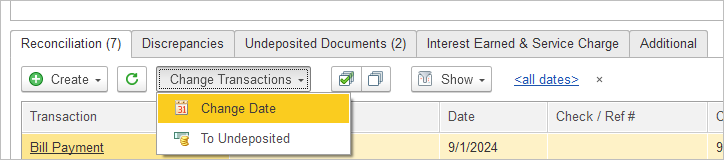
This change the following transactions in the General Journal to:
- Debits: Accounts Payable
- Credits: Outstanding Checks
In the next Bank Reconciliation, when the check clears:
- Create a Bank Transfer document to resolve the Outstanding check balance and decrease the Bank account balance.
- In the bank reconciliation so that the check is no longer shown as outstanding on the Undeposited Documents tab.
This creates the following transactions in the General Journal:
- Debits: Outstanding Checks
- Credits: Bank account
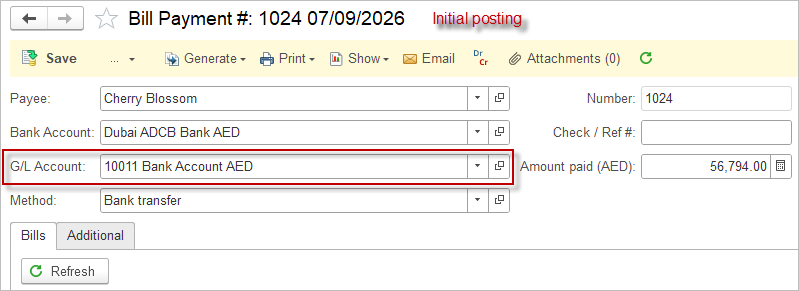
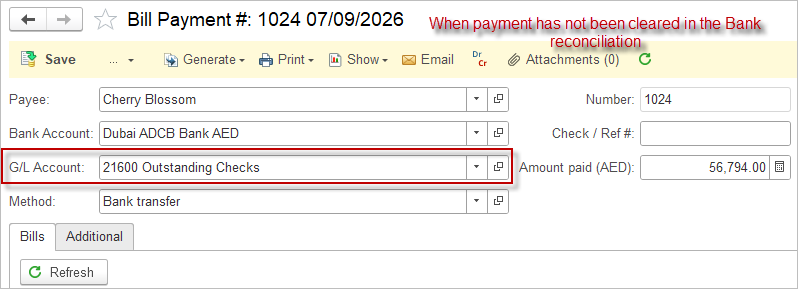
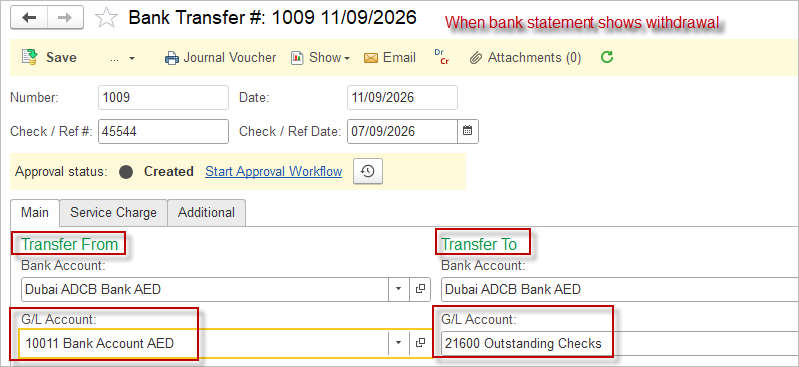
While the Undeposited tab is not yet available in the Bank reconciliation, please use the Bank reconciliation report to track the open checks – Section 4 Post Dated Checks.
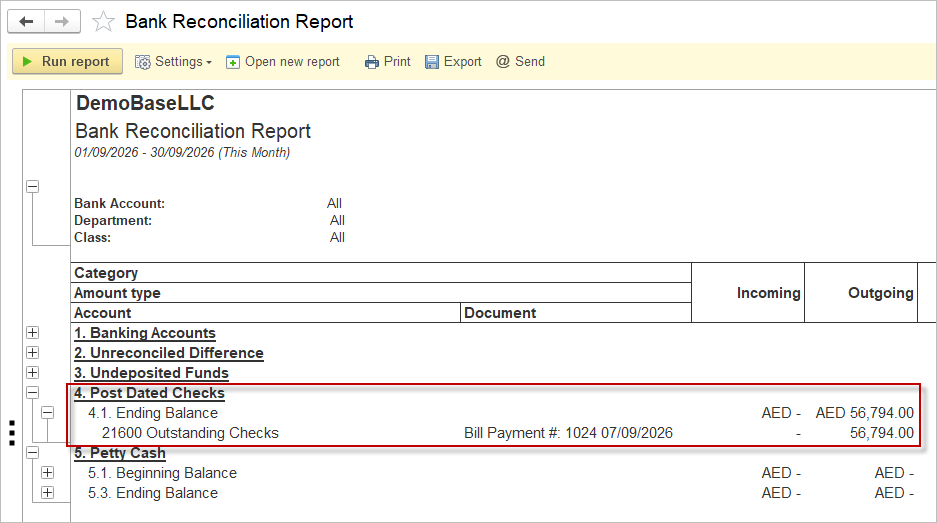
This approach allows you to track outstanding checks separately in the general ledger until they clear the bank.
For the SELLER (Receiving a Check) #
When you receive a check, you have an asset that you cannot deposit immediately. Hold it in the “Undeposited Funds“ G/L account.
Create a Sales Invoice: Record the sale as you normally would.
- Receive Payment with a check:
- Go to Cash Receipt document.
- Select the customer and invoice.
- As the G/L account, choose “Undeposited Funds“ instead of your regular Bank account.
- Enter the check details (check number, future date) in the Check/Ref # and Check/Ref Date fields.
This creates the following transactions in the General Journal:
- Debit: Undeposited Funds (records the asset of the held check)
- Credit: Accounts Receivable (clears the customer’s debt)
On the Check’s Date When You Deposit It:
- Move the funds from “Undeposited Funds“ to your bank account using the Deposit document:
- Select the Cash Receipt or Cash Sale documents in a lines from “Undeposited Funds” that you are now depositing (the check that has matured).
- Deposit them into your actual Bank Account.
This creates the following transactions in the General Journal:
- Debit: Bank Account (increases your cash)
- Credit: Undeposited Funds (decreases the held funds asset)
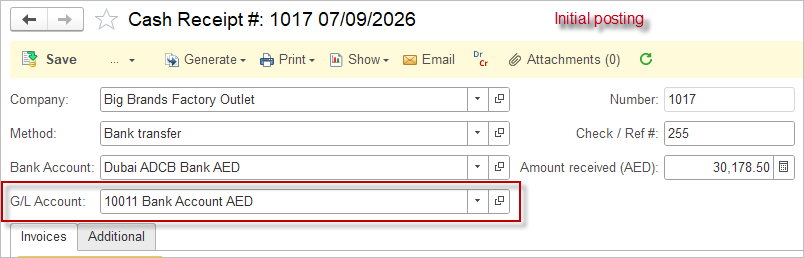
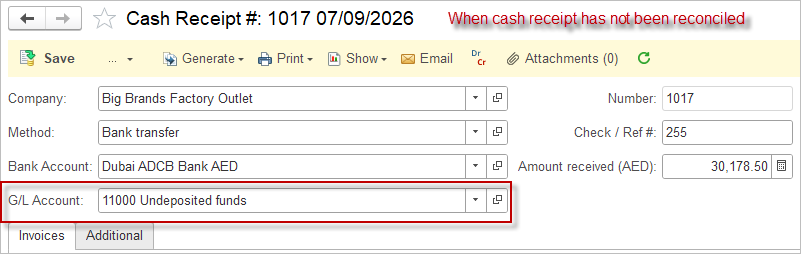
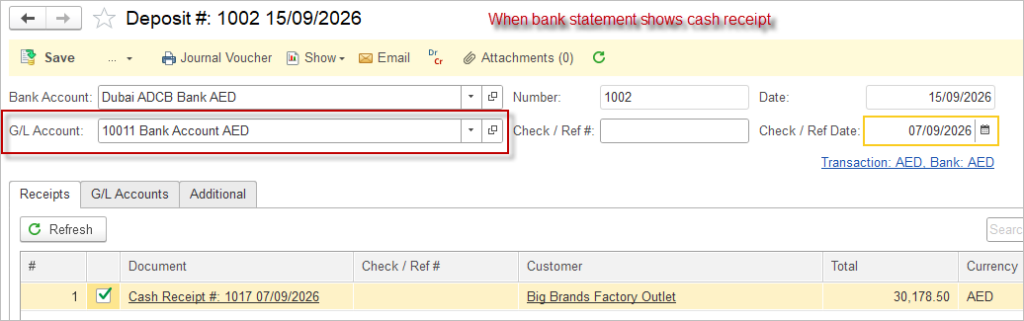
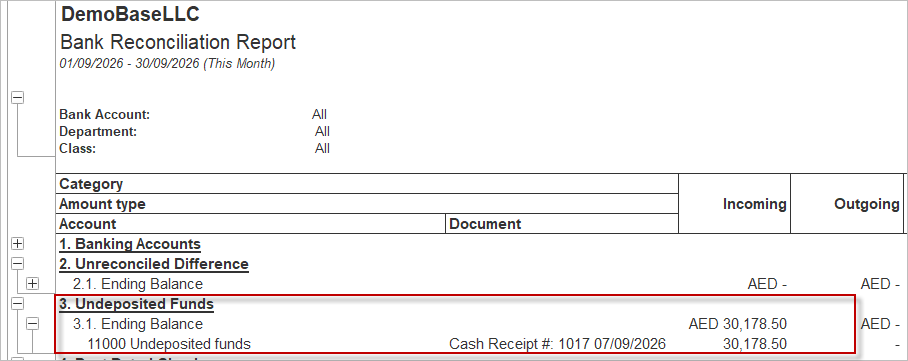
While the Undeposited tab is not yet available in the Bank reconciliation, please use the Bank reconciliation report to track the open checks – Section 3 Undeposited funds.
Summary Workflow with Outstanding Checks and Undeposited Funds #
| Role | Action | Document in AccountingSuite | G/L Account Used |
|---|---|---|---|
| Buyer (Issuer) | Issue a check to a Vendor | Bill Payment | Outstanding Checks (as the payment account) |
| Buyer (Issuer) | Clear the check on its date | Bank Transfer | From: Bank Account To: Outstanding Checks |
| Seller (Receiver) | Receive a check from a Customer | Cash Receipt | Undeposited Funds (as the deposit account) |
| Seller (Receiver) | Deposit the matured check | Deposit | From: Undeposited Funds To: Bank Account |
By following this process, you ensure that checks are properly tracked in your accounting records without distorting your actual bank balance until the payment is legally due. Use the Check/Ref # and Check/Ref Date fields to enter the basic check details (number and future date), while the Memo field is used for any additional remarks. These fields – Check/Ref # and Check/Ref Date can also be used as a reference during Bank reconciliation and Import Bank Transactions processes.
Undeposited Documents #
The Change Transactions – To Undeposited option allows users to change the G/L Account for selected transactions and move them from the Reconciliation section to the Undeposited Documents section. The Undeposited Documents tab in the Bank Reconciliation module is a unified view for checks that have not yet affected the bank balance, regardless of direction.
- Outstanding Checks Issued and Post Dated Checks Issued represent amounts owed by the company, i.e. the company’s liabilities toward other parties. Therefore, the corresponding G/L Account can only be configured for documents that represent the company’s liabilities.
- Undeposited documents represent amounts owed to the company, i.e. funds that the company expects to receive. For example, if Cash Receipt is selected as the G/L Account, the corresponding account will be Undeposited Funds.
In order to change the G/L Account, the Bank Reconciliation document must have the status Uncleared. If the document has already been marked as Cleared, the G/L Account cannot be changed for that document. When making a change, attention should be paid to the nature of the transaction, specifically whether the transaction represents a liability of the company or an amount that the company expects to receive.
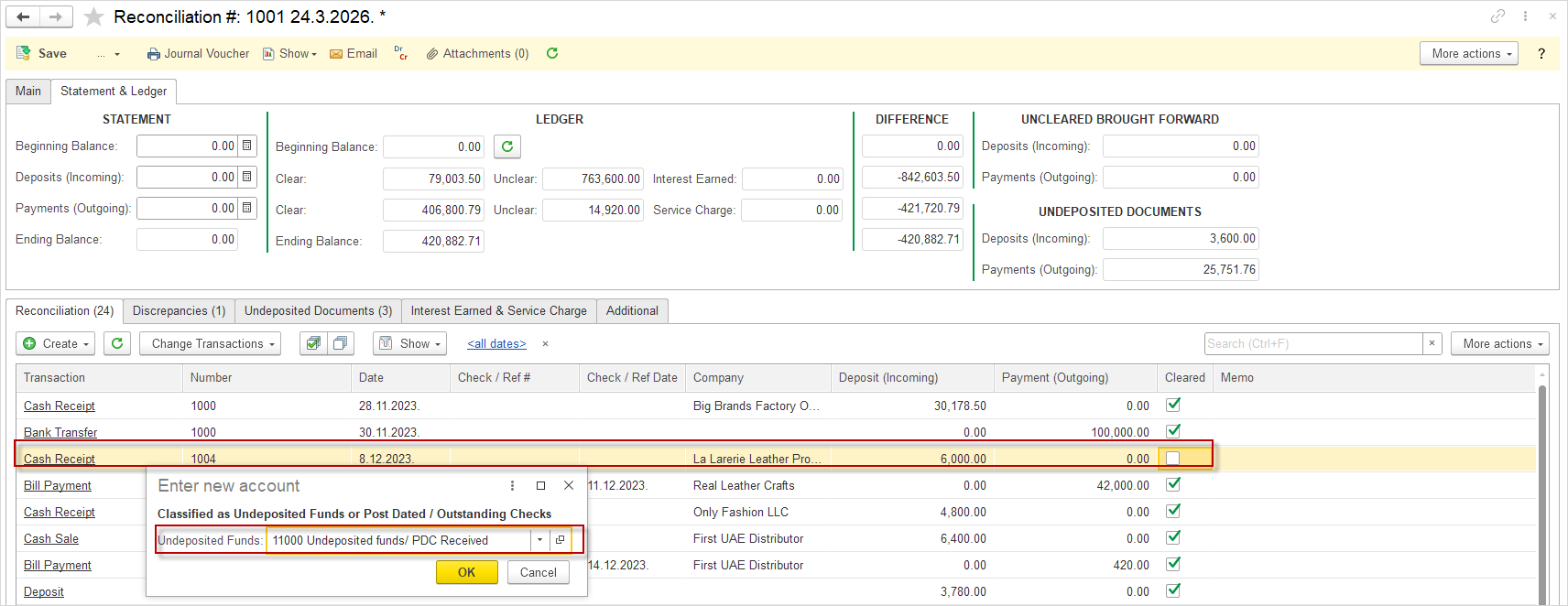
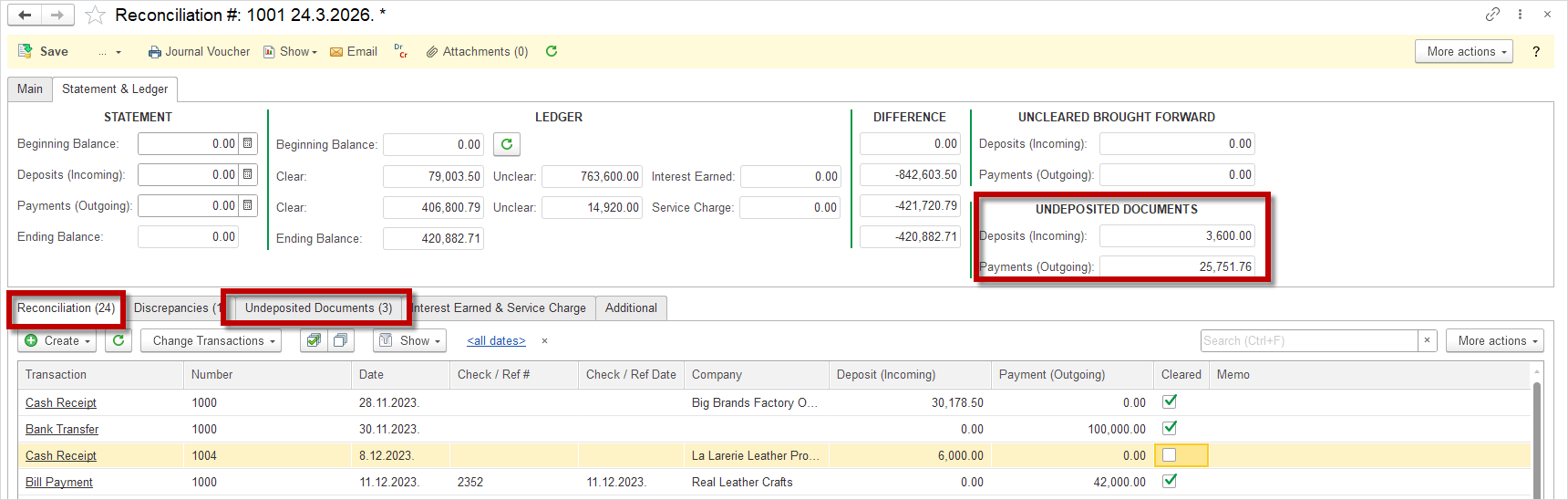
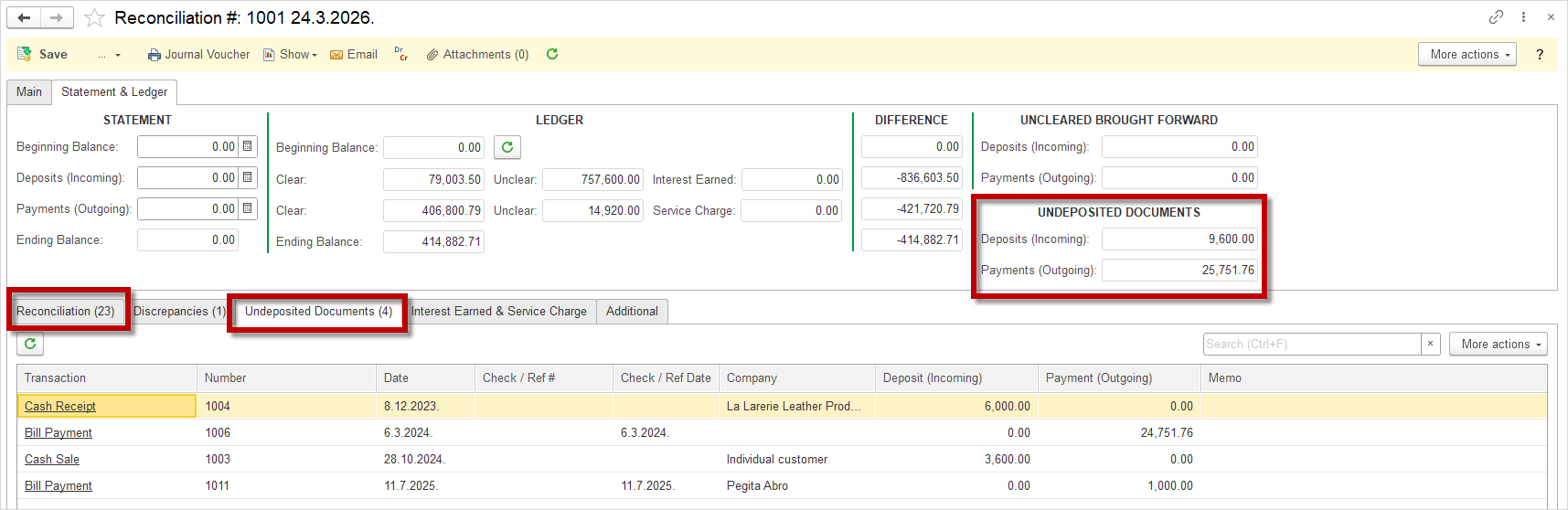
Changing the G/L Account also affects the number of documents displayed in the Reconciliation and Undeposited Documents sections:
- the number of documents in the Reconciliation tab decreases;
- the number of documents in the Undeposited Documents section increases;
- the transaction is no longer displayed in the Reconciliation section and is instead displayed in the Undeposited Documents section;
- the amount displayed in the header group UNDEPOSITED DOCUMENTS is also adjusted, depending on whether the transaction represents a Deposits (Incoming) or a Payment (Outgoing).
This ensures that transactions are properly classified according to their actual nature and current status.
Changes to the G/L Account, as well as moving a transaction between the Reconciliation and Undeposited Documents tabs, can also be viewed in:
- Bank Reconciliation Report;
- Import Bank Transactions.

This allows users to see the updated transaction information in other relevant areas of the system and ensures that the changes made in the Bank Reconciliation document are reflected consistently across the related functionalities.
Uncleared Documents from Previous Period #
Special attention should be paid to documents from previous periods that have not been marked as Cleared.

Please note: We do not recommend leaving documents in the Reconciliation document that are not in the real Bank Statement. This distorts accounting. Such documents must be
- translated into a draft,
- or the date shifted to the period where they will be,
- or transferred to Undeposited Documents.
Please note that the Cleared mark does not affect the balance of the system’s G/L accounts, and you will always accumulate a discrepancy with the actual Bank Statement, which is reflected in the field group UNCLEARED BROUGHT FORWARD.
Documents that are not marked as Cleared in the current Reconciliation document will appear in the new Bank Reconciliation document and will be displayed in red color lines as a dates from the past.
The amount displayed in the header group UNCLEARED BROUGHT FORWARD is also adjusted, depending on whether the transaction represents a Deposits (Incoming) or a Payment (Outgoing).
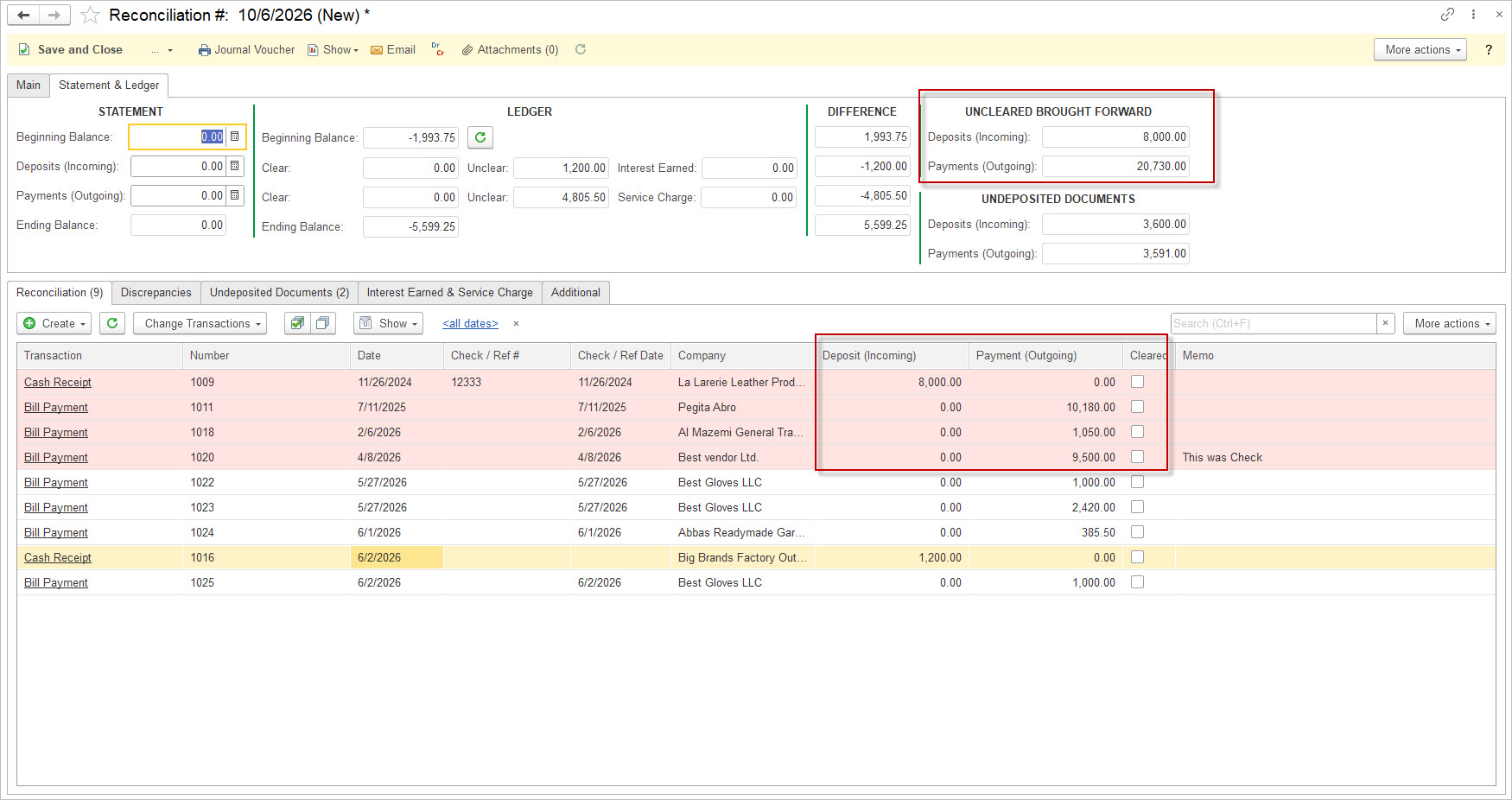
The red indicator means that:
- the document belongs to a previous period.
- the document was not marked as Cleared during the previous reconciliation.
- the document is therefore displayed again in the new Bank Reconciliation document and requires appropriate review.
This visual indication allows users to easily identify documents carried forward from a previous period and process them accordingly during the new reconciliation.