
The Budget vs. Actual Report will show budgeted amounts for each account included in the budget along with actual account totals for comparison purposes.

Create Budget vs Actual Report #
- Navigate to Reports / Budget vs Actual Report
- Choose a budget from the drop-down list.
- Click the accounting method (cash, accrual) to base the report on.
- Choose an option from the Display By dropdown.
- Choose the account presentation mode: Account Description only, Account Description and Code, or Code only.
- Check the checkboxes to Show accounts with a zero balance, show % of total and show total if those options are desired.
- Choose a sort field.
- Click Run Report.
- Click Save Settings to save these setting for a future report run (optional).
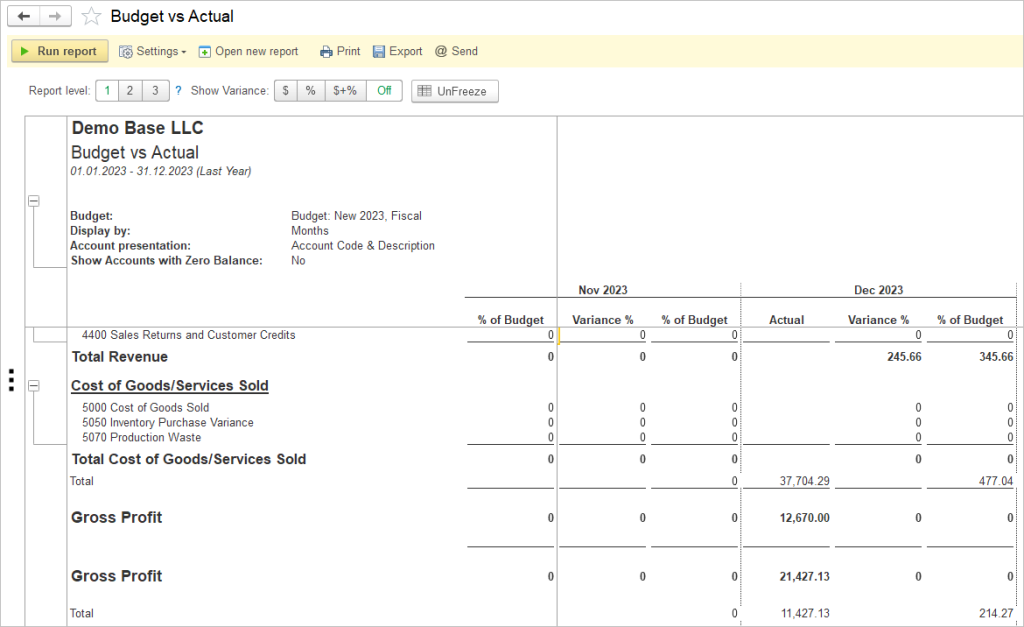
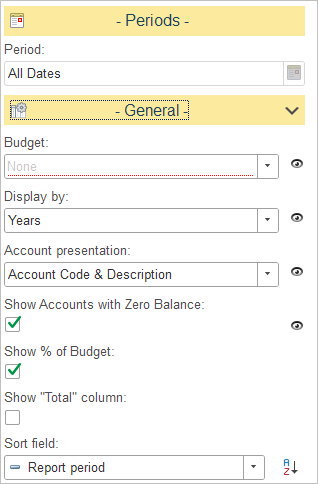
The General settings panel provides the following configuration options:
Show “Total” column
A checkbox to toggle the inclusion of a comprehensive total column in the report output.
Budget
A dropdown menu to select the specific budget to be compared against.
Display by
Determines how account balances are grouped in the report.
Select one of the available time intervals from the drop-down list. For example, when Years is selected, balances are summarized by reporting year. Other grouping options, such as Months and Quarters are available
Account Presentation
Defines how account information is displayed in the report.
Available options:
- Account Code & Description – Displays both the account code and the account description.
- Account Code Only – Displays only the account code.
- Account Description Only – Displays only the account description.
Show Accounts with Zero Balance
A checkbox that, when enabled, includes accounts with no activity or balance in the report.
Show % of Budget
A checkbox that, when enabled, displays the actual results as a percentage of the budgeted amount.