
At the end of an accounting period, income and expense accounts must be closed to prepare the books for the next reporting cycle. This process transfers the balances of temporary accounts to an equity account, usually retained earnings, so that each new period starts with zero balances in income and expense accounts.
Closing is an important part of period-end accounting because it ensures that the financial result is recorded correctly and that reports reflect only the activity of the current period. Income and expense accounts are temporary accounts. Their balances accumulate only during a specific accounting period and must not carry forward into the next one. By closing these accounts, the system resets them and transfers the net result of the period to equity.
This helps the organization:
- Determine the profit or loss for the period.
- Keep reporting periods separate.
- Prepare clean opening balances for the next period.
- Maintain accurate financial statements.
Initial Settings #
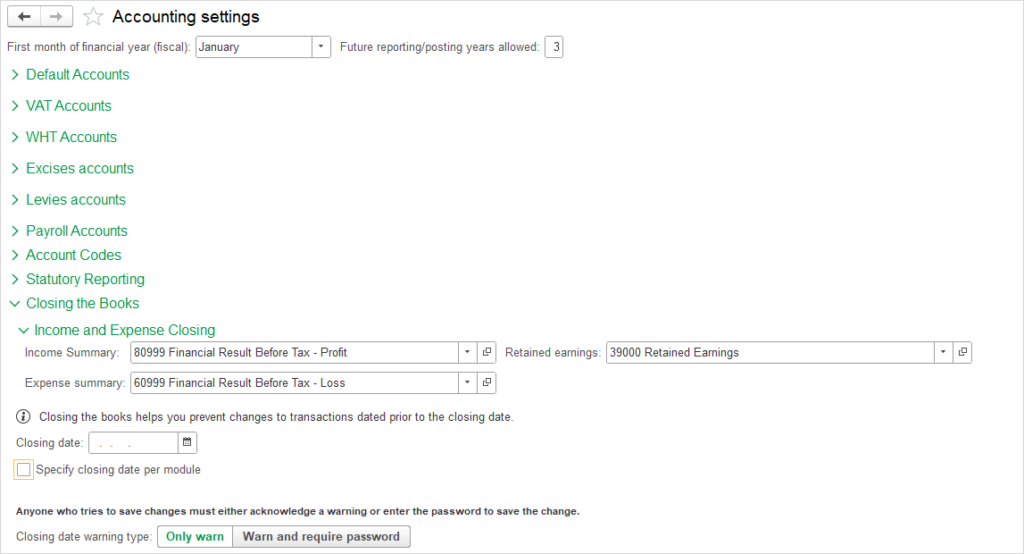
Navigate to Admin panel – Accounting settings – Closing the Books – Income and Expense Closing
During the closing process of an accounting period, the system uses the following accounts to transfer Income, Expenses and calculate the net result:
- Income Summary: The account to which all income is transferred during the automatic closing of an accounting period. A credit balance represents profit before tax, which is subsequently transferred to the retained earnings account.
- Expense Summary: The account to which all expenses are transferred during the automatic closing of an accounting period. A debit balance represents loss before tax, which is subsequently transferred to the retained earnings account.
- Retained Earnings: The account to which the net result (profit or loss) is transferred from the Income Summary and Expense Summary accounts at the end of an accounting period. It represents the accumulated retained earnings of the entity.
As a result of the flexible closing settings, users may choose between two options.
They may either close income and expense accounts through separate summary accounts, or close them directly to retained earnings by defining the retained earnings account within the summary-account setup.
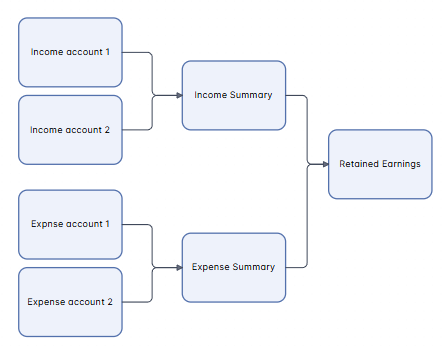
Option 1 #
different account set in the Income Summary / Expense Summary and the Retained Earnings (two-step closing).
All income and expense accounts are first closed to a temporary clearing account called Income/Expense summary (Step 1, performed by the Closing Income and Expenses document). After that, the balances in Income/Expense summaries are closed to Retained Earnings (Step 2, performed by the Closing Retained Earnings and Loss document).
This approach provides a clear audit trail from income statement accounts to net income and then to retained earnings.
If the priority is control, clarity, and a visible checkpoint, this option is better.
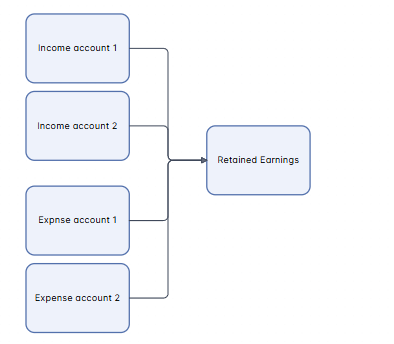
Option 2 #
Retained Earnings account set as Income Summary and Expense Summary account (one-step closing).
All income and expense accounts are closed directly into Retained Earnings without using Summary. This single step can be performed by the Closing Income and Expenses document or by the Closing Retained Earnings and Loss document.
This approach is faster because it removes one intermediate step, however it can make the closing process less transparent.
If the priority is speed and simplicity, direct closure to retained earnings is more efficient
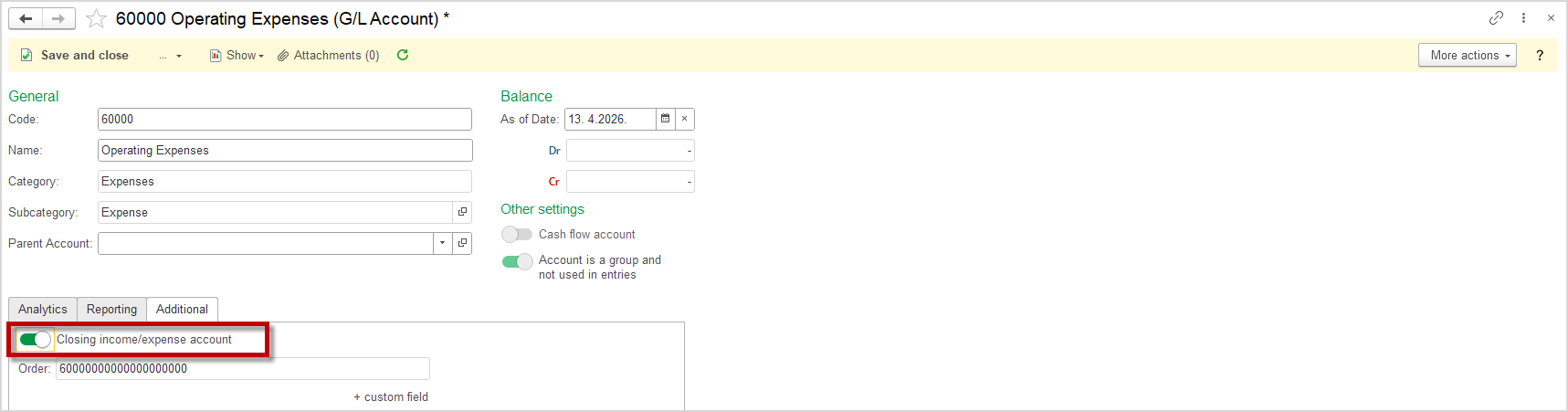
Within the Chart of Accounts, certain accounts have the option Closing Income/Expense Account. This option is available only for accounts with the categories Expenses and Income. This option determines whether the account will be included in the automatic closing process for income and expenses at the end of an accounting period.
When this option is enabled, the system will for that account:
- Include the account in the automatic transfer of income or expense balances during closing
- Close the account balance to the corresponding Income Summary or Expense Summary account
- Transfer the net result (profit or loss) to the Retained Earnings account
When this option is disabled, the account will not participate in the automatic income and expense closing process. The user must manually close such accounts.
Closing Income/Expenses #
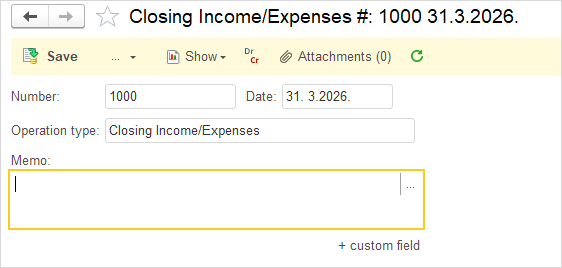
The Period Closing Transaction document with the operation type Closing Income/Expenses closes only those income and expense accounts that have the Closing Income/Expense Account attribute enabled. The closing is posted to the corresponding target accounts depending on the category (Income or Expenses), using the target accounts defined in the Closing the Books settings. If the target accounts are maintained by account classes, the closing is also performed within those classes. If you use a Classes, the final closing accounts will retain the class division for a separate interim result.
- Navigate to Accounting – Closing Income/Expenses
- Click the Create button.
- The document can be created for today’s date or for any other selected date.
- Click the Save button.
Closing Retained Profit/Loss #
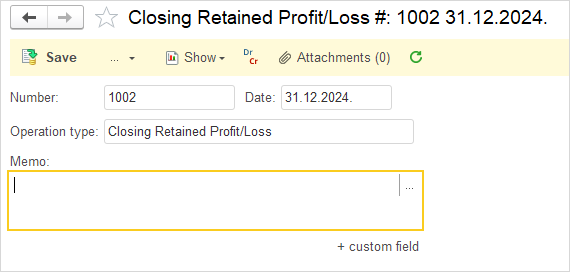
The Period Closing Transaction document with the operation type Closing Retained Profit/Loss closes all income and expense accounts, regardless of the Closing Income/Expense Account attribute settings. If you use a Classes, then the final closing account will have an empty class as the total result for the organization.
- Navigate to Accounting – Retained Profit/Loss
- Click the Create button.
- The document can be created for today’s date or for any other selected date.
- Click the Save button.
Aggregate Period Closing Transactions Journal #
By default, the menu has independent lists of period closing documents. But it is possible to set up a common list for these operations together with Exchange Differences.
A document journal titled Period Closing Transactions consolidates all operations performed during the closing of an accounting period, providing a centralized overview and tracking of executed closings. The journal includes documents of the type Period Closing Transaction (which encompasses all closing operation subtypes) as well as the Asset Depreciation document for fixed asset depreciation calculation.
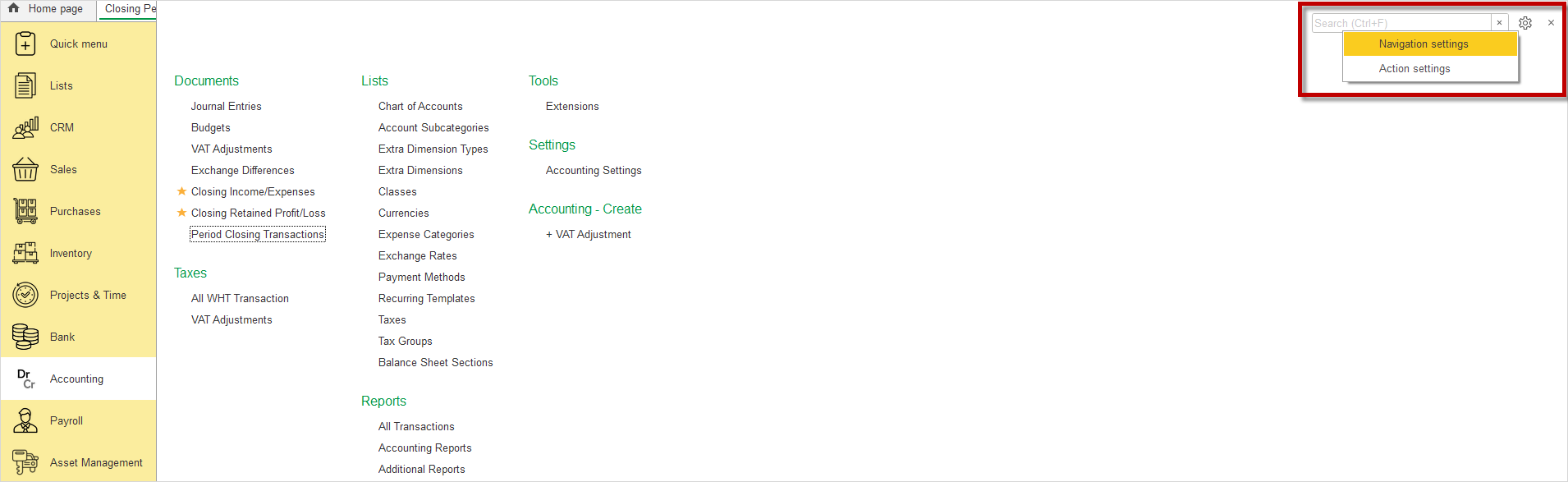
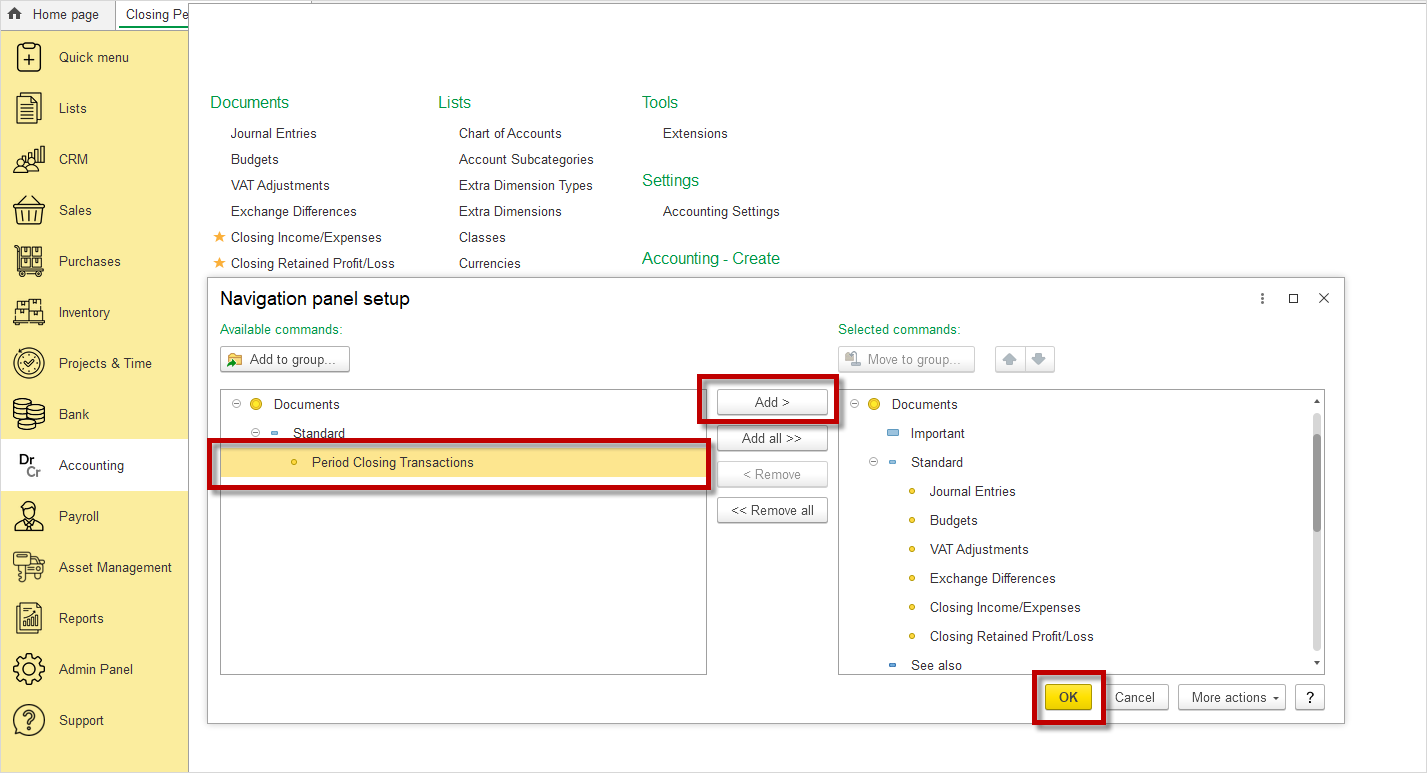
To add the Period Closing Transactions journal to the Accounting module, follow these steps:
- Navigate to Settings → Navigation Settings
- Click on Period Closing Transactions
- Click the Add button
- Click the OK button
Once the Period Closing Transactions journal is available, the following documents can be created from within it:
- Depreciation of Asset – for more information on creating this document, click the link
- Exchange Difference – for more information on creating this document, click the link
- Closing Income/Expenses
- Closing Retained Profit/Loss
Schedule Jobs Usage #
The system automatically calculates Closing Retained Profit/Loss and Closing Income/Expenses according to a predefined schedule, without the need for manual initiation.
To create a schedule, it is first required to add Closing Retained Profit/Loss and Closing Income/Expenses to Scheduled jobs.
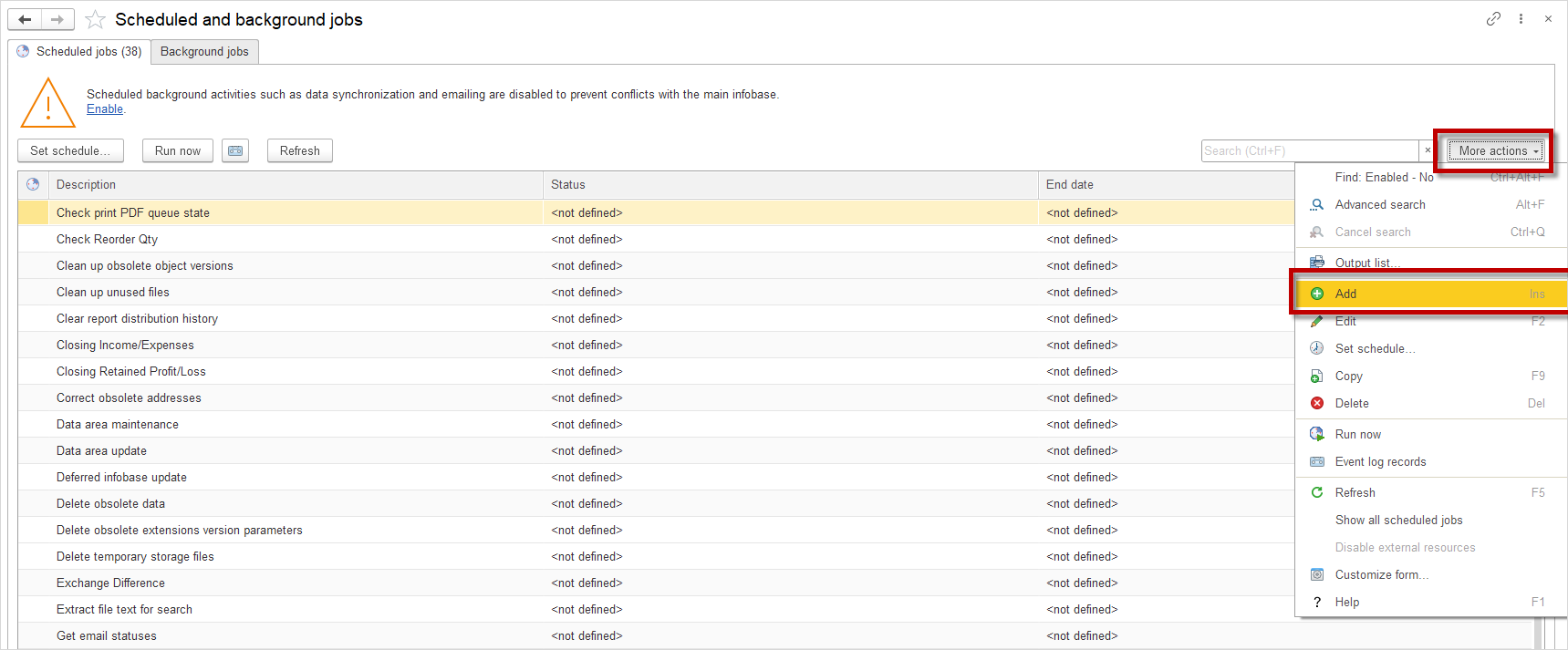
- Navigate to Admin Panel → Update and Service → Scheduled jobs tab – Schedule and background jobs
- In More actions, click Add
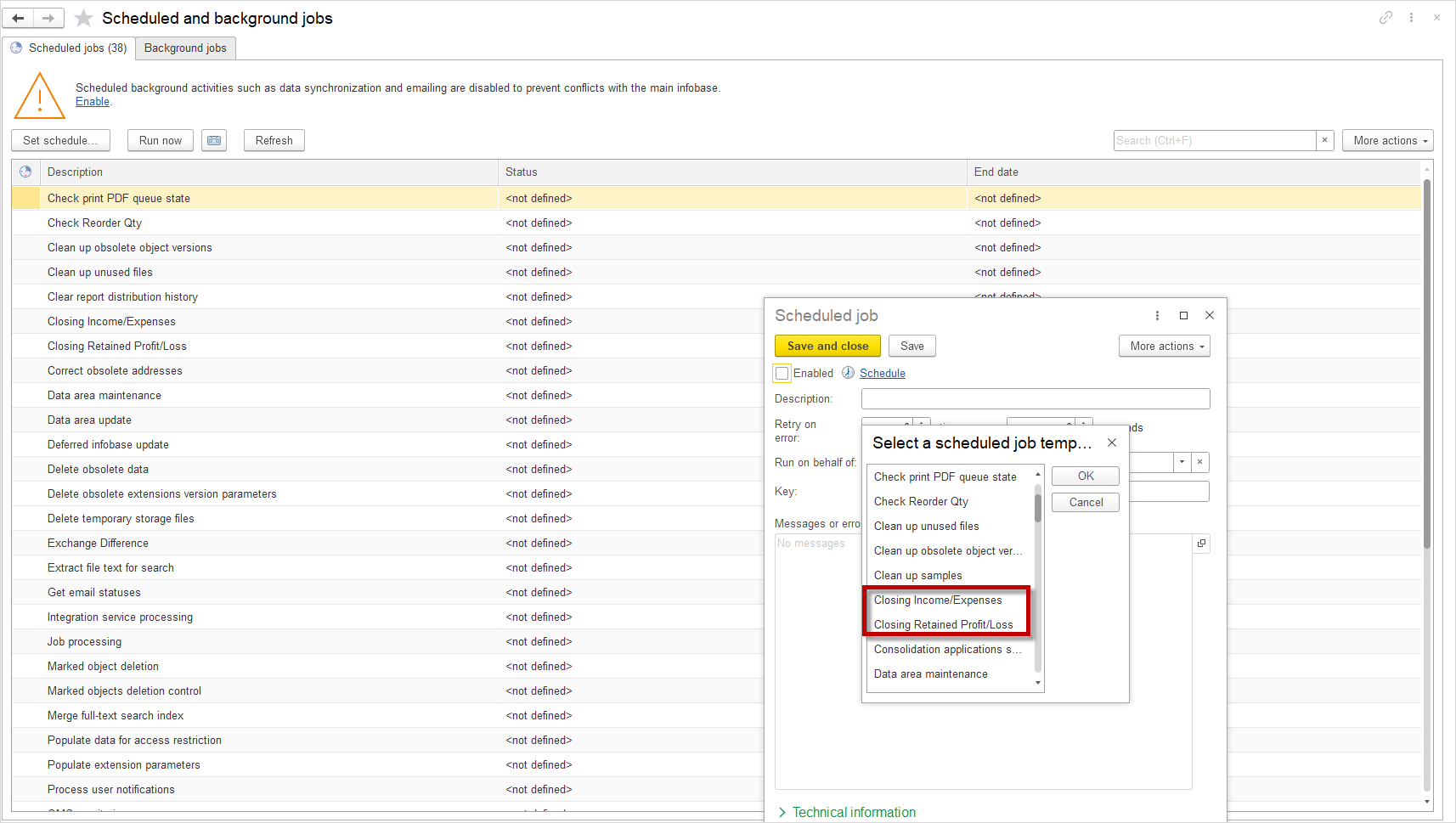
- Select the Schedule job template – Closing Retained Profit/Loss, Closing Income/Expenses
- Click OK
- Click Save and close
Instructions for creating a Schedule for Closing Retained Profit/Loss, Closing Income/Expenses сan be found on the Scheduled and background jobs page.