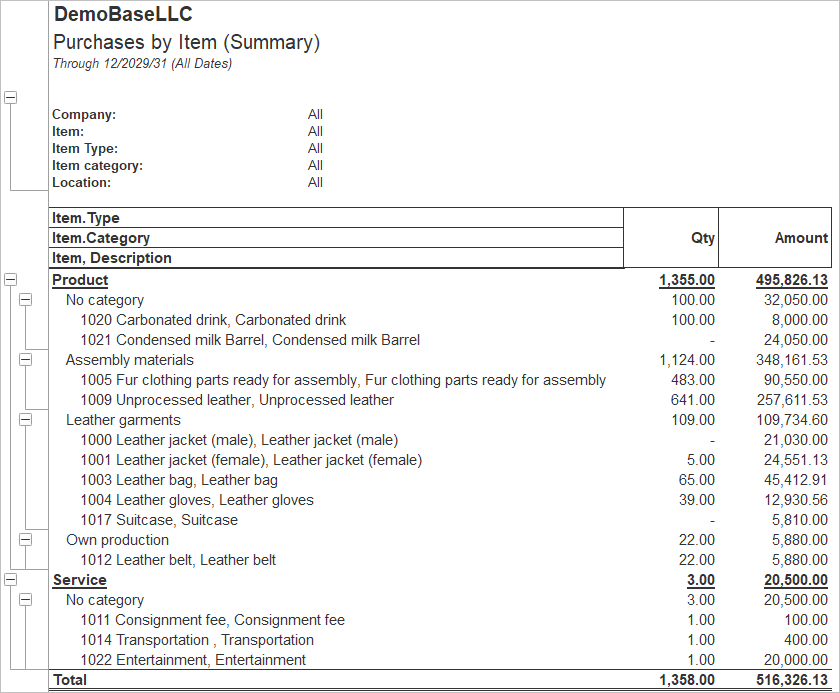
By analyzing purchases by item, you can identify which products or services are driving the majority of your expenses. This information can help you make informed decisions about inventory management, pricing strategies, and cost-saving opportunities to maximize profitability.
Understanding purchasing patterns by item allows you to pinpoint trends in consumer preferences and demand for specific products. This insight can guide your marketing efforts, product development, and inventory planning to better meet customer needs and stay ahead of competitors.
Analyzing purchases by item enables you to negotiate better deals with vendors by identifying high-volume items that offer potential for cost savings through bulk purchasing or vendor consolidation. By leveraging this data, you can optimize your procurement processes and enhance your overall purchasing strategy for greater efficiency and profitability.
Purchases by Item (Detail) #
The Purchases by Item (Detail) report provides a transaction-level view of purchases made during the selected reporting period. In addition to summarizing purchases by item, it displays every purchasing document associated with each item, including receipts, vendor bills, credit memos, and other purchasing transactions. The report is useful for analyzing procurement history, reviewing purchase costs, tracing individual transactions, and reconciling vendor activity.
Navigate to: Reports → Purchases → Purchsases by Item (Detail)
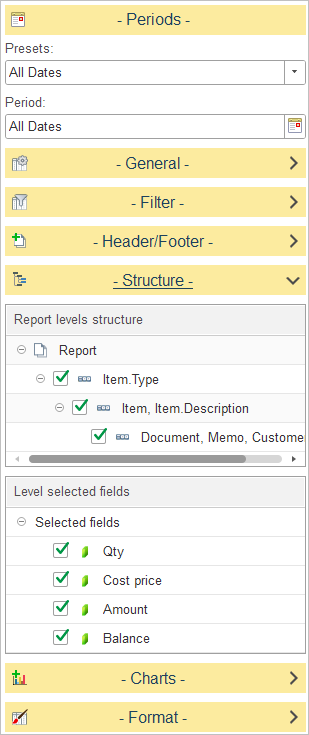
In Report levels structure, select how purchase data is grouped in the report.
The default report structure groups data as follows:
- Item Type – Groups purchased items by their type.
- Item, Item Description – Groups transactions by individual inventory item.
- Document, Memo, Customer/Vendor – Displays the detailed purchasing transactions recorded for each item.
To customize the report structure, expand the Structure section and select or clear the checkboxes next to each level to include or exclude it from the report hierarchy. You can also drag and drop levels to change the grouping order.
In Level selected fields, choose which columns are displayed for the selected report level.
The available fields include:
Balance – Displays the cumulative purchase value for the item after each transaction.
Qty – Displays the quantity purchased in each transaction.
Cost Price – Displays the unit purchase cost.
Amount – Displays the total amount of the purchasing transaction.
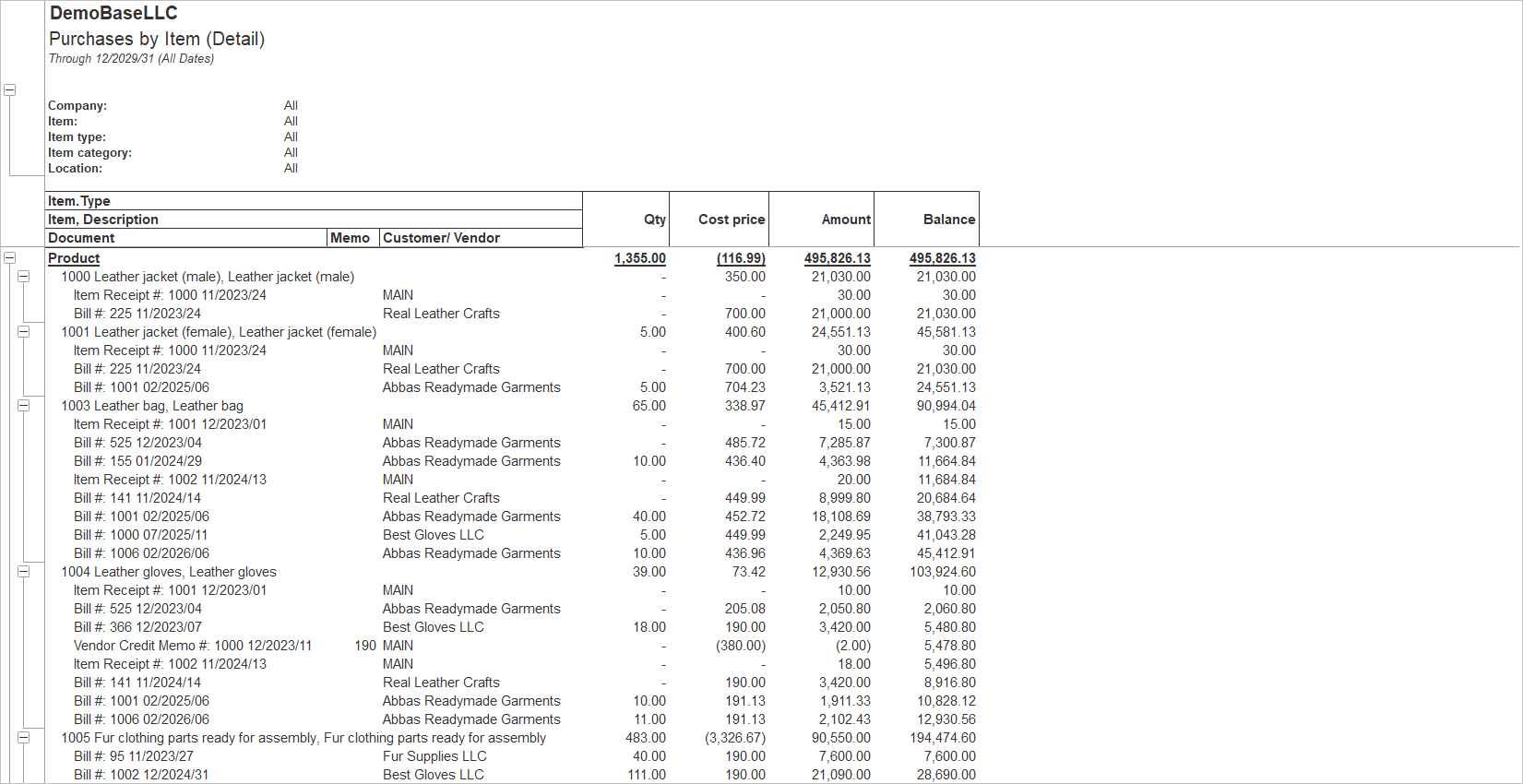
Purchases by Item (Summary) #
The Purchases by Item (Summary) report provides a consolidated view of purchased items for the selected reporting period. It summarizes purchasing activity by item, showing total quantities and purchase amounts without displaying individual purchasing transactions.
Navigate to: Reports → Purchases → Purchsases by Item (Summary)
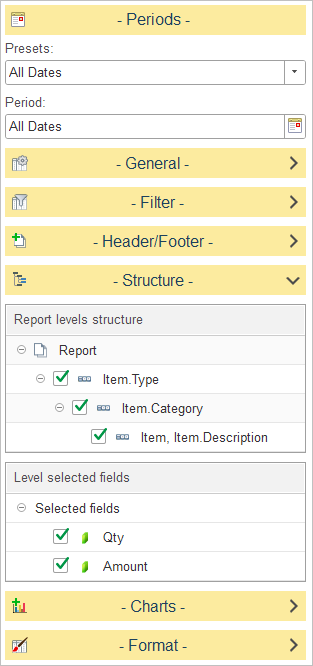
In Report levels structure, select how purchase data is grouped in the report.
In Report levels structure, select how purchase data is grouped in the report.
The default report structure groups data as follows:
- Item Type – Groups purchased items by their type (for example, Product or Service).
- Item Category – Organizes items within each item type by category.
- Item, Item Description – Displays summarized totals for each inventory item.
To customize the report structure, expand the Structure section and select or clear the checkboxes next to each level to include or exclude it from the report hierarchy. You can also drag and drop levels to change the grouping order.
In Level selected fields, choose which summary values are displayed for the selected level.
The available fields include:
Amount – Displays the total purchase value of the item.
Qty – Displays the total quantity purchased during the selected reporting period.