
Here are some common error messages and what to do about them.
Insufficient Balance #
Occasionally, users encounter the “insufficient balance for items” message during sales transactions. This problem may arise when the posting time recorded in a sales document is earlier than the time in the related purchase document, even though both take place on the same day. As a result, the system assesses inventory balances strictly by transaction time, rather than aggregating movements that occur within the same day.

To improve user experience and inventory accuracy, future development will enable the system to ignore the specific posting time in sales transactions. Movements occurring within the same calendar day will be consolidated, regardless of their exact time. This change will ensure that sales transactions posted on the same day as purchases will not trigger balance-related warnings solely due to time differences.
Diagnostic Step 1: Verify Posting Times in Documents
- Open both the purchase and sales documents
- Check the posting date and time for each document (Show – Document register records)
- Confirm whether the sale’s posting time is earlier than the purchase’s posting time on the same day. If so, this is likely the reason for the insufficient balance warning.

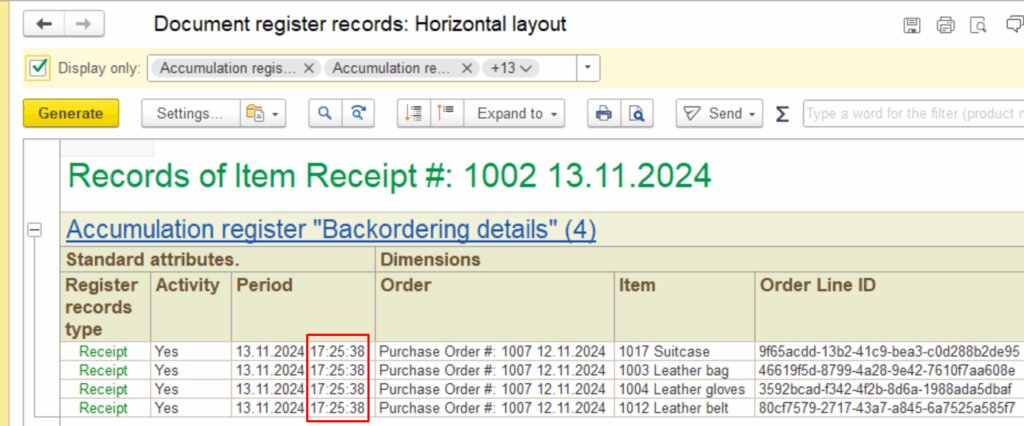
Alternatively, use the Item Activity/Costing report and tick for displaying time of posting:
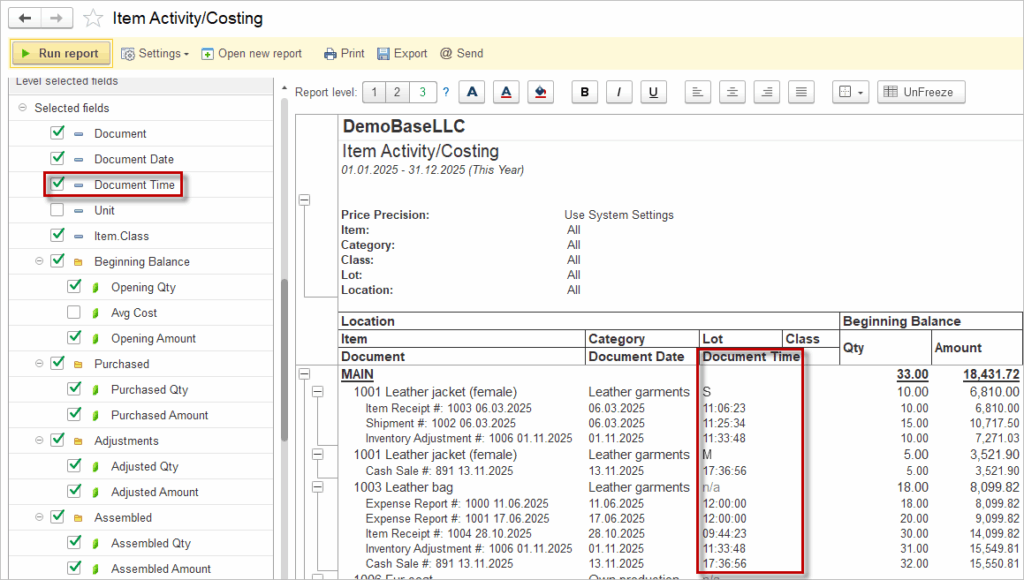
Corrective Step 2: Use Bulk Attribute Edit to Adjust Posting Times
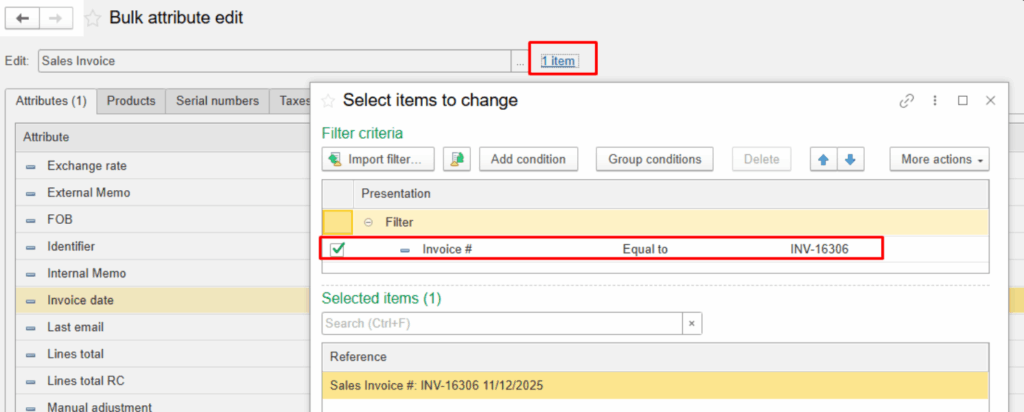
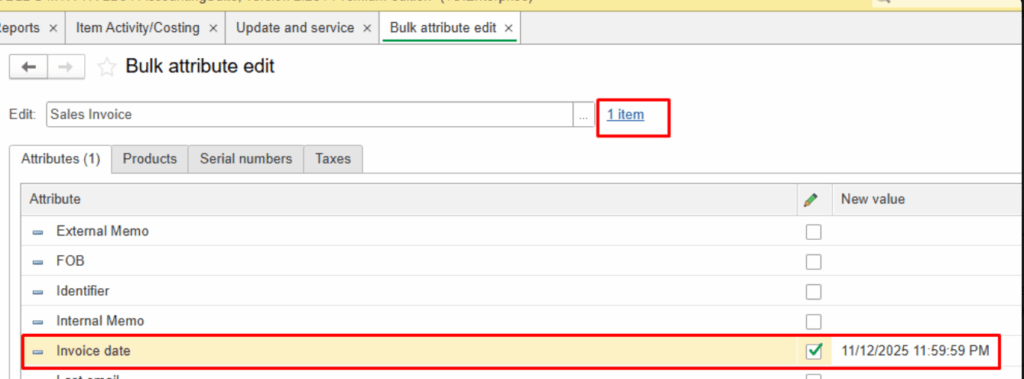
When it is confirmed that the posting time causes the issue, bulk attribute editing tools can be used to efficiently adjust the posting times:
- Access the bulk attribute edit feature under Admin Panel – Update and Service – Bulk attribute edit.
- Update the posting time of affected documents to ensure purchases precede sales within the same day.
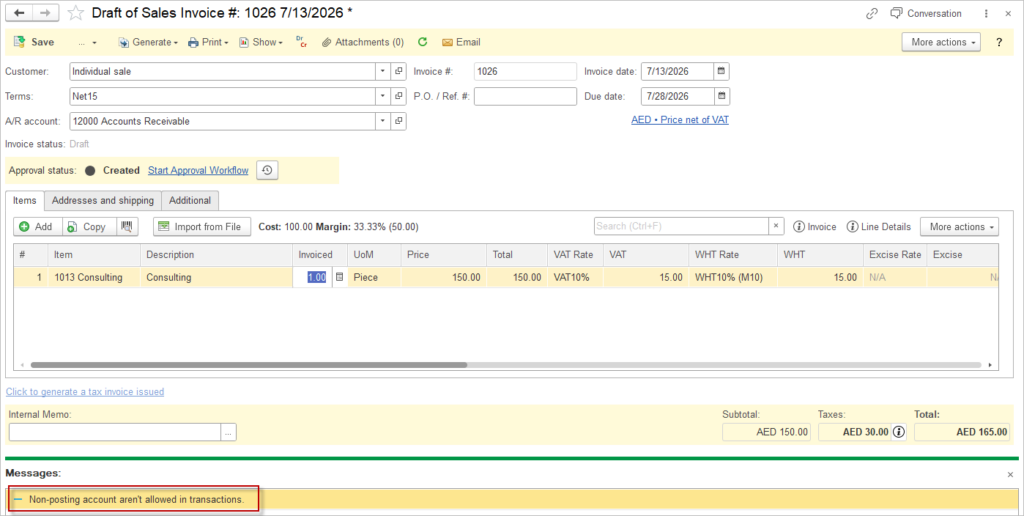
Non-posting accounts aren’t allowed in transactions #
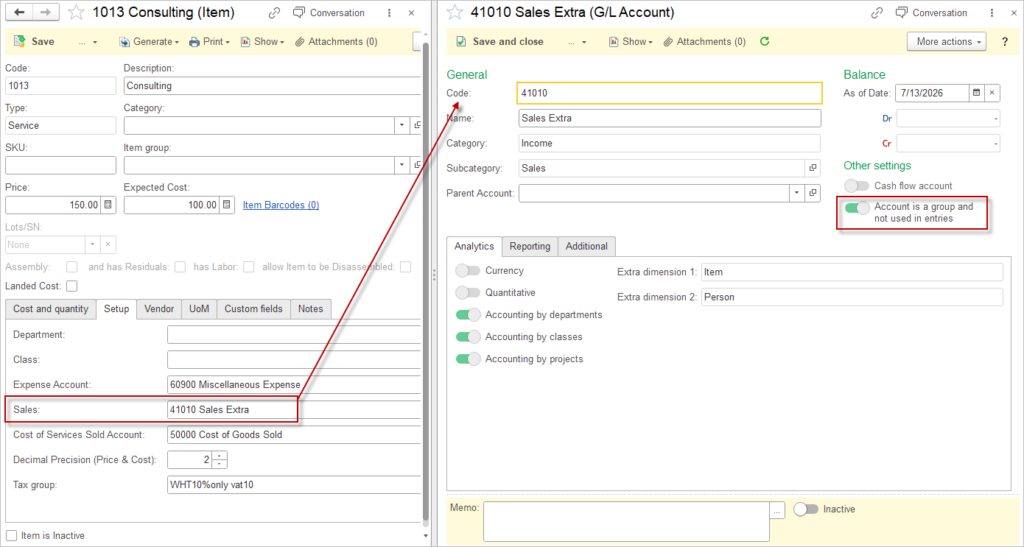
This error occurs when a transaction includes a General Ledger (G/L) account that is marked as non-posting (group account). Non-posting accounts are intended for grouping purposes only and cannot be used in actual financial postings.
Why This Happens
Although the system restricts the selection of non-posting accounts during normal transaction entry, this issue can still occur in the following scenario:
- A G/L account was originally created as a posting account and assigned in master data (Item Card, Vendor or Customer card, or Accounting settings)
- Later, the account was changed to a non-posting (group) account.
- Existing references to this account remain in configurations or documents, causing validation errors during transaction processing.
How to Fix
To resolve this issue, review all possible places where the account might be assigned and replace it with a valid posting account:
- Check the item (product/service) card: ensure that revenue, expense, or inventory accounts are valid posting accounts.
- Check the customer or vendor card: verify default accounts such as receivables, payables, or advance accounts.
- Check the document header: review any manually selected G/L accounts in the transaction.
- Review Accounting settings where default accounts are predefined.
Additional Recommendation
If the account was recently converted to a non-posting account, consider:
- Reverting it back to a posting account if it is still in use, or
- Updating all references to ensure only valid posting accounts are used going forward.