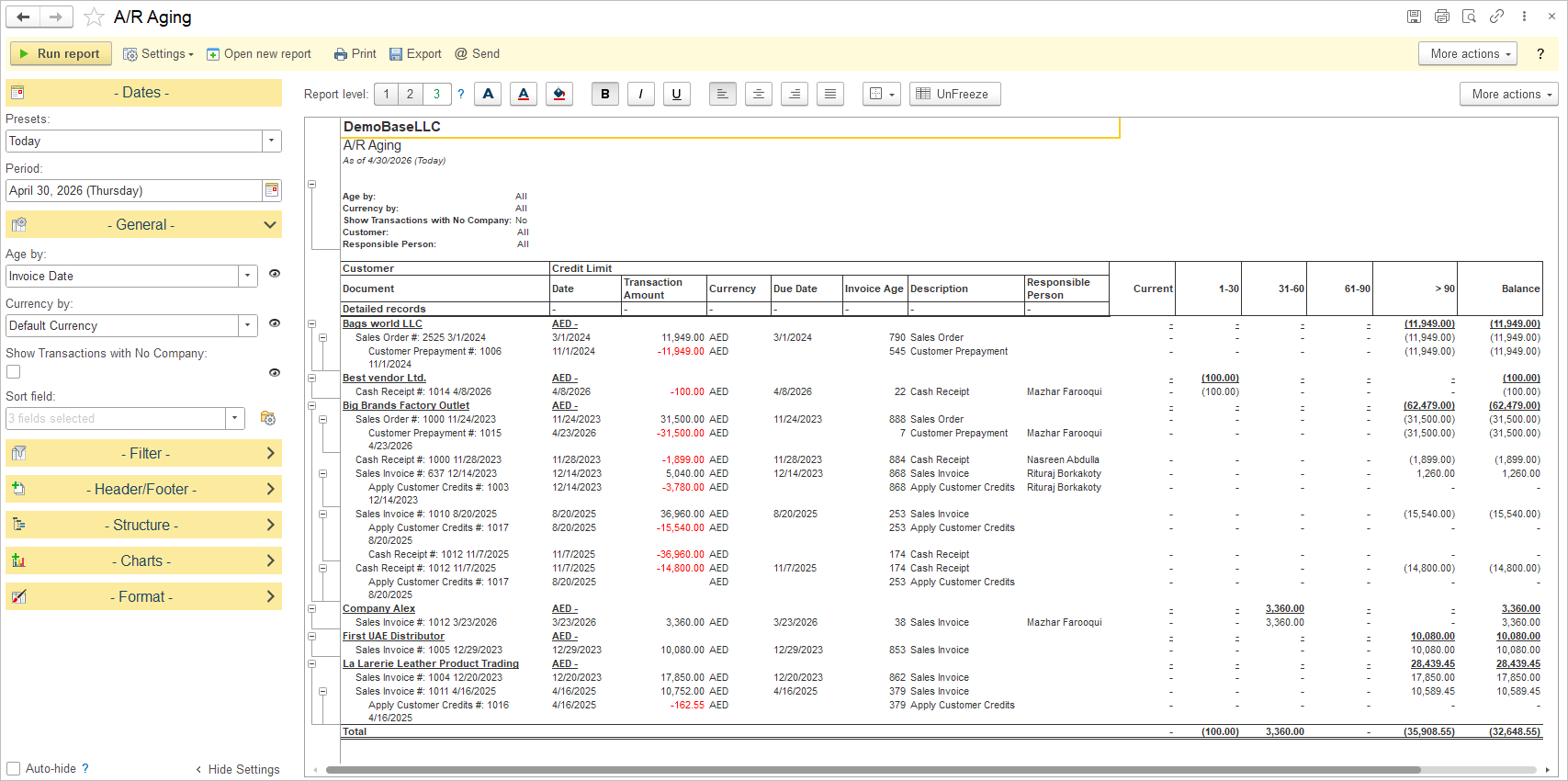
Monitoring the accounts receivable aging can help you assess the overall health of your business’s cash flow. By tracking the aging of outstanding Invoices, you can identify any potential cash flow issues early on and implement strategies to improve collections and maintain a positive cash flow position.
Analyzing the accounts receivable aging report can also provide you with a clearer picture of your customer credit policies and Payment terms. By reviewing the aging of receivables by Customer, you can evaluate the effectiveness of your credit policies, identify any patterns of late payments, and make informed decisions about adjusting credit terms or implementing stricter collection procedures where necessary.
Navigate to: Reports → Sales → A/R Aging
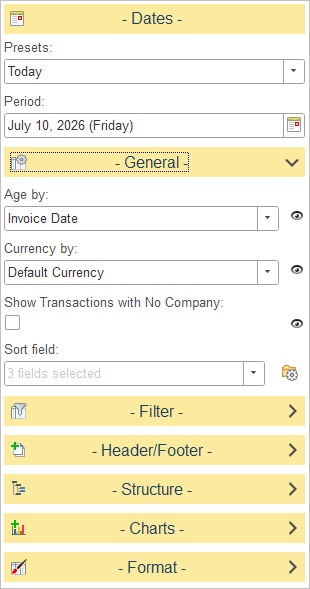
Available settings:
The General section of the A/R Aging report controls how amounts are aged, which currency is used, whether to show transactions without a company, and how to sort the output.
Age by
- A dropdown that lets you choose the basis for aging (for example, Invoice Date, Due Date, etc.).
- The selected option “Invoice Date” means the report will place transactions into aging buckets based on the original invoice date.
Currency
- A dropdown that defines which currency the report uses.
- “Transaction Currency” means the report will show amounts in the original currency of each transaction rather than converting them to a single base or reporting currency.
Show Transactions with No Company
A checkbox that, when enabled, includes entries that are not linked to a customer/company record.
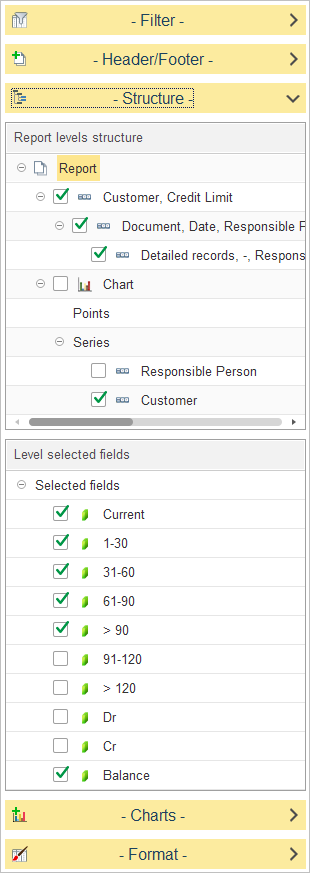
In Report levels structure, select how data is grouped in the report.
- At the top, grouping options such as Customer, Credit Limit and Document, Date, Responsible Person are available. This means the report will first show totals by Vendor (including credit limit information) and then break them down by individual documents and dates for more detail.
- Additional nodes such as Chart, Responsible Person, and Customerr under series allow you to prepare the structure for graphical analysis; when the checkbox next to a level is enabled, the report (and charts, if used) will summarize data by that level.
To adjust the structure as a user, expand the Structure section, then tick or clear checkboxes next to each level to add or remove it from the report hierarchy. Dragging levels lets you change the order in which groupings appear.
In Level selected fields, choose which numeric columns (aging buckets and balances) appear for the selected level.
- Fields available: Current, 1–30, 31–60, 61–90, > 90, and Balance, so the report will display separate columns for each of these buckets plus a total balance column. This matches common AP aging practice, where open invoices are allocated into time bands measured in days overdue.
- Optional buckets such as 91–120, > 120, Dr, and Cr are also available. Enabling them would add additional columns for more granular long‑overdue amounts or separate debit/credit breakdowns.