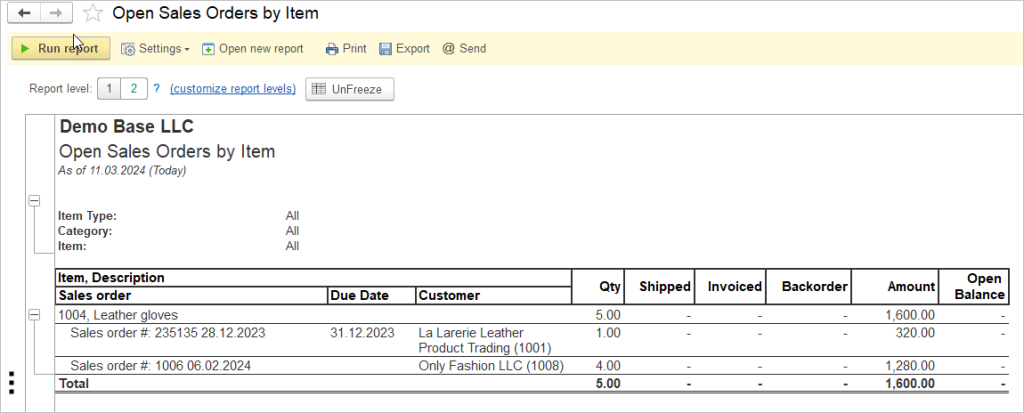
The Open Sales Order by Item report will list all Open Sales Orders, grouped by Item. There are columns that show shipped, invoiced and back-ordered totals for each order that roll up to an item total.
To run this report, navigate to Reports → Sales → Open Sales Orders by Item. Choose All Dates from the Period drop-down list and click Run Report. (To restrict the report to Sales Orders that were opened during a specific time period, the dates may changed to suit the specific need).
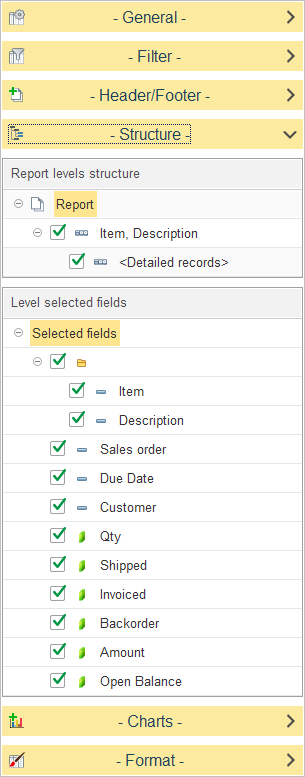
The Report levels structure determines the hierarchical organization of data within the report.
- Item, Description: Groups the report data by specific items and their corresponding descriptions.
- Detailed records: When enabled, this level provides a granular view of the individual sales orders associated with each item.
To adjust the hierarchy, expand the Structure section. You may select or clear the checkboxes to toggle the inclusion of these levels in the report.
The Level selected fields section allows you to customize the data columns displayed in the report. By toggling the checkboxes, you can include or exclude specific metrics related to your open sales orders.
The following fields are available for configuration:
- Item: Displays the unique identifier for the inventory item.
- Description: Displays the descriptive name or specification of the item.
- Sales order: Displays the identification number of the sales order.
- Due Date: Displays the scheduled delivery or completion date for the order.
- Customer: Displays the name of the customer associated with the order.
- Qty: Displays the total quantity of the item ordered.
- Shipped: Displays the total quantity of the item that has been dispatched.
- Invoiced: Displays the total quantity of the item that has been billed to the customer.
- Backorder: Displays the quantity of the item remaining on backorder.
- Amount: Displays the total monetary value of the ordered items.
- Open Balance: Displays the outstanding monetary balance for the order.