
AccountingSuite is developed using the latest technologies and methodologies to simplify user workflows and help users achieve maximum efficiency. In line with these principles, powerful AI tools have been integrated into AccountingSuite.

If you need any other AI usage scenarios that are not covered by current capabilities, please write us your ideas.
Overview #
The built-in AI assistants transforms how you interact with financial data. Instead of manually analyzing reports or searching for answers, you can simply ask questions, upload documents, and receive clear, actionable insights in seconds.
One of the key design goals of AI Assistant is flexibility. Organizations can choose the AI deployment model that best matches their business requirements. Whether you prefer cloud-based services such as ChatGPT, Claude, Gemini, or a locally deployed AI model running entirely inside your own infrastructure, AccountingSuite gives you the freedom to decide how your AI operates.
AI Chatbot #
AccountingSuite includes a dedicated documentation-based chatbot that serves as an internal assistant for users who need accurate information about the software. This chatbot is built exclusively on the official AccountingSuite documentation and is designed to provide clear guidance on the functions, workflows, and configuration options available within the system. Its primary purpose is to help users quickly find reliable answers without having to manually search through user’s guide.
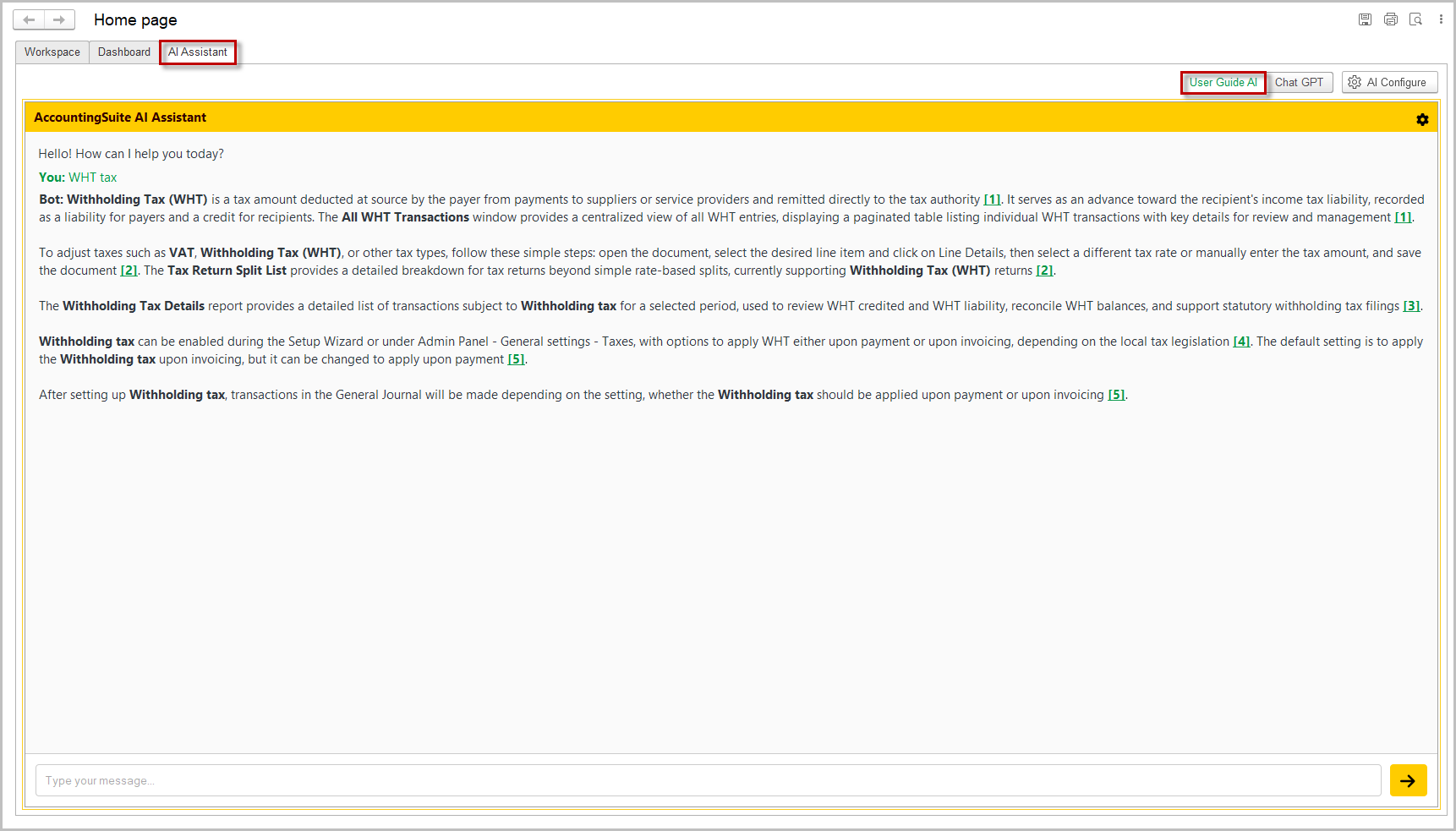
Unlike general artificial intelligence models that may generate broader interpretations, this assistant works within a strictly controlled knowledge base. It provides responses only when the requested information exists in the documentation and does not create assumptions or generate content beyond the documented functionality of the software. This approach ensures that every answer remains consistent with the actual behavior of the platform and reflects the intended use of each feature.
When a user asks a question that is not covered by the documentation, the chatbot responds transparently by indicating that the requested information is not available. It does not attempt to invent an answer or provide potentially misleading guidance. This behavior is especially important in a professional accounting environment, where accuracy and consistency are essential for daily operations and internal compliance.
AI Models #
The system provides access to multiple leading AI models, ensuring flexibility, reliability, and adaptability to different types of requests.
Available models include:
- ChatGPT by OpenAI
- Claude by Anthropic
- Gemini by Google
- Grok by xAI
- wide range of additional models accessible through OpenRouter
- and OpenAI Сompatible models
Organizations are not limited to cloud services. AccountingSuite can also connect to locally hosted AI models that expose an OpenAI-compatible API, including popular solutions such as Ollama.
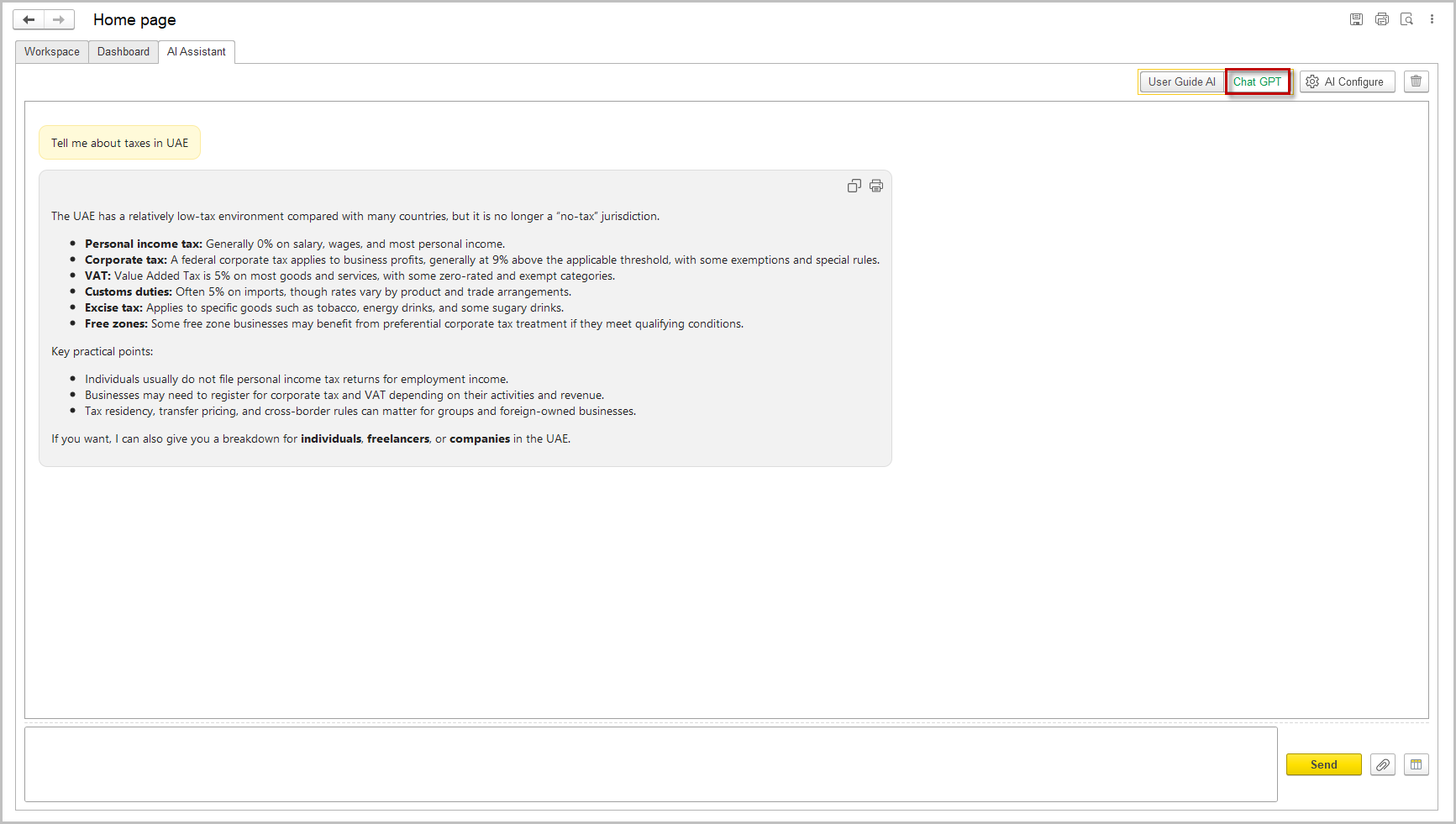
The AI assistant is seamlessly embedded into the application interface. Users can initiate a conversation directly from the Homepage, enabling quick access to general assistance, explanations, or operational guidance without interrupting their workflow. This central chat serves as a universal entry point for interacting with the system.
Connecting AI Models #
To connect external AI models, navigate to the AI Assistant tab on the Home Page. Click the AI Configure button to open the settings panel. Enable the Use external AI option and select the required provider. Then follow the connection process according to the selected provider’s instructions.
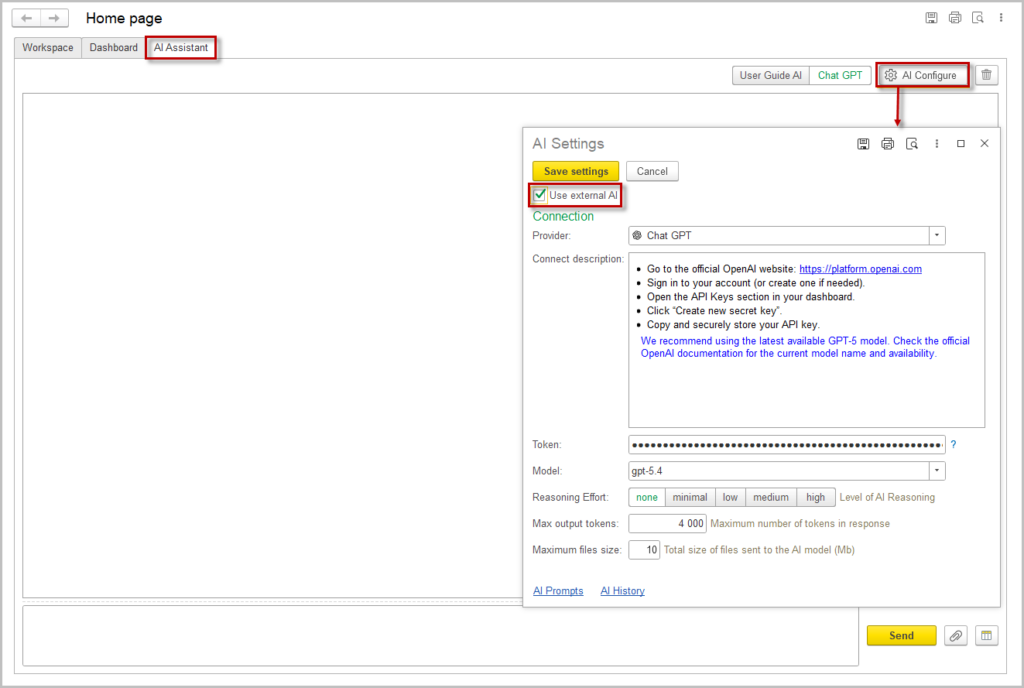
Keep your API key private and never expose it in public repositories or client-side code.
ChatGPT #
- Go to the official OpenAI website.
- Sign in to your account (or create one if needed).
- Open the API Keys section in your dashboard.
- Click “Create new secret key”.
- Copy and securely store your API key.
We recommend using the latest available GPT-5 model. Check the official OpenAI documentation for the current model name and availability.
Grok #
- Go to the official xAI website.
- Sign in to your account (or create one if needed).
- Navigate to the developer/API section.
- Create a new project or application if required.
- Generate a new API key in the API Keys section.
- Copy and securely store your API key. You’ll use it to authenticate requests to the Grok API.
We recommend using the latest available Grok model, such as Grok 4 for flagship performance and agentic tool use. Check the official xAI documentation for the current model name and availability.
Claude #
- Go to the official Anthropic website.
- Sign in to your account (or create one if needed).
- Open the API Keys section in the dashboard.
- Click “Create Key”.
- Copy and securely store your API key.
We recommend using the latest available Claude model, such as Claude Opus 4 for the most complex reasoning and coding tasks. Check the official Anthropic documentation for the current model name and availability.
Gemini #
- Go to the official Google AI Studio website.
- Sign in with your Google account (or create one if needed).
- Open the “Get API key” section in the dashboard.
- Click “Create API key” (or “Create API key in new project” if prompted).
- Copy and securely store your API key. You’ll use it to authenticate requests to the Gemini API.
We recommend using the latest available Gemini model, such as Gemini 3 Pro for advanced reasoning and coding tasks, or Gemini 3 Flash-Lite for faster and more cost-efficient use cases. Check the official Google AI documentation for the current model name and availability.
OpenRouter #
- Go to the official OpenRouter website.
- Sign in to your account.
- Open the “Keys” section in your dashboard.
- Click “Create Key”.
- Copy and securely store your API key.
OpenAI Сompatible models #
In addition to cloud AI providers, AccountingSuite supports locally deployed large language models through the OpenAI Compatible provider.
You can use popular local inference tools such as Ollama, LM Studio, vLLM, and many other solutions that expose an OpenAI-compatible API.
These applications run AI models on your own hardware or within your organization’s infrastructure while providing an API that is fully compatible with the OpenAI standard. As a result, AccountingSuite can communicate with local models in exactly the same way it communicates with cloud-based AI services.
Using locally hosted models provides several important advantages.
- Your business data can remain entirely within your own infrastructure.
- You avoid recurring subscription fees and token-based usage charges imposed by cloud providers.
- You can deploy and fine-tune models that are optimized for your organization’s specific workflows and terminology.
- You have complete control over the AI environment, including model selection, hardware, and security policies.
To connect a local model, select OpenAI Compatible as the provider.
In the Host field, enter the address of your local inference server, for example:
http://localhost:11434
If the AI server is running on another machine, enter its hostname or IP address instead, for example:
http://192.168.1.100:11434
If authentication is enabled on your inference server, enter the corresponding API key. Otherwise, this field may be left empty depending on your server configuration.
After connecting, AccountingSuite automatically retrieves the list of available models from the server. Simply select the model you want to use and save the configuration.
Once configured, local models can be used throughout the application for chat, document analysis, report analysis, AI-generated reports, and all other AI Assistant features.
AI Settings #
Within the AI configuration settings, several parameters are available to control model behavior and system usage.
The Temperature (Reasoning effort) setting regulates the randomness of the model’s output. Lower values result in more consistent and deterministic responses, while higher values increase variability and creativity. The Max output tokens parameter defines the maximum length of the generated response, allowing control over response size and resource consumption. The Max files size setting specifies the total size limit of files that can be sent to the AI model within a single request.
The system also provides administrators with the ability to configure custom AI prompts. This functionality allows standardizing interactions with AI models and tailoring responses to specific business needs.
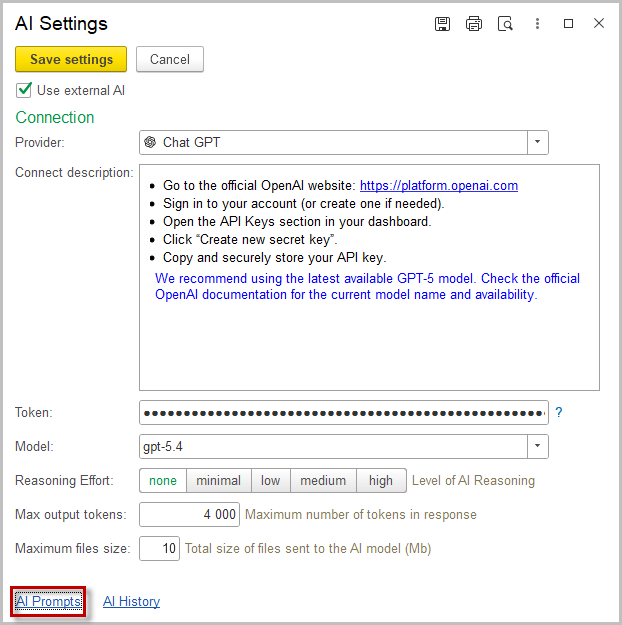
In the prompt creation interface, administrators can enable or disable a prompt using the Use option and define how it is applied via the Usage setting. When selecting By type three categories are available: Chat, File, and Report. This allows prompts to be applied depending on the context of interaction.
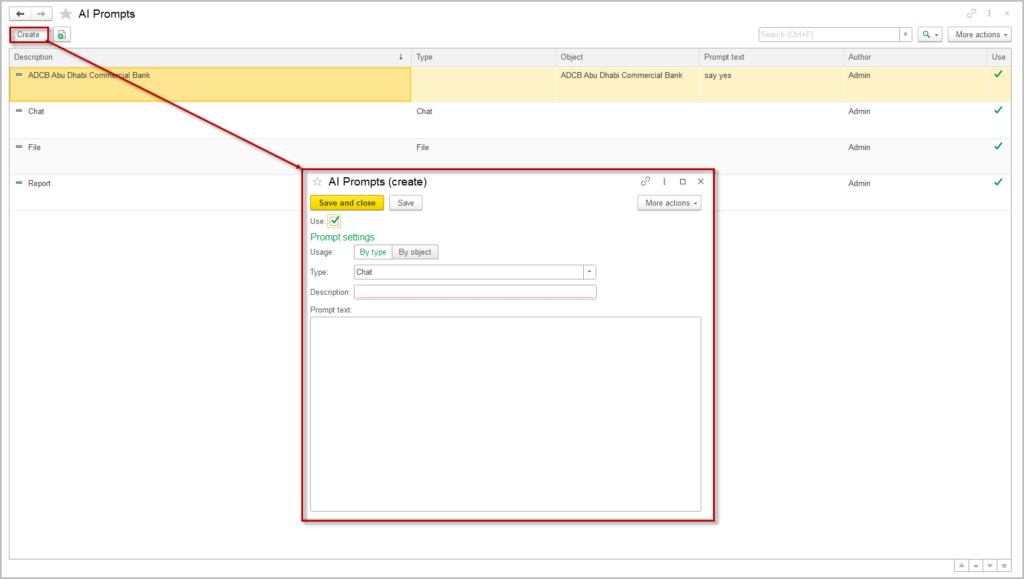
Alternatively, when selecting By object prompts can be linked to specific system entities. Available configuration objects include asset, bank transfer, bank, cash receipt, cash sale, class, company, contact person, file, and report. This enables highly targeted AI behavior based on the type of data being processed.
For each prompt, the administrator manually defines the Description and Prompt textensuring full control over how the AI model is instructed and how it responds in different scenarios.
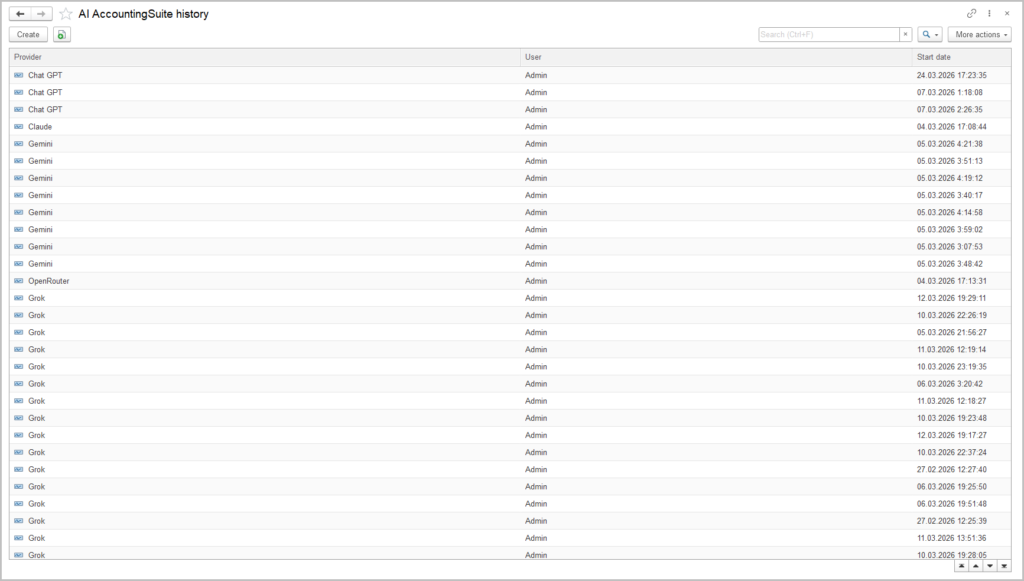
Additionally, administrators have access to AI usage history, which provides visibility into past interactions with AI models. This feature supports monitoring, auditing, and optimization of AI usage within the system.
The AI Assistant helps to account and to analyze #
AI Insights on Internal Data #
The system provides the ability to query AI about data stored within the application. For example, users can request information about customers, and the AI will return a structured response based on available records. This may include general details, transaction history, financial indicators, and contextual analysis related to a specific counterparty.
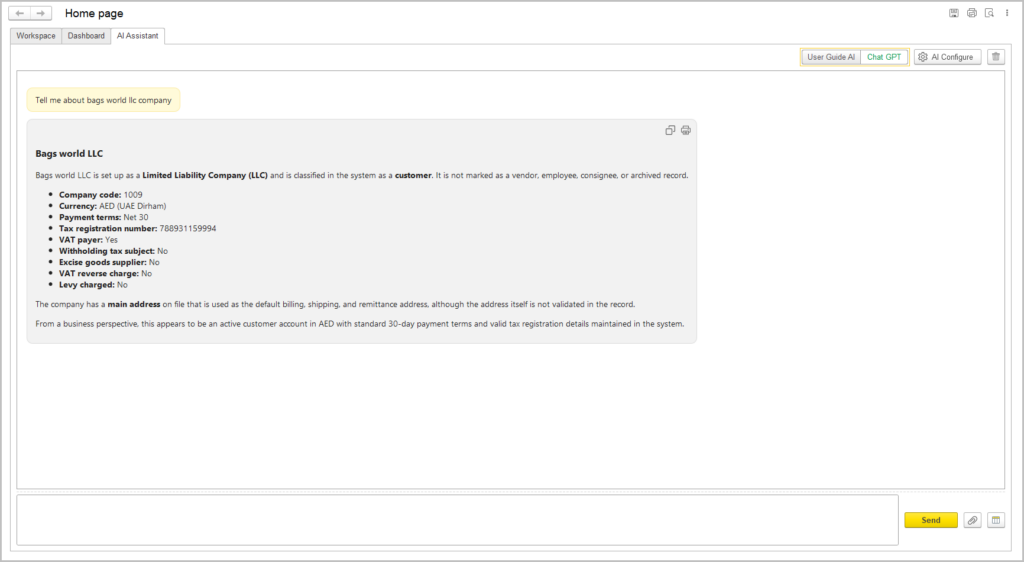
This functionality allows users to quickly access consolidated information without manually navigating through multiple records or reports. In addition to retrieving data, the AI can provide analytical insights, helping identify patterns, risks, or notable trends associated with the selected counterparty.
Attachments Analysis #
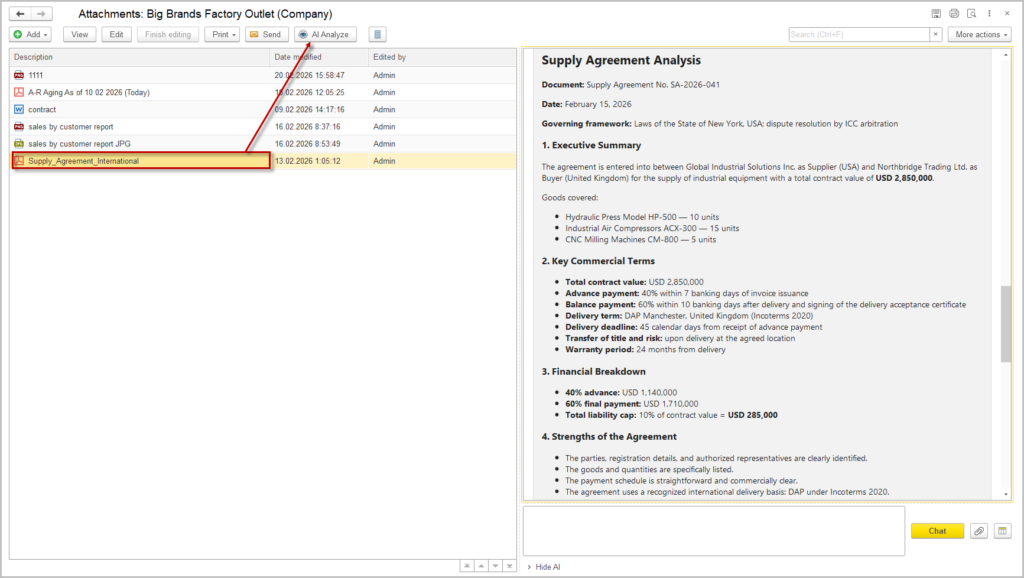
A key advantage of the system is its ability to process attachments. Users can upload files of various formats directly into the chat, including spreadsheets, PDFs, and other business documents. The AI can analyze these materials, extract relevant information, and provide structured feedback or summaries. This significantly reduces manual effort in reviewing and interpreting complex documentation.
AI Analytics in Reports #
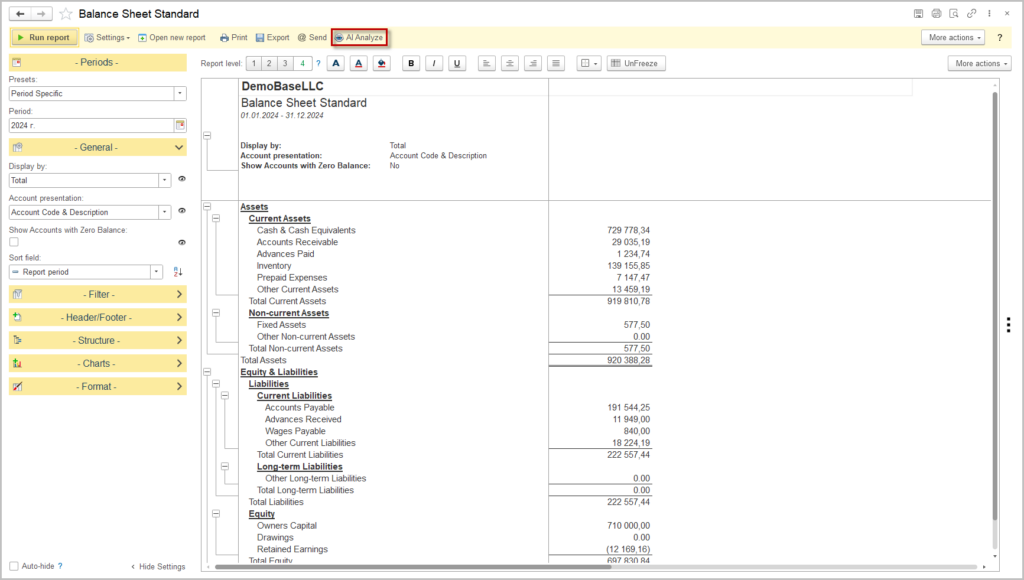
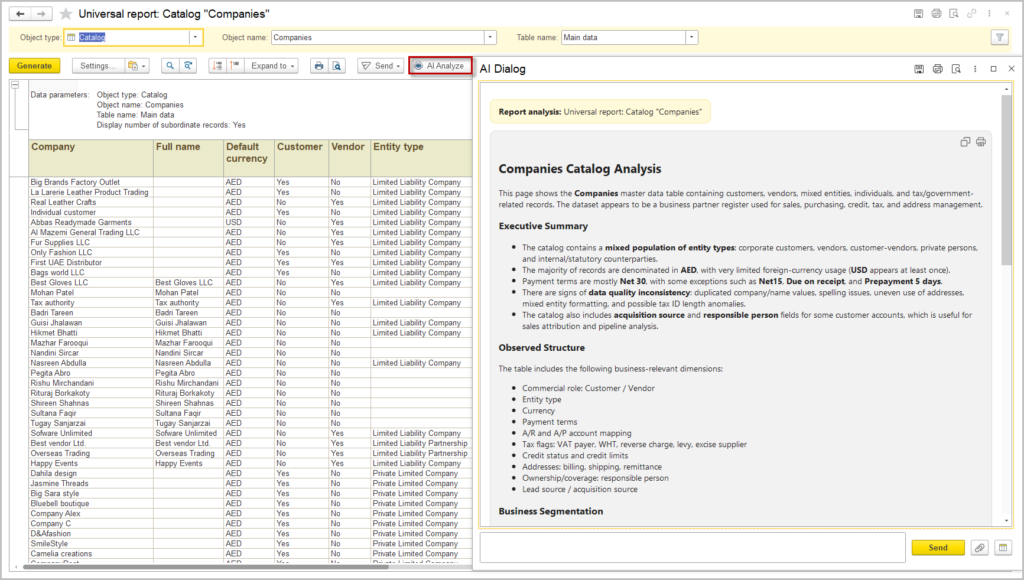
In addition, AI functionality is contextually integrated into reporting workflows. This feature allows the system to interpret financial data, highlight anomalies, generate summaries, and provide insights tailored to the specific report being viewed. Within any report window, users can activate AI support via the AI Analyze function in the Command bar. The system will request your permission before sending the report. Confirm to proceed.
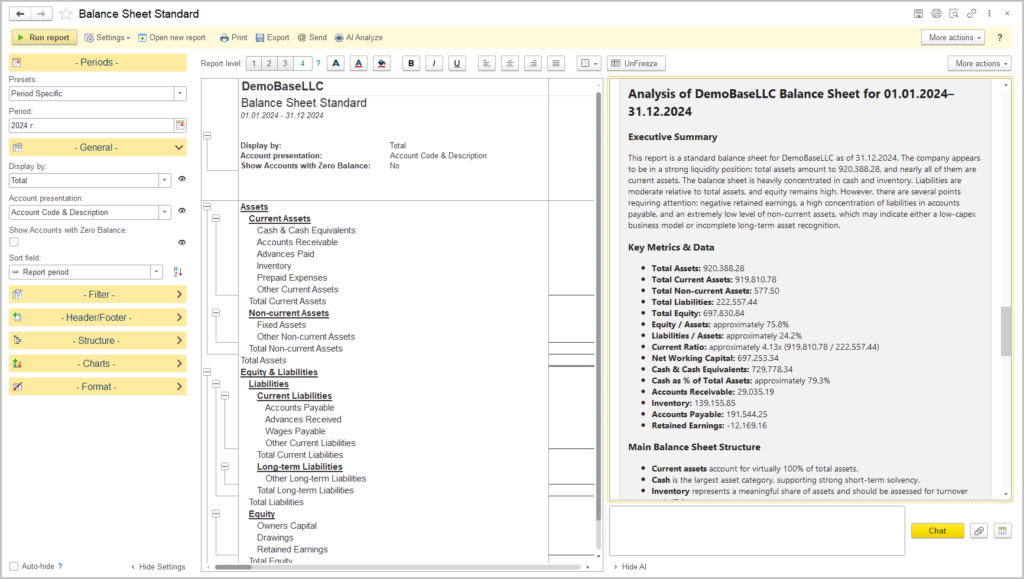
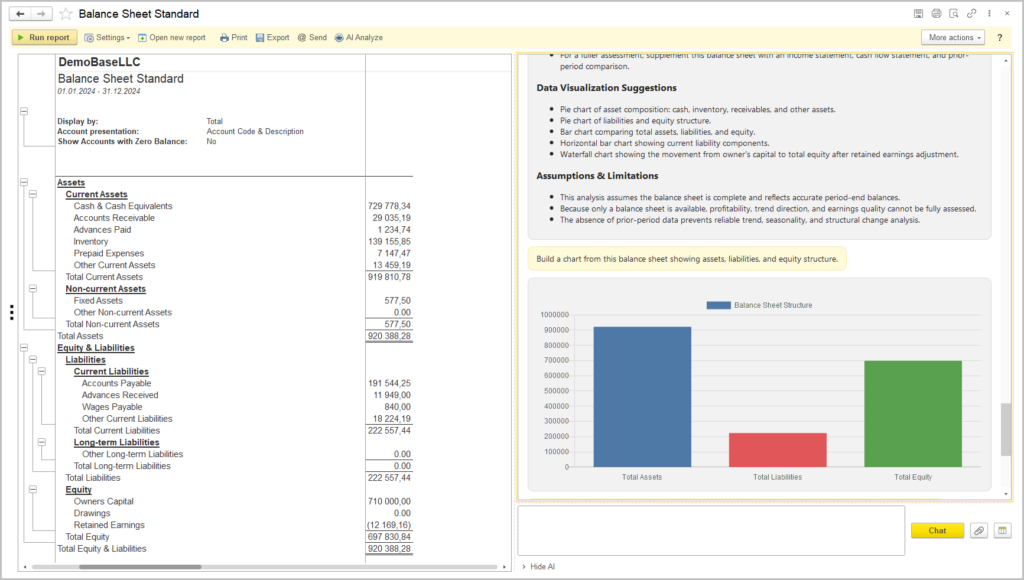
In addition to textual analysis, the AI can generate structured outputs such as tables and graphical representations. Users may request the creation of charts or tabular summaries based on the provided data, enabling clearer visualization of trends, comparisons, and key performance indicators. This capability improves data presentation and facilitates communication of financial insights to stakeholders.
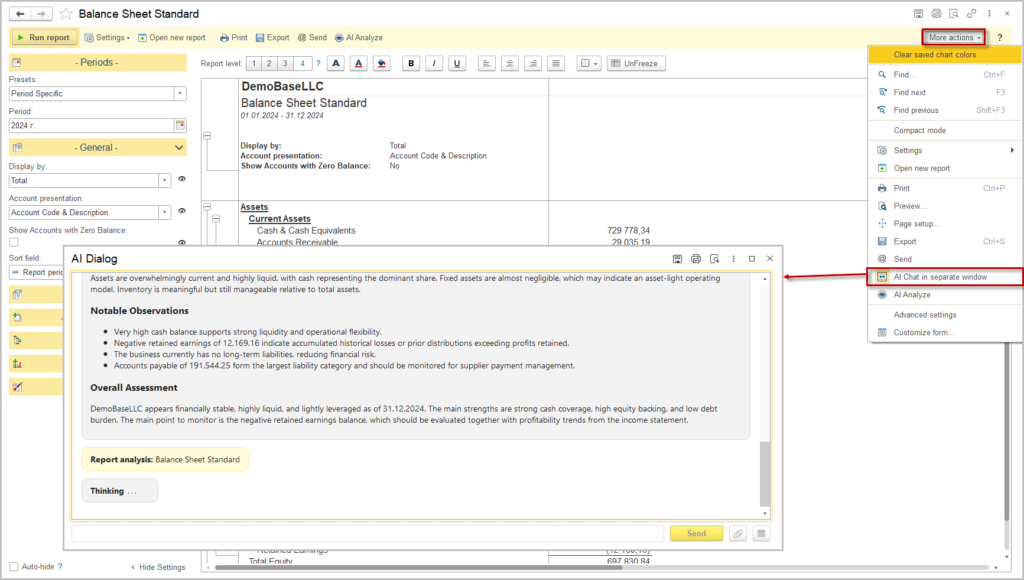
The system provides the ability to open the AI chat in a separate window, creating a dedicated workspace for interaction with the AI assistant. This approach is particularly useful when working with reports, documents, or other data, as it allows users to maintain visibility of the primary workspace while simultaneously engaging with the AI. To open the AI chat in a separate window, navigate to the More actions menu and select the AI Chat in separate window option.
The separate chat window can be freely moved across the screen and resized according to user preference. This flexibility enables efficient multitasking, allowing users to position the AI interface in a way that best supports their workflow.
AI Analytics with Universal Report #
The Universal Report feature further enhances analytical flexibility. Users can configure reports by selecting arbitrary data, combining financial and operational information as needed. Once generated, these reports can be analyzed using AI tools. This approach eliminates the need to prepare predefined report structures for every scenario, allowing users to dynamically assemble data and immediately obtain insights. It significantly reduces the time required for exploratory analysis and supports faster decision-making by providing contextual interpretations of customized datasets.
AI Analysis of Print Forms #
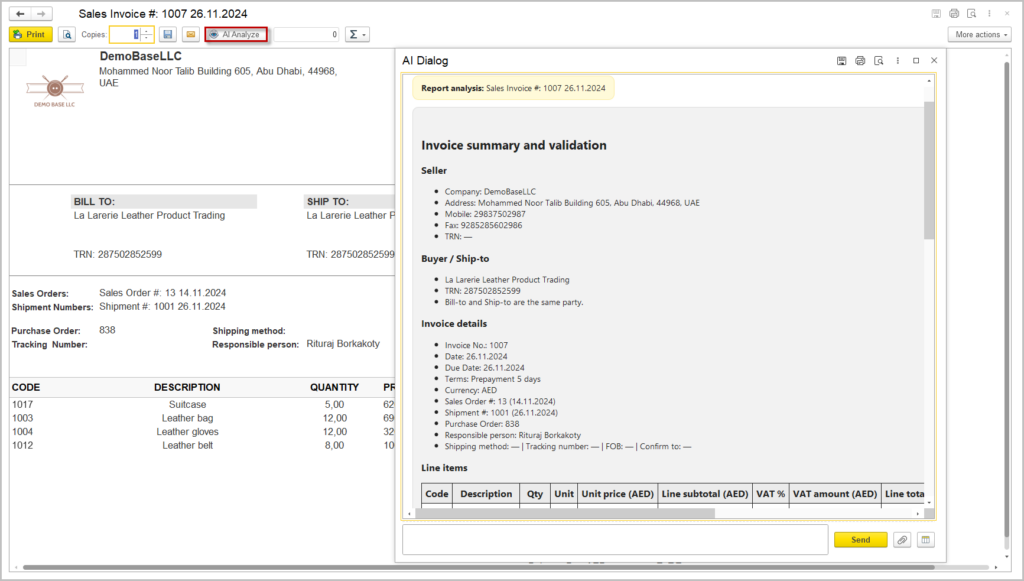
Printed forms can be submitted to the AI for interpretation and review. This functionality allows users to validate the accuracy of presented data, identify inconsistencies, and extract key financial information without manually reviewing each field. It is particularly useful for auditing, compliance checks, and verifying document completeness, as the AI can quickly highlight anomalies or summarize the contents of complex forms.
Recognition and Extraction of Data #
The system also includes functionality for recognizing and extracting information from receipts. The AI can identify key fields such as dates, amounts, vendors, and transaction details from uploaded receipt images or files. Extracted data can then be manually reviewed and copied into system documents, reducing manual data entry efforts while maintaining user control over final input. This feature increases efficiency in processing primary documents and minimizes the risk of transcription errors.
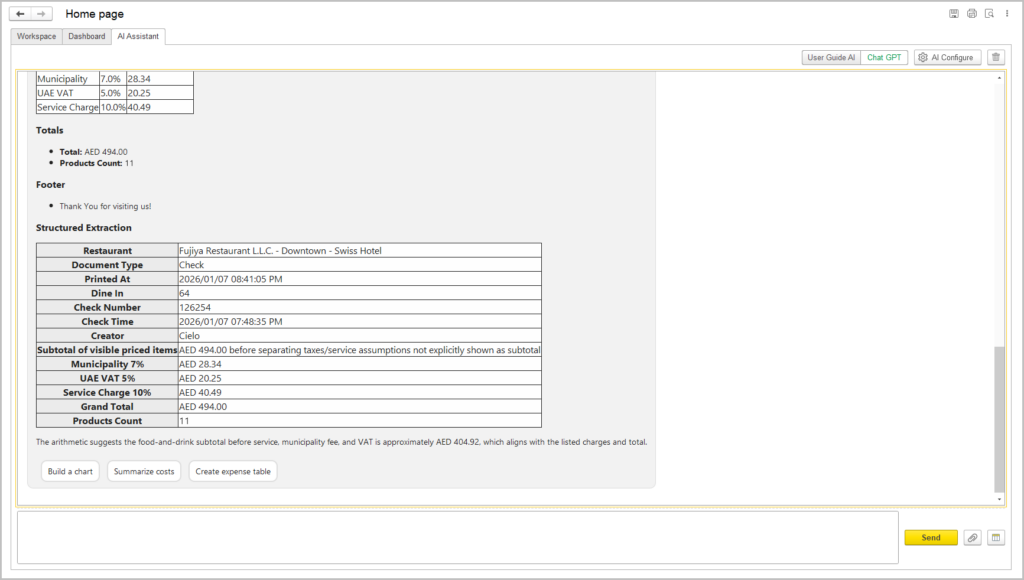
At the current stage, data recognized from receipts or other documents must be manually reviewed and entered into the system. Automatic population of document fields is not yet supported.
The functionality for automatic document creation based on uploaded images or files is planned for future releases.