
Creating a Lead #
A Lead is a potential client who has provided their contact information but has not yet made a final decision to purchase.
When there is a large number of incoming leads, it is essential to ensure their fast and efficient processing by managers. The CRM module enables the automation of lead management, including data collection from various sources, assignment of responsible employees, interaction tracking, and enhancement of the user experience.
Leads play a key role in evaluating the quality of incoming inquiries, as well as in analyzing the effectiveness of marketing channels and customer acquisition costs. It is important to note that not every lead becomes a customer, but every potential client must be recorded in the lead database before making a purchase decision and transitioning to the deal database.
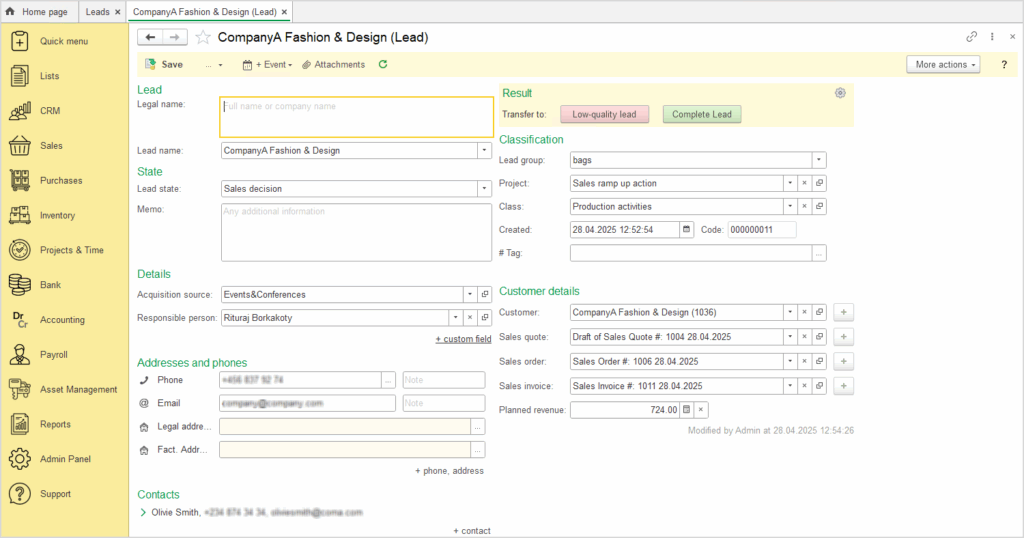
In the Lead directory, click the Create and New button.
A new screen will appear with fields that need to be filled in to create a lead:
- Lead tab:
- Legal name – full name and company name
- Lead name – used for quick visual identification of the lead while working in the application
- State tab:
- Lead state – lead status
- Memo – any additional notes
- Details tab:
- Acquisition Source – the source through which the lead was acquired
- Responsible Person – the employee assigned to manage and work with the lead on behalf of the company
- Adresses and phones tab:
- Enter the lead’s details, addresses, phone numbers
- Contact tab:
- Contact – enter the full name of the contact person from the lead
- Phone number, email, address – enter the contact details of the lead’s contact person
- In the Classification tab, enter the following details: Lead group, Project, Class, Created date, Tag
- Customer details tab:
- Customer – you can create a new Customer by clicking on

- Sales quote – this document is used to outline the price and terms of the proposed sale to a potential customer.
- Sales order – records a request to sell goods or services
- Sales invoice – record a customer’s liability to you and record income from the transaction
- Planned revenue – is the estimated income expected to be generated within a specific period.
- Customer – you can create a new Customer by clicking on
- Click Save and Close to finalize the creation of the new Leads
Importing Leads from an external source #
Lead import provides a fast and efficient way to upload a large volume of potential client data into the CRM module from an Excel file. This process saves time, especially when a large number of records need to be added at once. Using the import function allows you to organize information efficiently, eliminates the need for manual data entry, and reduces the risk of errors.
To import data into the CRM module, follow these steps:
- Open the Leads repository and click Import.
- Before importing, download the import template and fill it in with your Lead data. We recommend using the template to ensure that the data is structured correctly and to avoid potential import issues.
- Make sure that the values in the Lead state and Acquisition source fields in your file exactly match the values already defined in the CRM.
- If any of these values do not exist in the system, you must create them in the appropriate master data before proceeding with the import. Otherwise, the import may fail.
- Check the column structure. The column names and order in your external file must match those in the import template.
- If necessary, you can customize the template by clicking Edit template, where you can add or remove fields according to your needs.
- Once your data is ready, you can either copy it from your external file and paste it into the import template, or open the From file tab, click Import spreadsheet, and select the Excel file containing your Leads. The data will then be imported automatically.
- After verifying the data, click Import data and then Finish to complete the process.
Following these steps and using the recommended template will help ensure a smooth import process and minimize the risk of potential issues.
Lead Management #
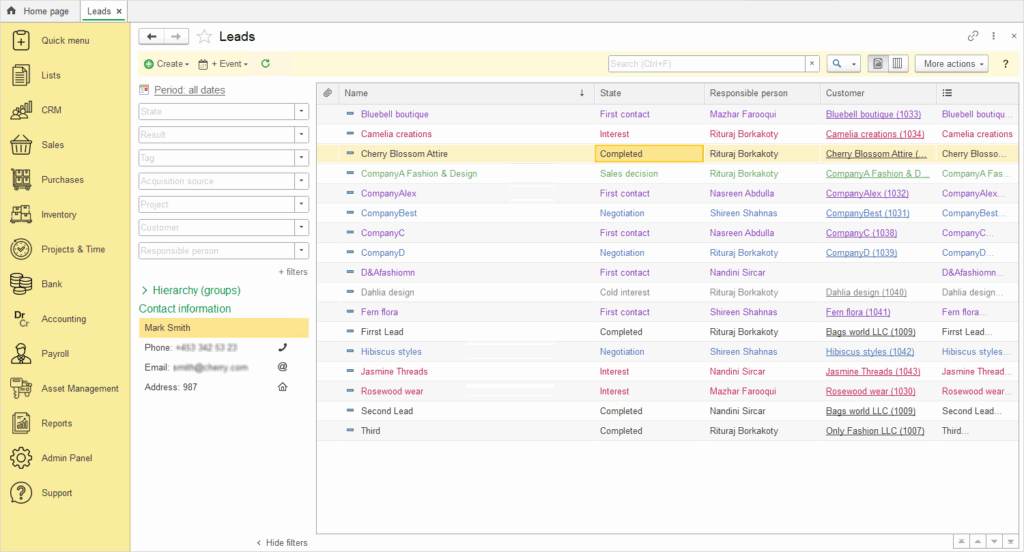
The Leads directory offers two methods of working: via a List and a Kanban board. These two views allow users to choose the most convenient way to manage and visualize leads – the List is ideal for quick filtering and sorting, while the Kanban board provides a clear picture of the lead flow through different sales stages.
In the leads List, the following key information is displayed: lead Name, State, Responsible person, and customer name.
Working with leads using the Kanban method allows for easy drag-and-drop of contacts across the board, reflecting changes at different stages of lead processing. Each lead is assigned a corresponding status, such as cold interest, first contact, interest, negotiation, sales decision, which makes it easy to track the progress of customer interactions.
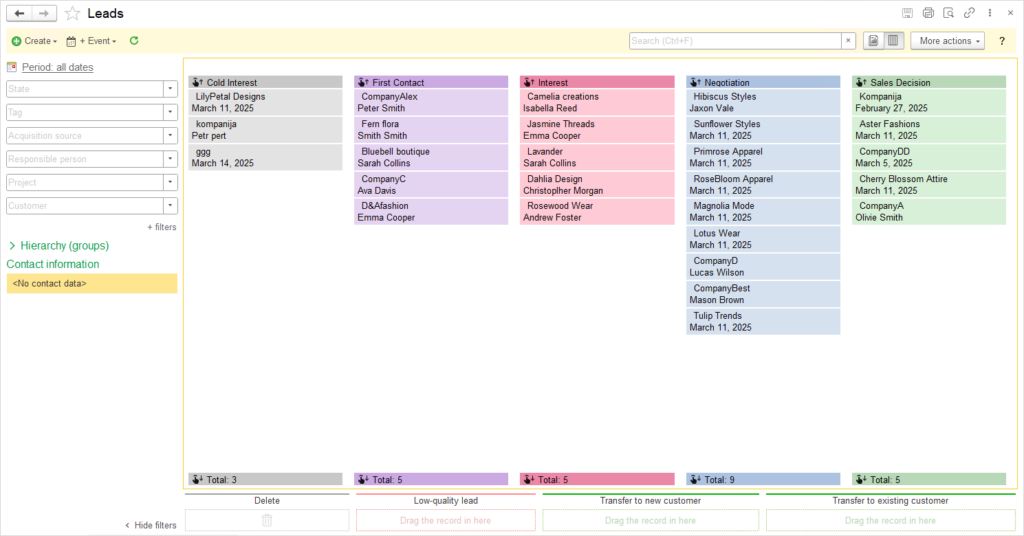
The left menu also provides filters to select leads by State, Tag, Acquisition source, Responsible person, Project, Customer. Since a single customer may have multiple leads, it is possible to filter by customer and type of inquiry.