EBM Integration (Rwanda) #
AccountingSuite connects to the Rwanda Revenue Authority (RRA) Electronic Billing Machine system, EBM 2.1, through a Virtual Sales Data Controller (VSDC). Every receipt you issue from AccountingSuite is signed by the VSDC and reported to RRA in real time.
What is EBM? #
In Rwanda, VAT-registered businesses must issue receipts through an Electronic Billing Machine. An EBM has two parts:
- Certified Invoicing System (CIS) — the software that registers sales and prints receipts. AccountingSuite works as the CIS.
- Virtual Sales Data Controller (VSDC) — an RRA software module that receives each receipt from the CIS, signs it, assigns receipt counters and sends the data to the RRA EBM server.
A receipt can only be issued when the VSDC has accepted and signed it. If the VSDC returns an error or does not answer, AccountingSuite does not issue the receipt.
How AccountingSuite connects to the VSDC #
The VSDC runs on AccountingSuite servers. You do not need to install a VSDC, a web server or any other software on your side: AccountingSuite sends the receipt data to the VSDC and receives the signature and counters back.
What is supported #
| Area | What AccountingSuite does |
| Receipt types | Normal sale (NS), Normal refund (NR), Copy (CS, CR), Training (TS, TR), Proforma (PS) |
| Signing | Sends receipt data to the VSDC, adds the VSDC signature, internal data, SDC ID and counters to the receipt; does not issue the receipt if the VSDC fails |
| Printed receipt | RRA logo, QR code, SDC information block, MRC, software version; A4, A5 or paper roll |
| Taxes | Tax rates A, B, C and D, tax amounts rounded to two decimals |
| Payments | Means of payment registered on each receipt (cash, card, mobile money and others) |
| Purchase code | Purchase code entered on sales receipts |
| Discounts | Price discounts on receipt lines |
| Items | RRA item classification (UNSPSC), automatic RRA item code, registration of items with RRA |
| RRA reference data | Codes (packaging units, units of quantity, countries, payment types and others) loaded from RRA |
| Sales data | Sales transactions saved to RRA |
| Reports | Daily X and Z reports, PLU report |
| Audit trail | A Fiscal transaction record with the full request and response for every receipt |
Installation #
The Rwanda EBM functionality is delivered as an extension.
To start using it, contact AccountingSuite support (or your partner) and provide:
- the number of the database where the extension should be applied;
- your TIN and Branch ID registered with RRA;
- the device serial number approved by RRA for your VSDC.
AccountingSuite applies the extension and configures the VSDC connection for your database. Before that, apply for the EBM 2.1 / VSDC service with RRA and wait for the approval of your device.
Once the connection is configured, complete the Required Settings and issue your first receipt from a Cash Sale.
Required Settings (Rwanda) #
Before you issue EBM receipts, set up the RRA tax rates, register your items with RRA and keep customer details up to date. The VSDC connection and cash registers are configured by AccountingSuite when the extension is applied.
1. Tax rates A, B, C and D #
RRA receipts show taxes under four labels. In AccountingSuite they are rates of the VAT tax.
- Navigate to Lists → Taxes and open the VAT tax.
- Make sure the four RRA rates are in the list:
| Rate | Value | Use |
| Tax A | 0.00 | Exempt goods and services (printed as A-EX) |
| Tax B | 18.00 | Standard VAT rate |
| Tax C (Export) | 0.00 | Exports |
| Tax D (non-taxable) | 0.00 | Supplies outside the scope of VAT |
- Create tax groups that include these rates and assign them to Items, Customers and Vendors, so the right rate is applied on transactions automatically.
How the rates appear on receipts:
- Tax B (rate above zero) is printed on every receipt, even when no item on the receipt uses it.
- Tax A, C and D (rate 0) are printed only when an item with that rate is on the receipt.
- Tax amounts are rounded to two decimals: below 5 down, 5 and above up.
2. Items #
Every good or service you sell must be registered with RRA. The RRA fields are on the item card.
- Open the item (Lists → Items).
- In Item Class (RWA), select the RRA item classification (UNSPSC code). The list is loaded from RRA.
- Save the item. AccountingSuite fills Item Code (RWA) automatically.
- Click Create Rwanda Products Upload to RRA to register the item with RRA.
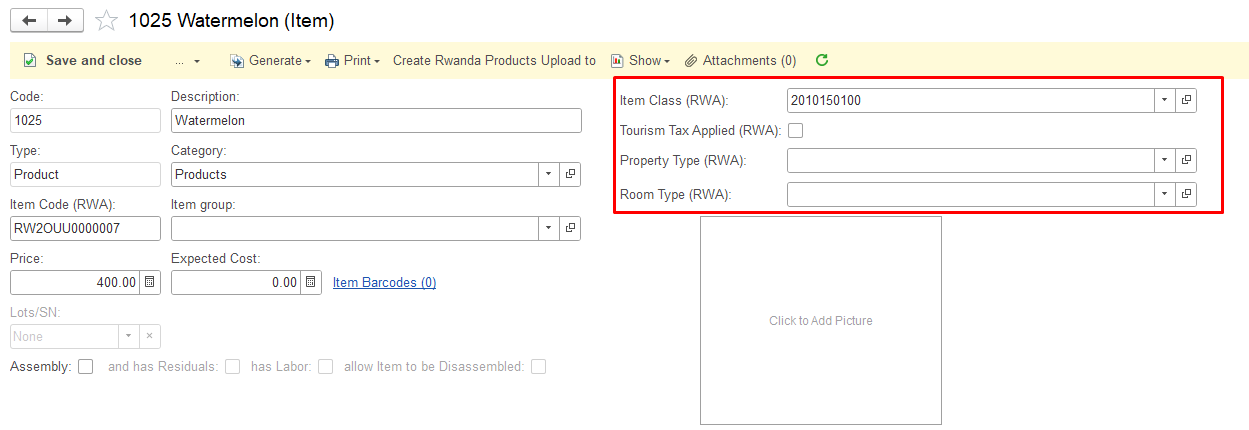
The RRA item code is built from the item settings, for example RW2NTBA0000012:
| Part | Example | Meaning |
| Country of origin | RW | Rwanda |
| Product type | 2 | 1 — raw material, 2 — finished product, 3 — service |
| Packaging unit | NT | Net |
| Quantity unit | BA | Barrel |
| Sequence number | 0000012 | Increments from 0000001 |
3. Customers #
An RRA receipt must identify the client by TIN, name and mobile number. Maintain the TIN and phone number on each Customer card. If a customer has no TIN, the mobile number is used instead.
For walk-in customers without a TIN, use a dedicated customer (for example, Individual sale).
4. Payment methods #
Each receipt records the means of payment. The payment method selected on the document is reported to RRA as one of the RRA payment types:
| Code | RRA payment type |
| 01 | Cash |
| 02 | Credit |
| 03 | Cash/Credit |
| 04 | Bank check |
| 05 | Debit & credit card |
| 06 | Mobile money |
| 07 | Other |
Issuing EBM Receipts (Rwanda) #
EBM receipts are issued from a Cash Sale. The receipt is signed by the VSDC first and printed only after RRA has accepted it.
Receipt types #
| Label | Receipt | When it is used | Signed by VSDC |
| NS | Normal sale | The official receipt for a sale | Yes |
| NR | Normal refund | Refund of a previous normal sale (see Refunds and Fiscal Transactions) | Yes |
| CS / CR | Copy of sale / refund | Reprint of an issued receipt | Yes |
| TS / TR | Training sale / refund | Practice receipts | No |
| PS | Proforma | An advance receipt before the sale | No |
Copy, training and proforma receipts carry the label COPY, TRAINING or PROFORMA and the text “THIS IS NOT AN OFFICIAL RECEIPT”.
Issue a receipt #
- Navigate to Sales → Cash Sales and click Create.
- Select the Customer and add the items with quantity and price. Apply discounts on the lines if needed.
- Open the POS tab and fill in:
- Cash Register — the cash register connected to the VSDC;
- Purchase code — only if the buyer gave you a purchase code;
- Method — the payment method.
- Click Save.
- Click Receipt operations → Issue cash receipt.
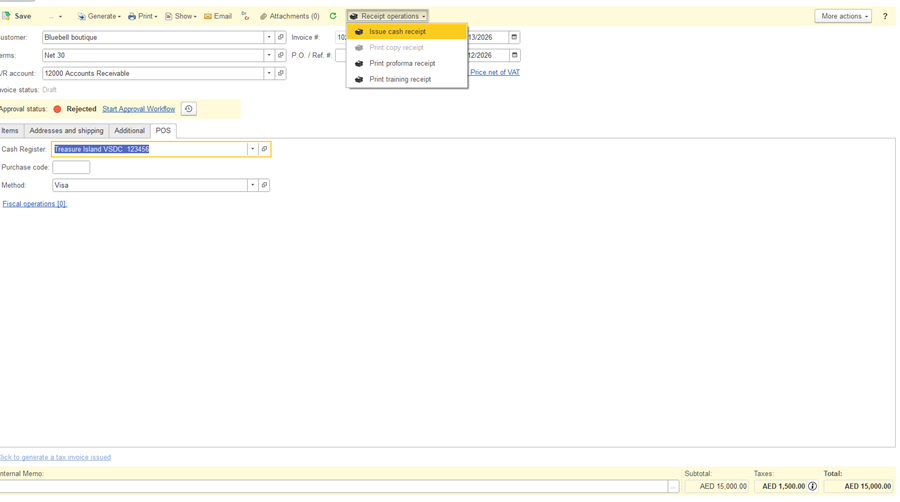
AccountingSuite sends the receipt to the VSDC. When the VSDC accepts it:
- the receipt is printed with the SDC information and QR code;
- the Fiscal operations link on the POS tab shows the receipt, for example Fiscal operations [1]: NS 1078/49 — receipt label, AccountingSuite receipt number and VSDC receipt number;
- the document can no longer be changed. To correct a sale, issue a refund.
If the VSDC returns an error, the message is shown and no receipt is issued. Correct the data and issue the receipt again.
Other receipt operations #
- Print copy receipt — reprints an issued receipt as a copy (CS). Available after the normal receipt is issued. Only one original is ever printed.
- Print proforma receipt — prints a proforma (PS), for example to confirm prices before payment.
- Print training receipt — prints a training receipt (TS) to practise without reporting a sale.
Purchase code #
If the buyer provides a purchase code, enter it on the POS tab before issuing the receipt. The VSDC checks the code and rejects the receipt if the purchase code is invalid, already used, or if the customer TIN does not match.
What is printed on the receipt #
- RRA logo;
- your trade name, address (at least three lines) and TIN;
- the client’s TIN, name and mobile number (mobile number if there is no TIN);
- items with unit price, quantity, total and tax label (A-EX, B, C, D), and discounts;
- total amount, taxable amount and tax per rate, total tax;
- payment method and number of items;
- SDC information: VSDC date and time, SDC ID, receipt number in the form A/B NS (counter per receipt type / total counter), internal data and receipt signature;
- QR code;
- AccountingSuite receipt number, date and time, MRC and software version.
Refund receipts show every amount with a minus sign and refer to the original receipt number. Receipts can be printed on A4, A5 or a paper roll.
Refunds and Fiscal Transactions (Rwanda) #
An issued EBM receipt cannot be edited or deleted. To correct a sale or return goods, issue a refund receipt (NR) from a Sales Return that refers to the original Cash Sale. Every receipt, sale or refund, is recorded in a Fiscal transaction.
Issue a refund receipt #
- Create a Sales Return for the same customer.
- Set Type to Refund.
- In SI/Shipment #, select the Cash Sale whose receipt you are refunding.
- Open the POS tab and select the Cash Register.
- Click Save.
- Click Receipt operations → Issue cash receipt.
The refund receipt (NR):
- refers to the number of the original normal receipt;
- shows every amount with a minus sign;
- appears on the POS tab as Fiscal operations [1]: NR ….
A normal receipt can be refunded only once.
Fiscal transaction #
AccountingSuite creates a Fiscal transaction for every receipt sent to the VSDC. To open it, click the Fiscal operations link on the POS tab of the Cash Sale or Sales Return.
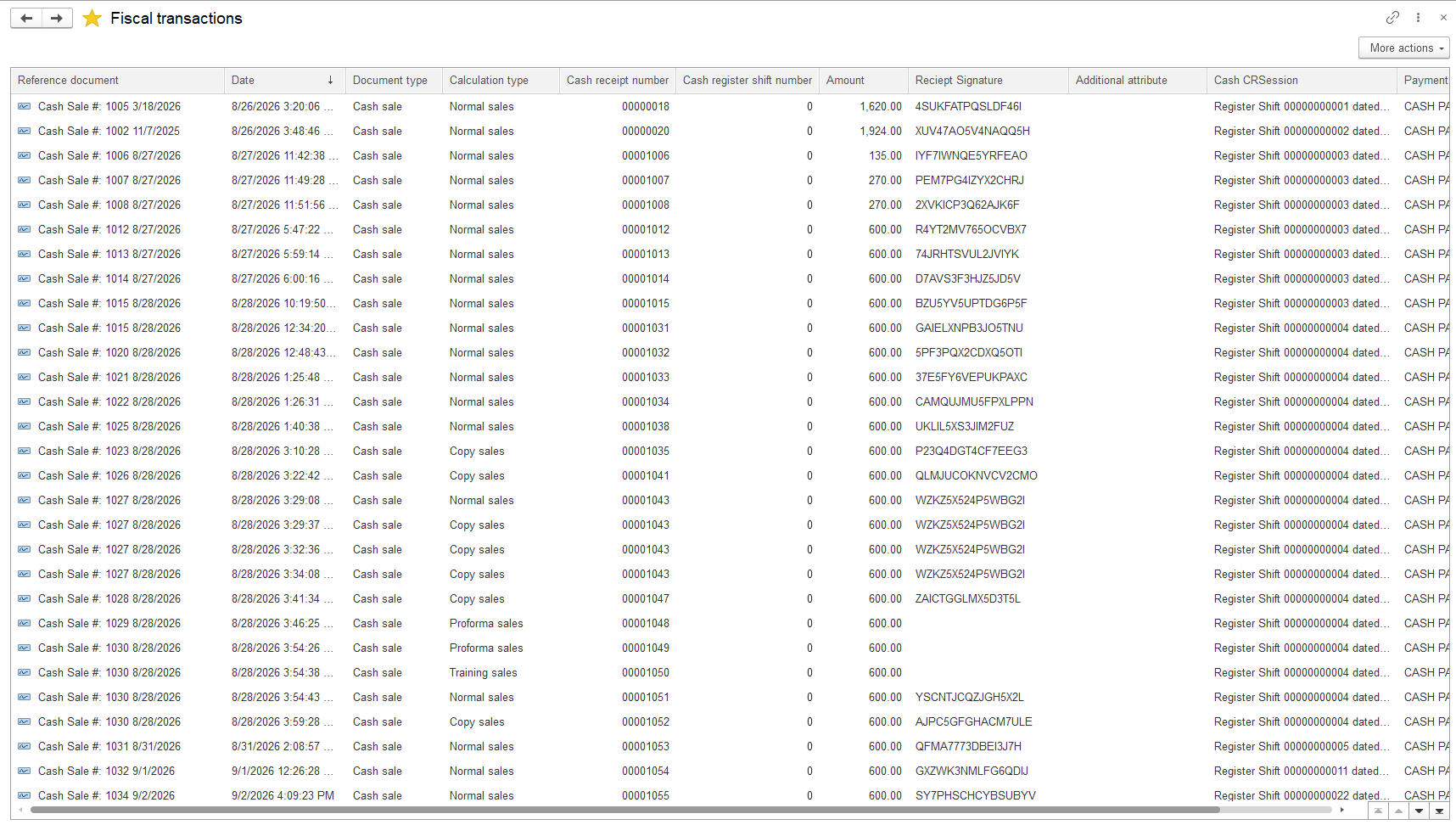
The Main tab shows the data RRA returned for the receipt:
| Field | Meaning |
| Reference document | The Cash Sale or Sales Return the receipt was issued from |
| Date | Date and time of the receipt |
| Document type / Calculation type | Receipt type: Normal sales, Normal refund and others |
| Receipt Signature | Signature returned by the VSDC |
| Cash receipt number | Receipt number in AccountingSuite |
| SDC ID / MRC | VSDC identification and Machine Registration Code of the cash register |
| Amount | Receipt total |
| Cash CRSession | Register shift the receipt belongs to |
| Payment type | RRA payment type |
| Cash receipt number in VSDC / total number in VSDC | Counter per receipt type and total counter of the VSDC |
| Items number | Number of items on the receipt |
| Taxable A–D, Tax B | Taxable amounts per rate and VAT amount |
| Discounts | Total discount on the receipt |
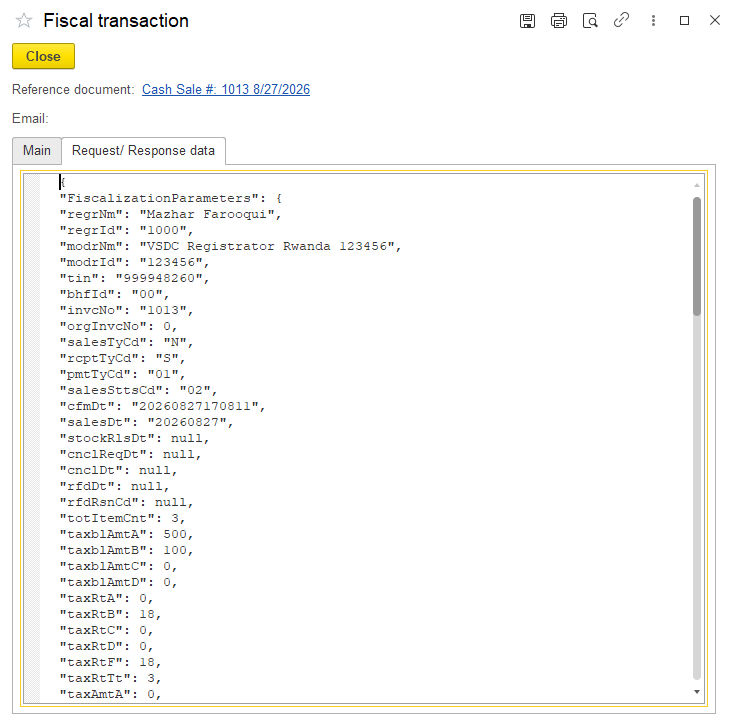
The Request/Response data tab shows the exact data sent to the VSDC and the answer received. Use it to check a receipt or when contacting support.