Timesheet records employee working time and provides the working-time information used by Payroll when Timesheet mode is enabled.
Use the Labor Tracking document to record employees’ piece-rate work.
Timesheet can automatically calculate:
- working days;
- working hours;
- employee participation in the selected Department;
- different payroll time-code values;
- separate rows for employees working in multiple positions.
Timesheet is enabled through the Admin Panel.
To enable Timesheet:
- Open Admin panel.
- Open Payroll settings.
- Enable Use timesheet.
Once at least one Timesheet document has been entered, Use timesheet cannot be disabled.

Create Timesheet #
- Navigate to Payroll – Documents – Timesheet
- Open Timesheet.
- Create a new Timesheet.
- Specify the relevant period..
- Use Fill to populate the Timesheet or select a Department to add all employees assigned to that department.
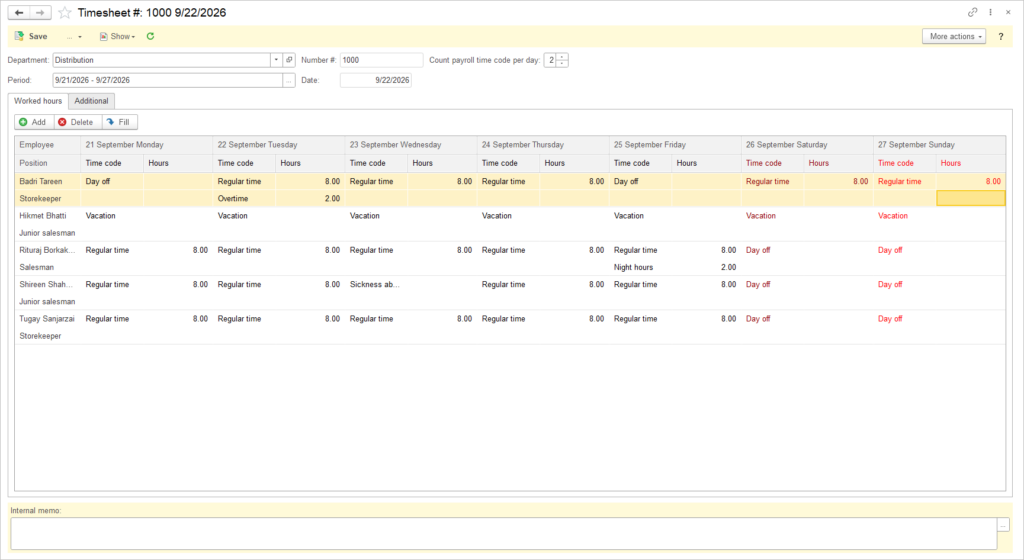
- Increase the count of payroll codes to add additional working periods, such as night shifts, overtime, etc.
- Review working days and hours.
- Save the document.
Payroll Time Codes in Timesheet #
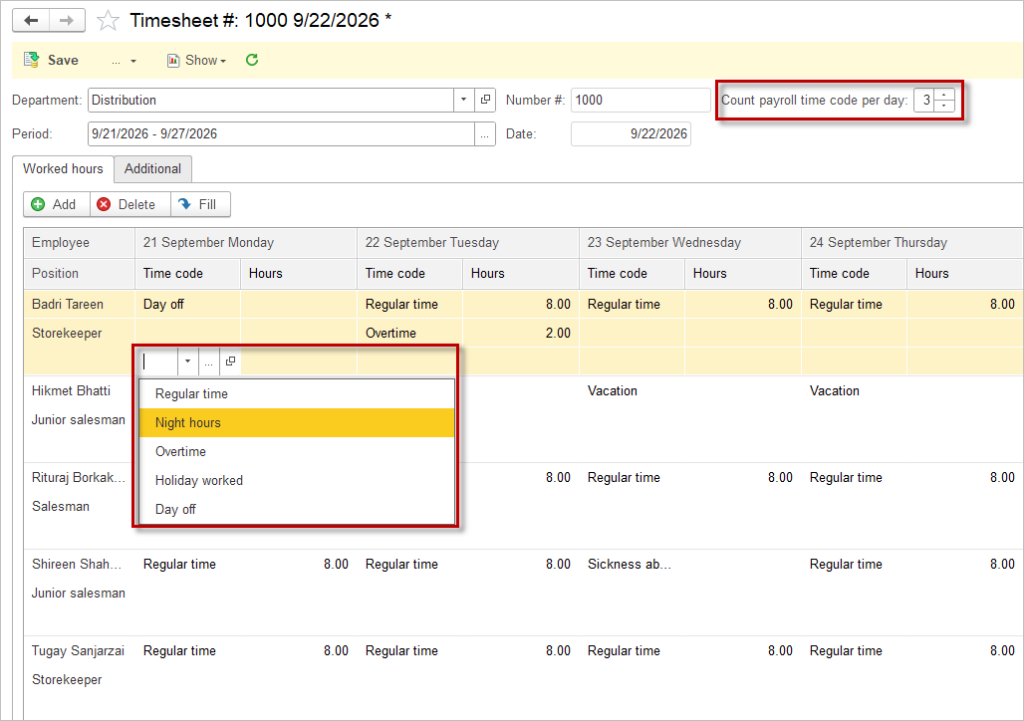
The Count payroll time code per day setting determines how many payroll time-code fields are available. The maximum number of available codes per day is 3. Use this functionality to track additional earnings for your employees, such as night shifts, overtime, and other additional payments.
To add additional fields:
- Open the Timesheet.
- Locate Count payroll time code per day.
- Increase the value.
- Review the additional fields.
- Double-click the relevant field.
- Select an applicable Earning Type.
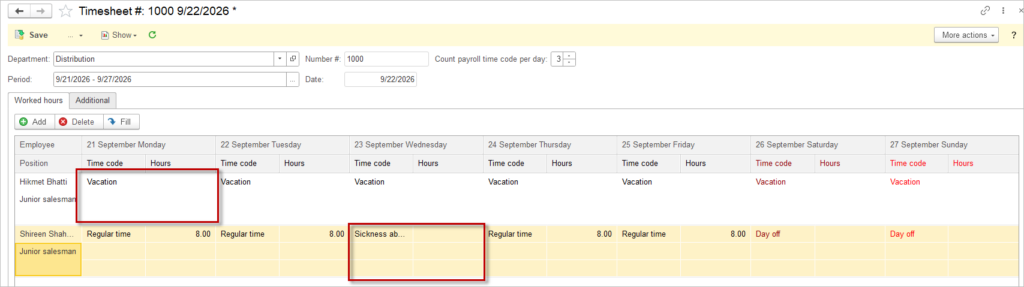
The available selection excludes:
These types are entered through their corresponding Personnel Orders.
After entering the corresponding Personnel Order with the selected Earning Type, Timesheet will display the absence type in the table.
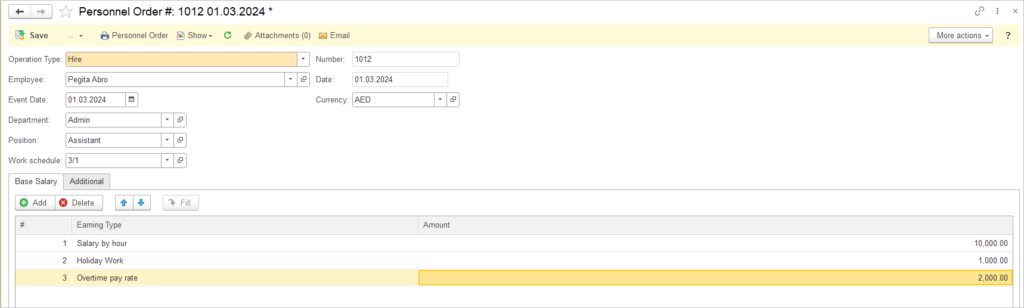
All earning types that do not have dedicated Personnel Order documents must be added in the Hire or Transfer documents.
This ensures that employees can be paid for overtime, night work, and other additional types of earnings.
In the Personnel Order document, these earning types should be added to the Base Salary table. Otherwise, they will have a value of 0 in the Payroll document.
Employees with Multiple Positions #
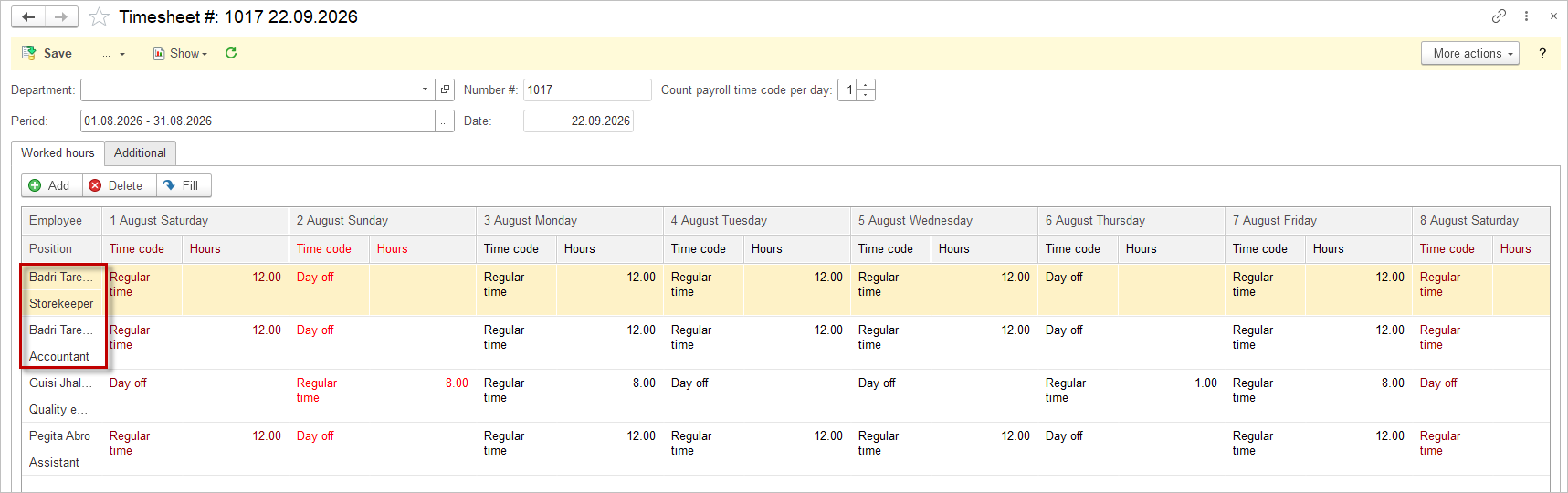
If an employee works in two or more positions, the employee is displayed in separate rows in Timesheet.
Each row represents the corresponding position.