
A Work Schedule defines the employee’s working pattern and working hours.
The Work Schedule is based on a Business Calendar and can be configured either by days of the week or by periods.
The Work Schedule is subsequently used by Timesheet and Payroll calculations.

Create Work Schedule #
- Navigate to Payroll – Lists – Work Schedule
- Open Work Schedule.
- Create a new Work Schedule.
- Select an existing Business Calendar.
- Select the Filling Method.
- Configure the working days.
- Configure working hours.
- Specify the validity period if required.
- Configure Skip holidays.
- Save the Work Schedule.
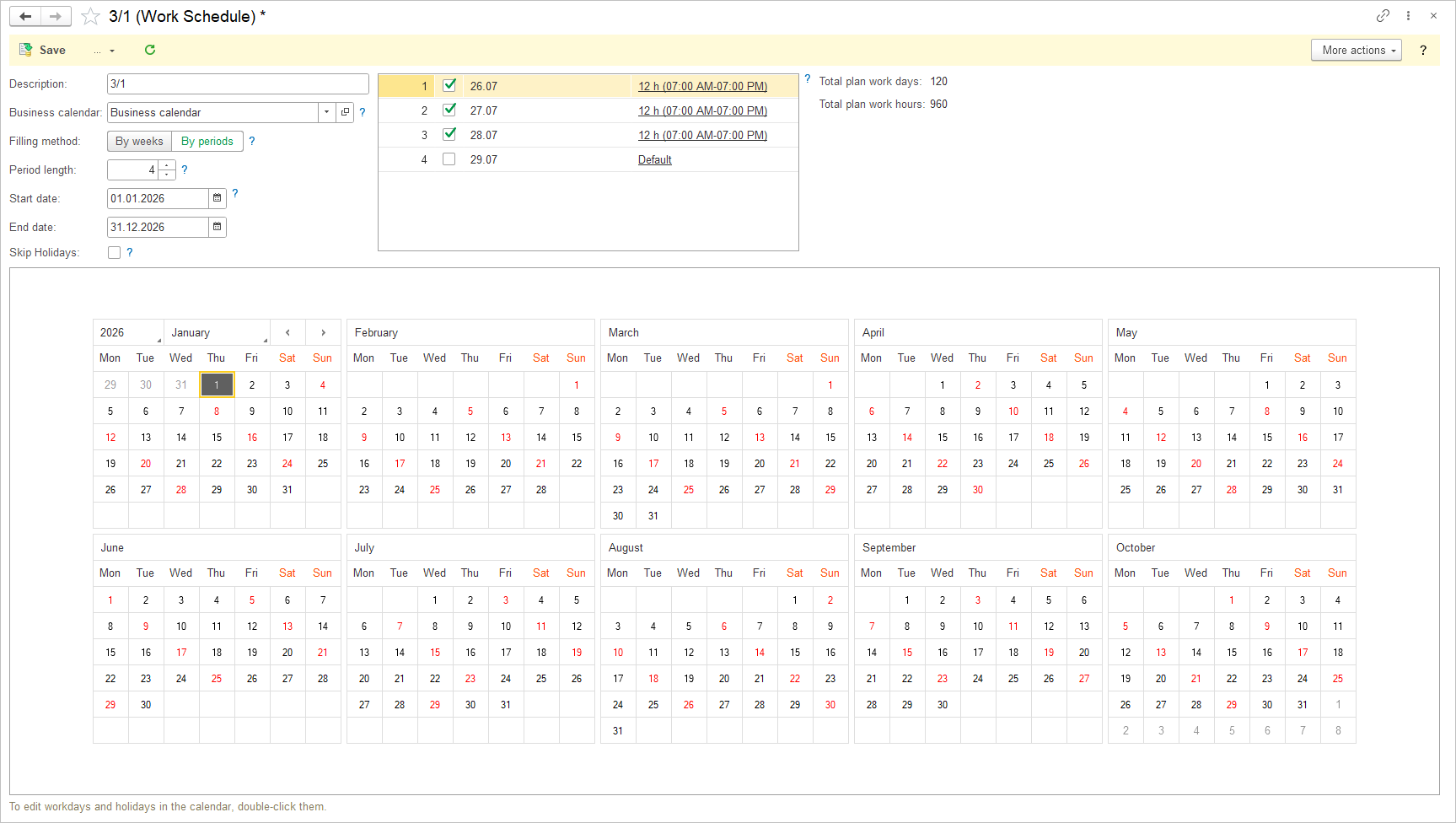
The Work Schedule supports two filling methods:
- By week
- By period
The filling method determines how working days are configured.
Filling Method: By Week #
When By week is selected, the system provides the days of the week from Monday through Sunday.
For each day, the user can specify whether the day is a working day.
To configure a weekly schedule:
- Select By week.
- Review Monday through Sunday.
- Check the box next to each day that should be marked as a working day.
- Specify the working hours for the selected days.
- Save the schedule.
Filling Method: By Period #
When By period is selected, the user configures the schedule using day numbers.
The available day numbers start with 01 and continue to the end of the configured period.
For each day number, the user can specify whether the day is a working day.
Working Day Duration #
When a day is marked as a working day, its duration can be configured.
The standard working day duration is 8 hours.
To change the duration:
- Select the working day.
- Click the displayed working-time value.
- Enter the required duration.
- Save the schedule.
The duration configured in the Work Schedule is used when calculating employee working hours.
If you use the 12-hour time format, enter the required hour. When the cursor is positioned before the letter A, press the P key on your English keyboard to switch to PM.
Schedule Validity Period #
A Work Schedule can have a specified validity period.
The user can specify:
- the date from which the schedule is valid;
- the date until which the schedule is valid.
This allows different schedules to be used during different periods.
Skip Holidays #
The Skip holidays option determines whether holidays from the selected Business Calendar should be excluded from working days.
When enabled, days marked as Holiday in the Business Calendar do not become working days in the Work Schedule.
When disabled, the schedule follows the configured working-day pattern without applying this holiday exclusion.