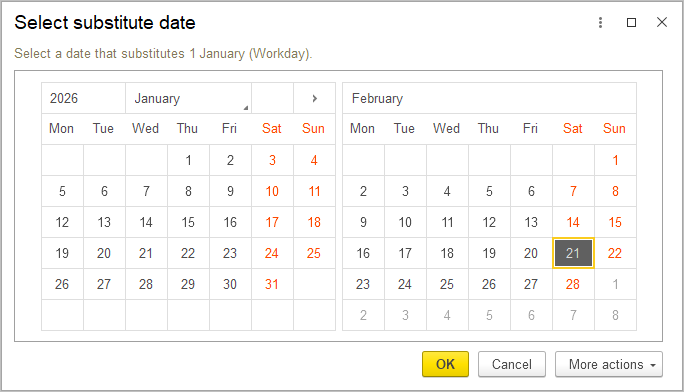
The Business Calendar defines the calendar structure for a full year.
Each calendar day can be assigned a specific day category. Work Schedule uses the Business Calendar to determine which days are working days and which days are holidays or non-working days.

Create Business Calendar #
- Navigate to Payroll – Lists – Business Calendar
- From the business calendars list view, click the Create. A calendar is displayed.
- Select the year you need.
- Specify the name.
- By default all days are marked as Sunday. Use Set default holidays button to mark all days from Monday through Friday as working days. All Saturdays will be marked as Saturdays, and all Sundays will be marked as Sundays.
- Assign categories to the days according to your company’s or country’s requirements.
- Save the calendar.
Day Categories #
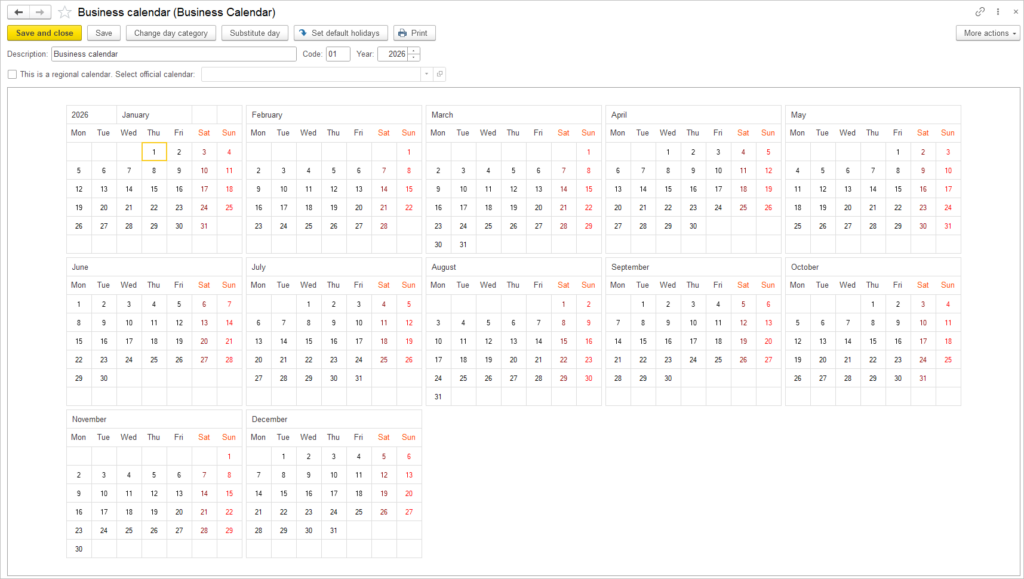
The following categories are available:
- Workday
- Saturday
- Sunday
- Pre-holiday
- Holiday
- Non-workday
Changing Day Category #
The selected category determines how the day is treated by the Work Schedule and subsequent payroll calculations.
To change a day category:
- Open the required Business Calendar.
- Locate the required date.
- Right-click the date.
- Select the required category from the drop-down menu.
Alternatively:
- Select the required day.
- Click Change day category.
- Select the required category.
- Save the change.
Substituting a Day #
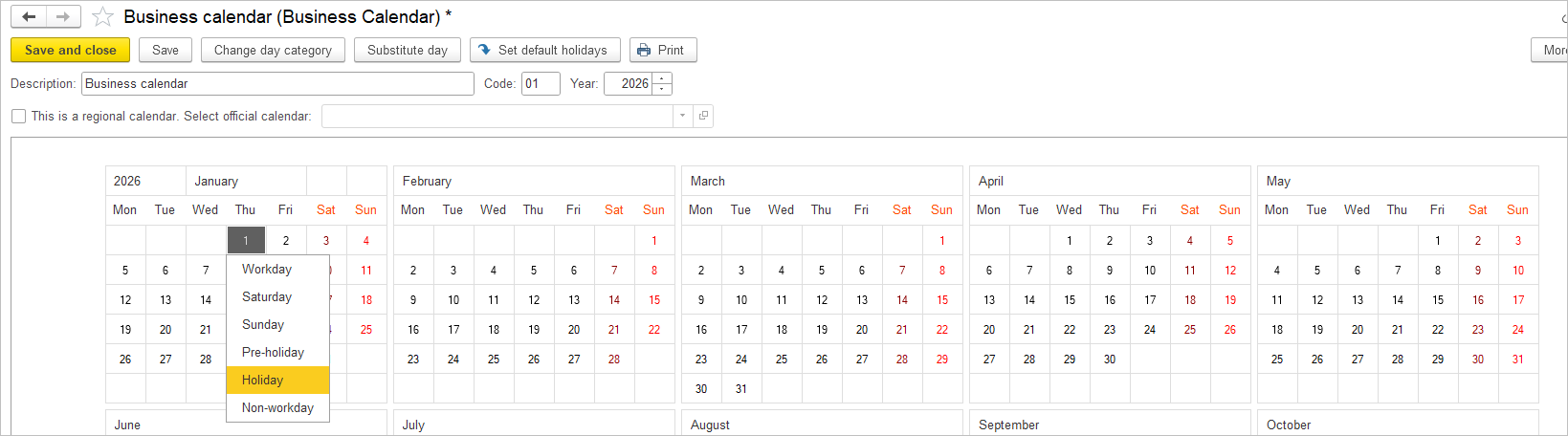
The Substitute day function allows the type of one day to be changed using another day.
To substitute a day:
- Open the Business Calendar.
- Select the required date.
- Use Substitute day.
- Select the day that should be used for substitution.
- Confirm the operation.