
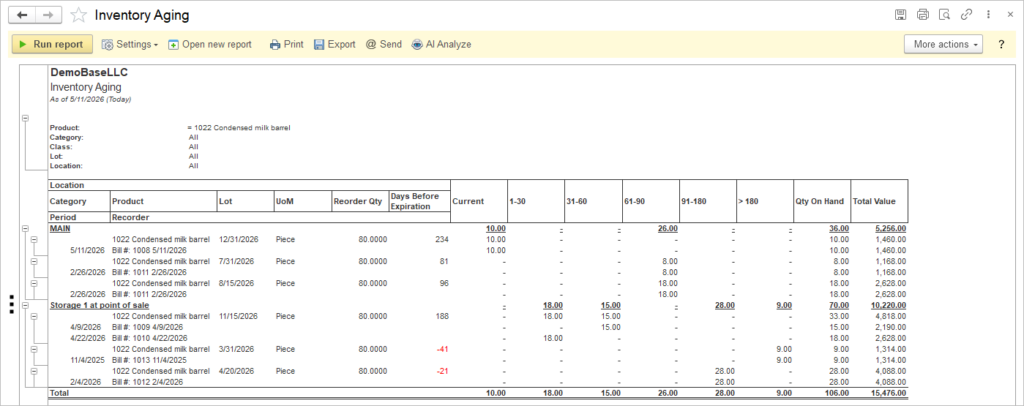
Inventory Aging is a report that shows how long inventory has been in stock, by product, lot and location, and summarizes quantities and value across predefined aging buckets (Current, 1–30, 31–60, 61–90, 91–180, >180 days)
The report helps identify slow‑moving and obsolete items by grouping on‑hand quantities by how many days they have been in inventory. It supports decisions on purchasing, markdowns, write‑offs and warehouse space optimization by showing both quantity on hand and total value for each aging bucket.
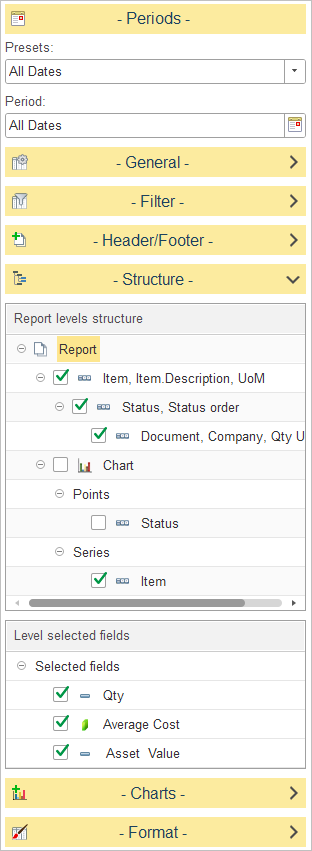
In Report levels structure, select how inventory aging data is grouped in the report.
The default report structure groups data as follows:
- Location – Groups inventory by warehouse or storage location.
- Recorder – the source document that added the item to stock (e.g., Bill number and date).
- Lot – lot or batch number of the item, if applicable.
- UoM – unit of measure used for the product (Piece, kg, etc.).
- Reorder Qty – the standard reorder quantity defined for the item, used as a reference when assessing whether to replenish stock.
- Days Before Expiration – number of days until the lot’s expiration date;negative values indicate items that are already expired.
- Detailed Records – Displays the individual inventory records that make up each aging balance.
To customize the report structure, expand the Structure section and select or clear the checkboxes next to each level to include or exclude it from the report hierarchy. You can also drag and drop levels to change the order in which data is grouped.
In Level selected fields, choose which columns are displayed for the selected report level.
The available fields include:
- Period – the accounting or reporting period associated with the inventory record.
- Recorder – the source document that added the item to stock (e.g., Bill number and date).
- Age (Days) – the number of days the inventory has remained in stock.
- Current – the quantity or value of inventory that falls within the current aging bucket.
- 1–30, 31–60, 61–90, 91–180, >180 – quantities that have been in stock within each corresponding day range, calculated from the receipt date to the “As of” date.
- Qty on Hand – the quantity currently available in inventory.
- Total Value – the total inventory value for the selected item or grouping.
- Older receipts appearing in the higher aging brackets first.
- The same product showing multiple brackets if its on-hand quantity comes from receipts with different dates.
Typical business use cases #
- Identify items approaching expiration using the Days Before Expiration column and plan promotions or disposals.
- Detect slow‑moving or obsolete inventory in the 91–180 and >180 buckets and consider markdowns or write‑offs.
- Monitor total value of aging inventory by location to manage warehouse space and carrying costs.
- Review high‑value items in older buckets before placing new purchase orders, using Reorder Qty as an additional reference.

Combining Inventory Aging and Item Activity Costing for Better Decisions #
Use the two reports as a pair: Inventory Aging to find problem items, Item Activity/Costing to understand and justify actions.
1. Clear aged and slow‑moving stock
- Run Inventory Aging, sort by value in older buckets (91–180, >180, expired).
- For a problem item, open Item Activity/Costing to see purchase prices, adjustments and current cost.
- Decide on discounts, write‑offs or blocking reorders based on margin and cost history.
2. Control purchasing and turnover
- Before approving purchase orders, check Inventory Aging for the same items: do you still have old stock?
- If yes, open Item Activity/Costing to see how fast the item really moves and whether recent purchases were too large.
- Postpone or reduce the new order when stock is both old and slow‑moving.
3. Document and verify clean‑up
- Use Inventory Aging to identify expired/obsolete items and plan write‑offs.
- After adjustments (made by Inventory Adjustment document), run Item Activity/Costing to confirm quantities and cost entries, then Aging again to ensure aged balances dropped as expected.