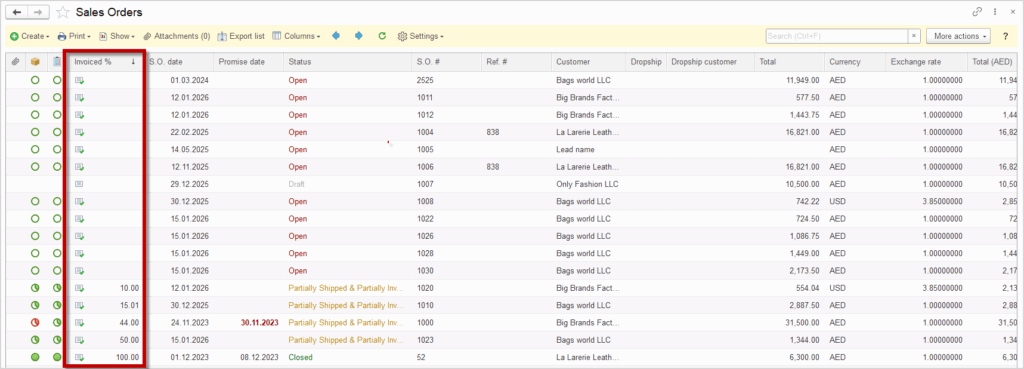
Progress Invoicing is an advanced feature within the Sales module, designed for situations in which sales orders are fulfilled gradually, through multiple stages, or according to a predefined delivery schedule. Unlike standard invoicing, where the full value of the order is invoiced at once, this functionality allows issuing partial invoices that reflect the actual progress of delivery or service execution. Invoicing can be carried out based on agreed percentages, specific monetary amounts, or a predefined billing schedule. This approach ensures that billing and payment collection follow the pace of the project execution, contributing to more stable cash flow management and reducing financial risks, particularly in long-term or complex projects. This functionality is fully integrated into the Sales process and enables invoicing to follow the real dynamics of delivery, making it an ideal solution for business models in which goods or services are delivered successively and in multiple defined stages.
How to Use Progress Invoicing #
To enable the Progress Invoicing functionality in AccountingSuite, the Progress Invoice option must be activated in Sales Settings.
Once enabled, this option allows for partial or full creation of Sales documents based on a preceding document, such as a Quote, Sales Order, or Shipment. Each time the Generate button is clicked and a corresponding Sales document is selected, the Progress Invoicing screen appears, allowing the user to specify the amount or percentage to be invoiced.
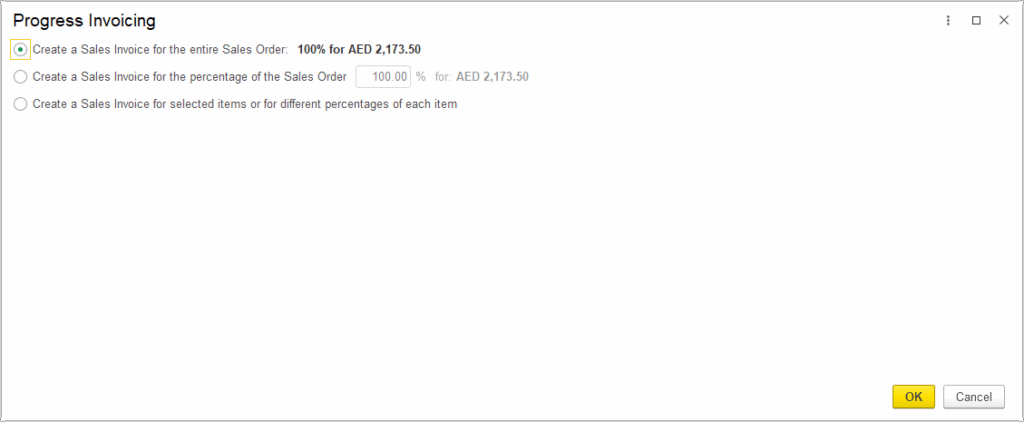
In the Progress Invoicing screen, there are three options for creating invoices:
- Create an Invoice for the full document value – This option allows you to create an Invoice for the total amount of the document. The entire document value will be invoiced immediately.
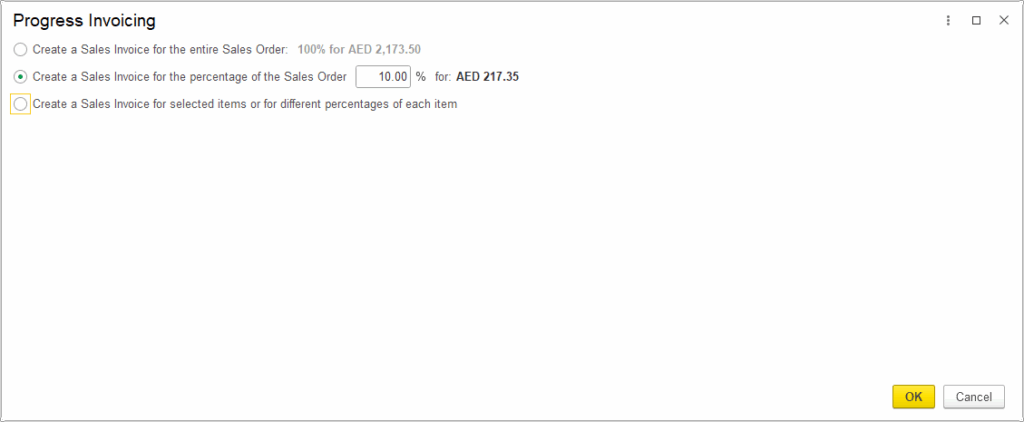
- Creating a partial Invoice by percentage – Here you can enter a percentage (for example, 10%), which will be applied to all items in the document. In this way, the Invoice will be created for 10% of the total document amount. Once the Invoice is created, the remaining amount (90%) stays in the document, as 10% has already been invoiced.
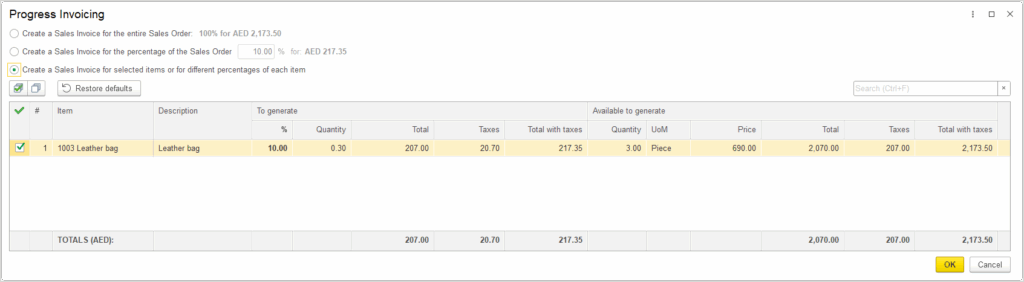
- Create an invoice for selected items – This option allows you to create a Progress Invoicing for specific items rather than the entire document. To do so, select the green checkbox next to the Item you want to include; only the Item with the checkbox selected will appear in the generated document. You can also specify the quantity for each selected item to determine how much will be invoiced.
Discount #
The Discount option can be applied to Sales documents and is fully compatible with Progress Invoicing. When generating partial invoices, the Discount is automatically prorated, ensuring that each invoice reflects the correct discounted amount. This allows for accurate billing and consistent application of discounts across all invoices.
On the Sales document, you can view a link displaying the currency of the Sales Invoice, the Discount percentage, and applicable taxes. Click on the link and select the discount checkbox to apply the discount.
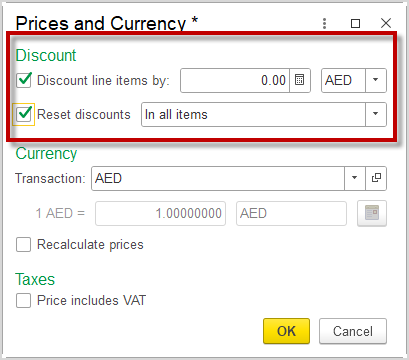
To display the Discount in the Sales document, it is necessary to check the box next to Reset discount.
Currency #
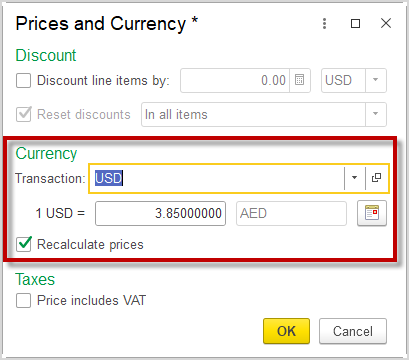
The Currency in a Sales document can be changed before the Invoice is finalized. When using the Progress Invoicing option, updating the Currency automatically recalculates the amounts for partial Invoices based on the current exchange rate, ensuring the accuracy of all generated Invoices. This provides flexibility when handling transactions in different Currencies.
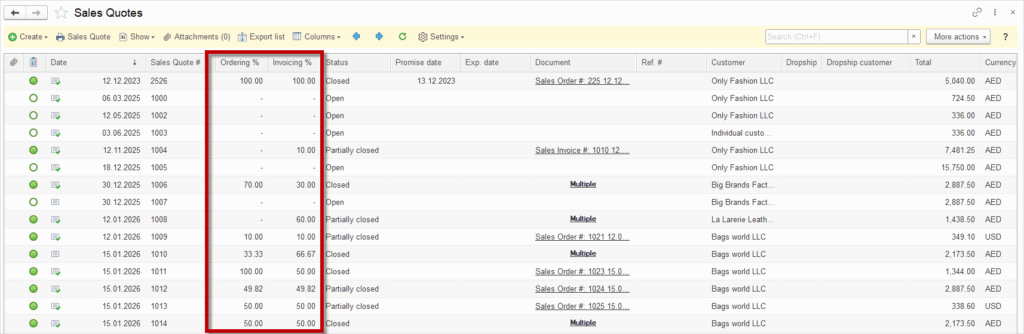
Ordering % and Invoicing % – Sales Quote #
The Ordering column shows how much of the Sales Quote has been converted into a Sales Order.
The Invoicing column shows how much of the Sales Quote has already been invoiced.
Invoiced % – Sales Order #
The Invoiced column shows how much of the specific Sales Order has already been invoiced.