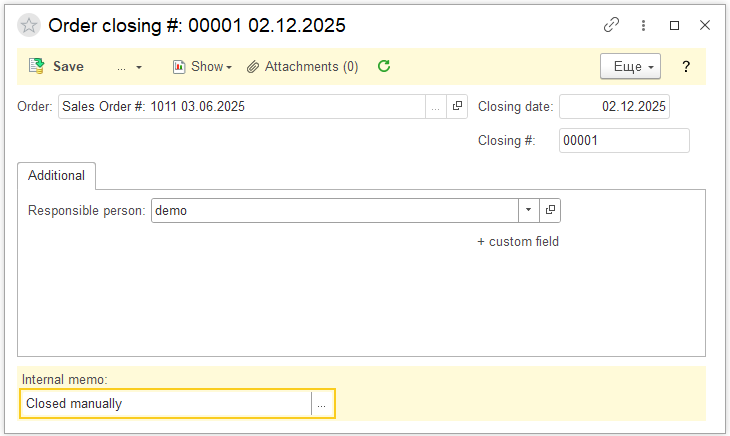
The functionality for closing a Purchase Order using the Order Closing option ensures accurate recording of the actual order status and maintains operational accounting precision. The Order Closing option changes the order status to closed, meaning no further modifications can be made and the full procurement process is properly recorded.
Using the Order Closing option prevents incorrect changes to already closed Purchase Orders and ensures transparency of the document’s movement at every stage of the Purchase process. This reduces the risk of errors, increases the accuracy of data related to goods receipts and invoicing, and simplifies control over the execution of each procurement order.
Accordingly, the document statuses are classified into two groups:
- Document with an unchangeable status
This is a Purchase Order that contains a complete history of all transactions in its hierarchy and cannot be manually reopened. The document automatically closes once all goods have been fully received and all obligations to the supplier are fulfilled. If you try to change the status of this document, the following notification will appear: Only a manually closed order can be reopened.
- Documents with a changeable status
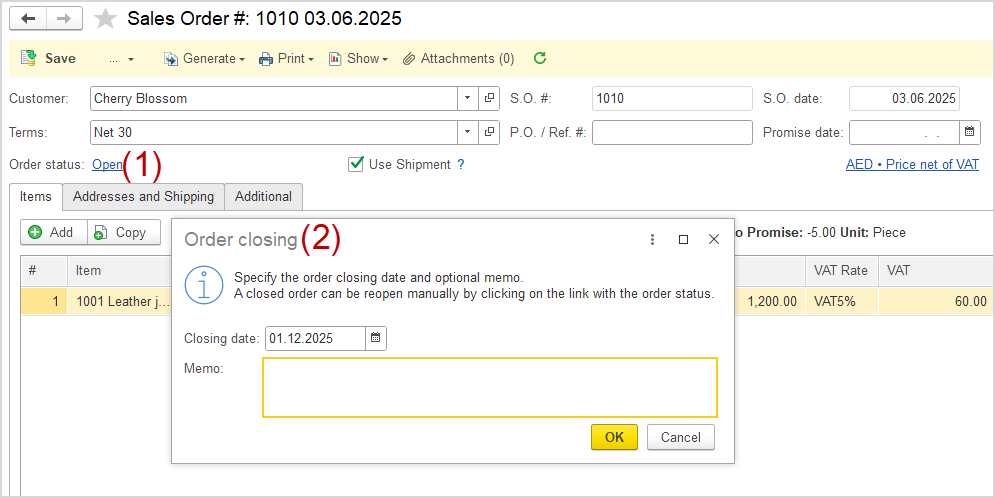
The Order status can be manually changed by clicking on the order status link (1). After that, a new Order Closing screen will appear, where you need to enter the order Closing date and a Memo (2).
You can enter the Closing date in the settings. Then, navigate to Admin Panel → Accounting Settings → Closing the Books. In the Closing the Books tab, this function prevents changes to transactions dated prior to the closing date.

After entering the Closing date in Accounting Settings on the Order closing screen, the Closing date field will display the date entered in Closing the Books, increased by one day.

If you have not entered the Closing Date in Accounting Settings, then in Order Closing you can enter a date, but it cannot be earlier than the document’s creation date.
In the Memo field, you can enter the reason for manually closing the document. The Order Closing document will be created when you click the OK button.