
All reports for all modules are collected in a single Reports panel. For users convenience, each report has a description.
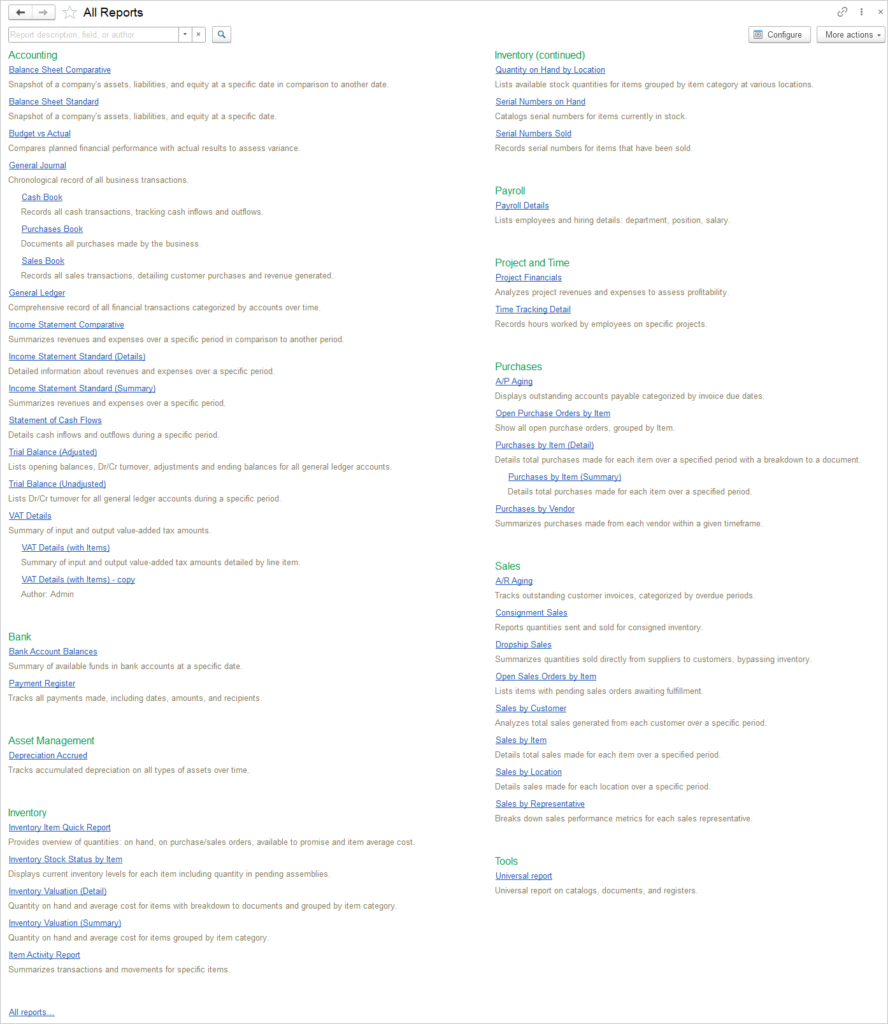
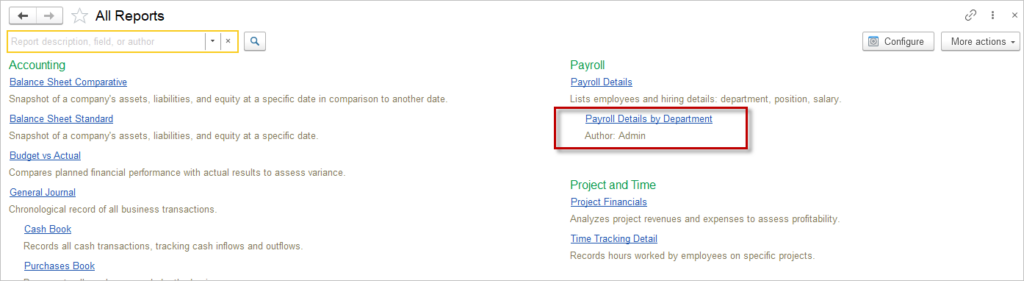
All saved user’s variants of the reports will be in the list of reports as subordinate to the main report.
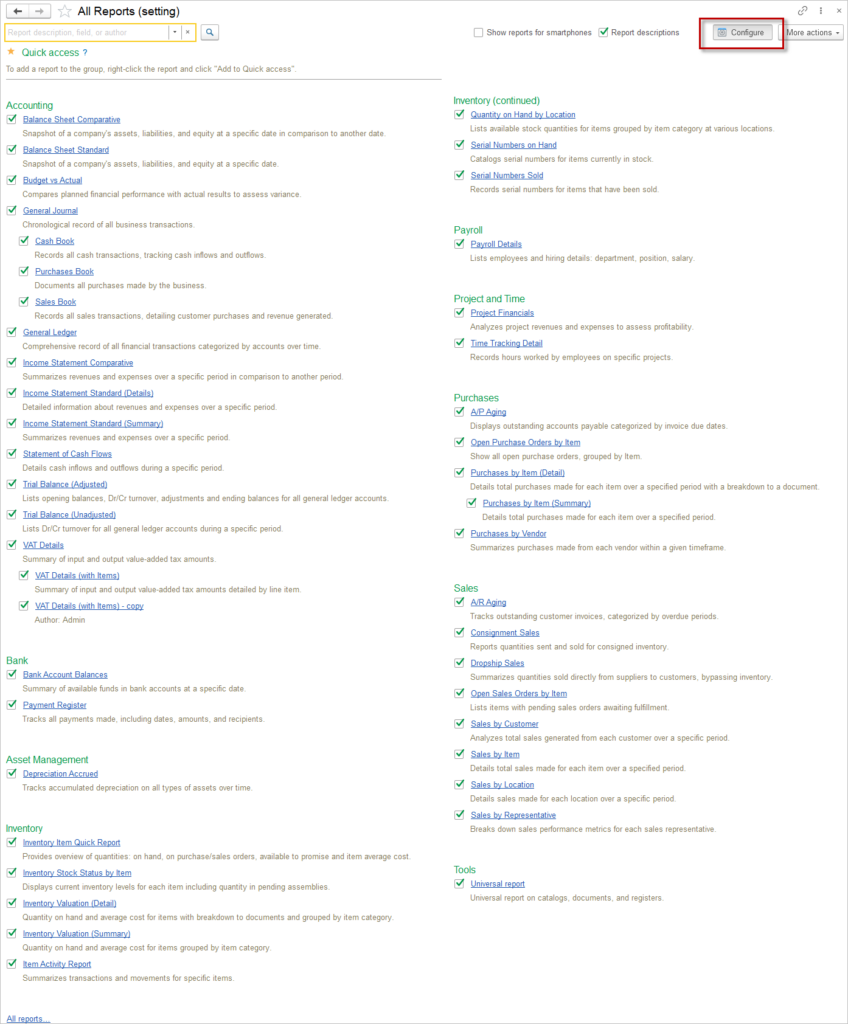
You can hide some reports by using Configure button.
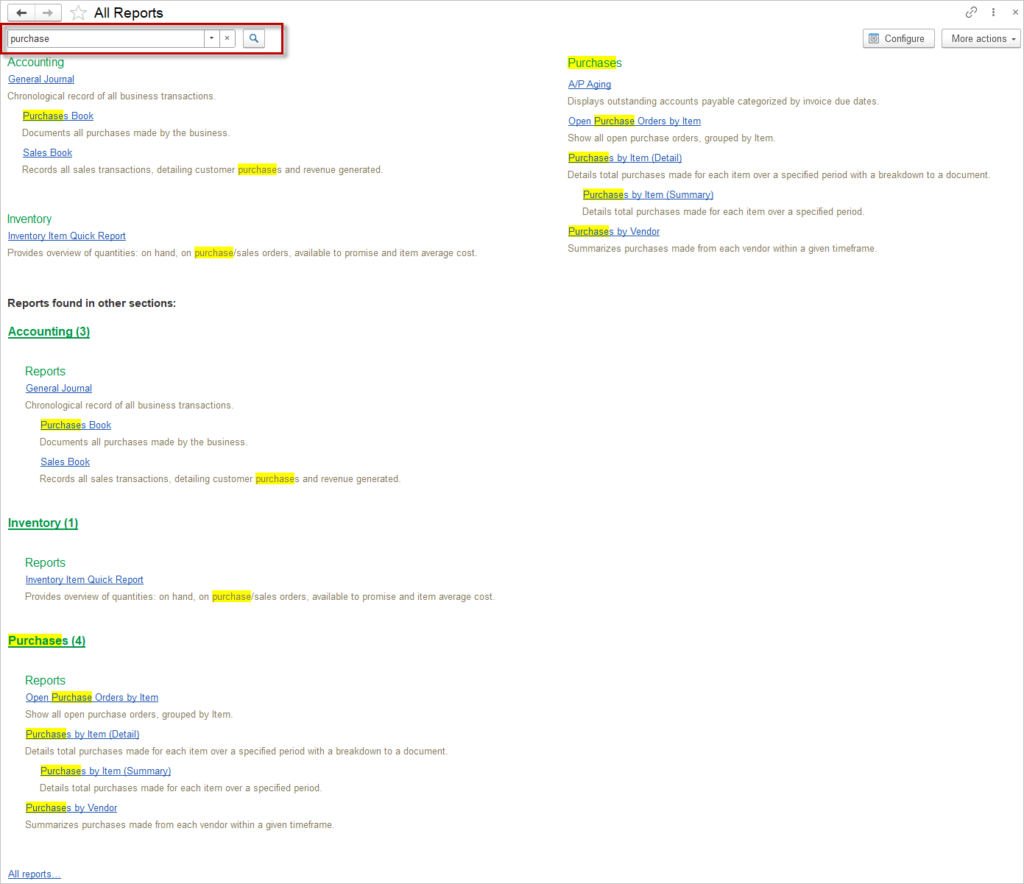
Please use Search to find reports by key words in the report name and report’s description.
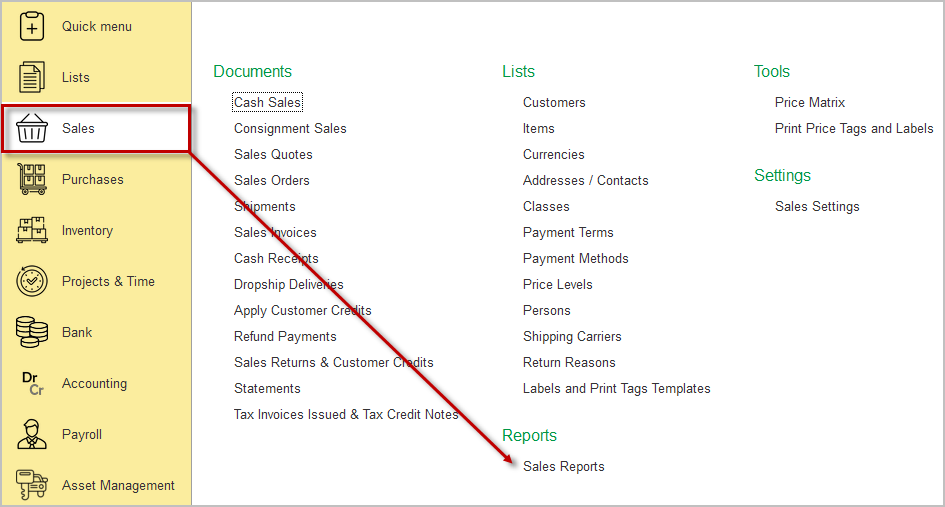
It is also possible to call the section reports from the module itself, the Reports group.
Quick Reports Access #
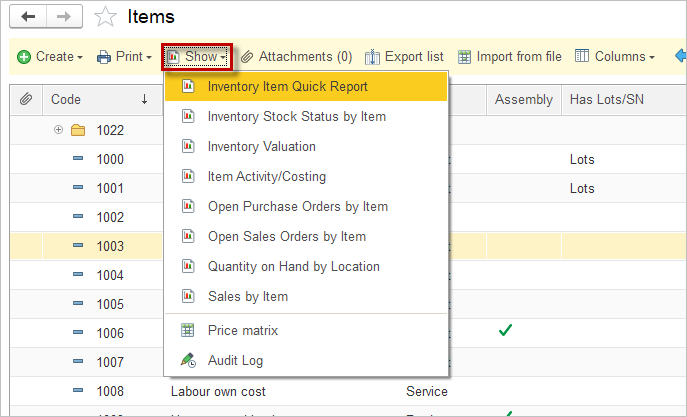
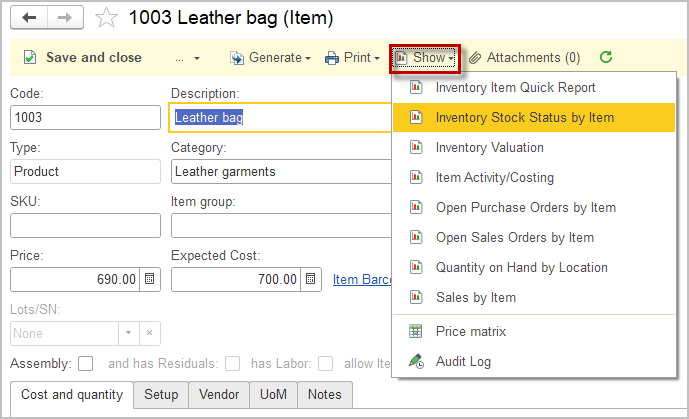
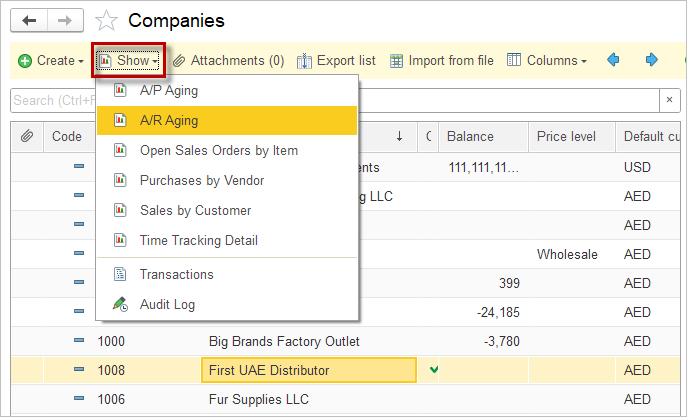
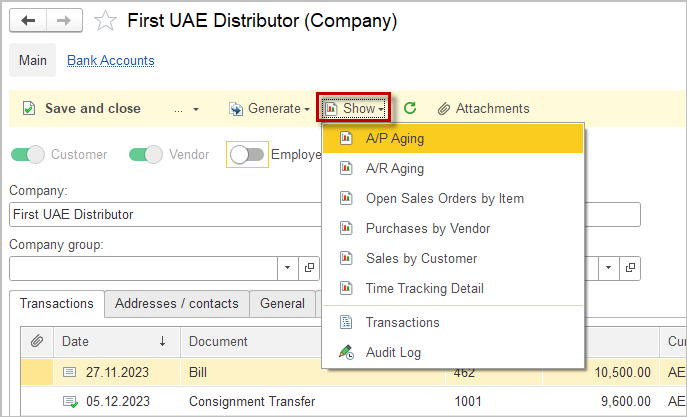
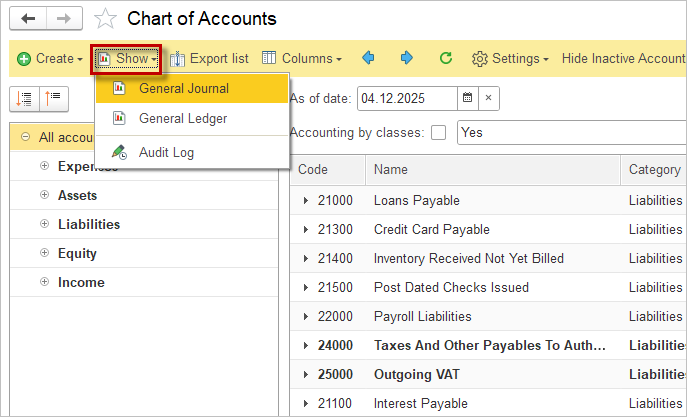
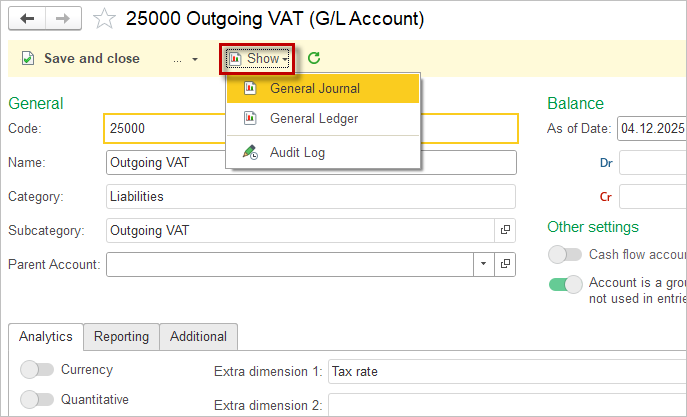
For user convenience, the report can be called from different lists in the system with a preset filter by the highlighted value:
- from Items list and from the Item card;
- from the Companies list and from the Company card (available reports may vary based on Customer / Vendor status in the Company);
- from Chart of accounts and G/L account card.
Filtering documents in reports #
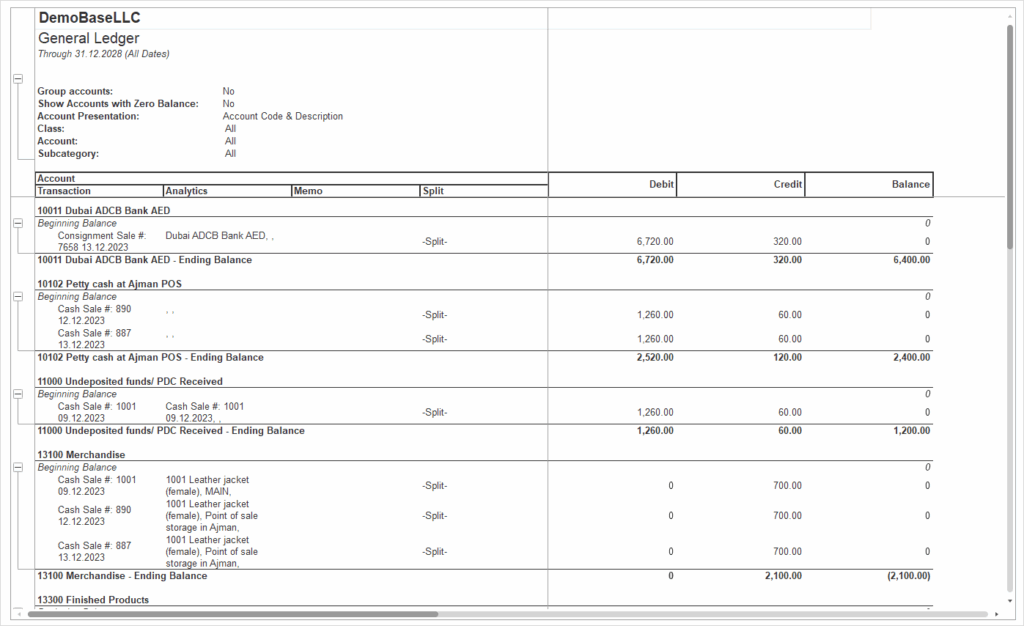
To display only specific documents or a single specific document in a report, it is necessary to configure the filters within the report itself. By configuring these filters, the user defines the criteria based on which only the selected documents will be displayed in the report.
The steps for proper filter configuration are outlined below:
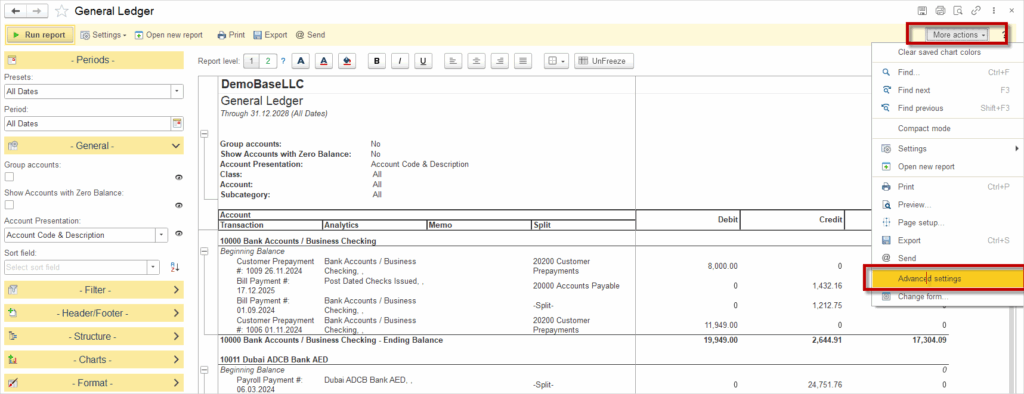
Open the report and click More Actions, then select Advanced Settings.
Click on the Filters tab, and within this tab, click the Add new item button.
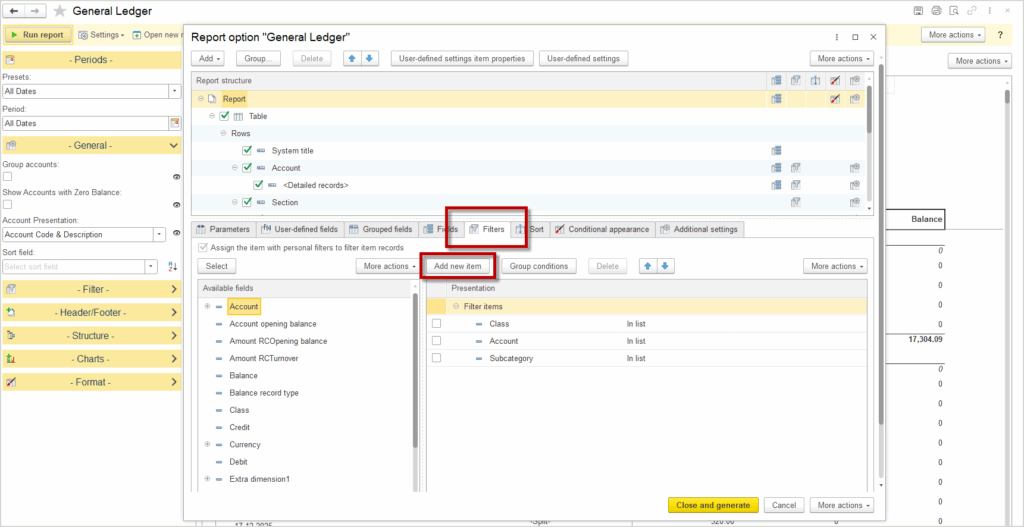
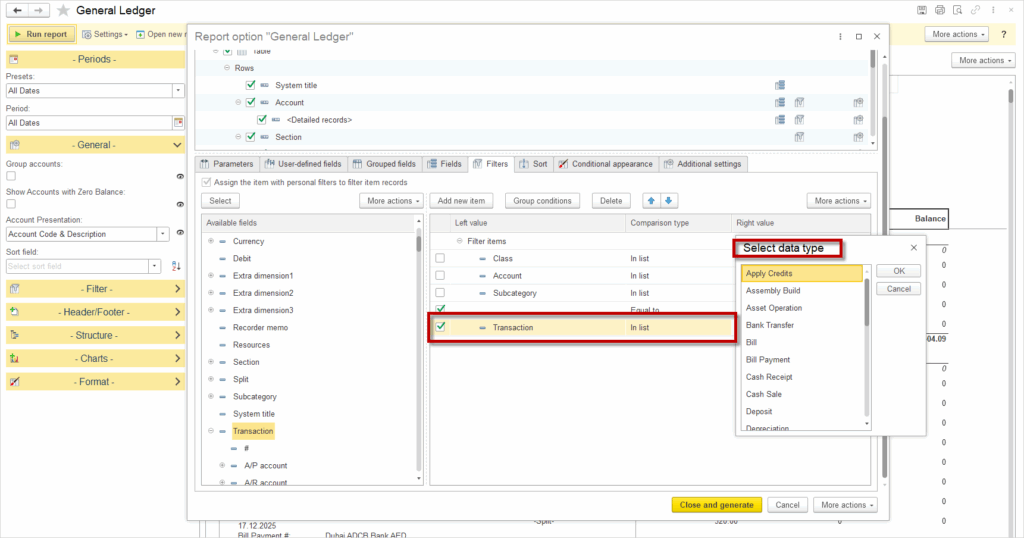
For the Left Value, select Transaction; for Comparison Type, select In List; and for the Right Value, select data type that should be displayed in the report
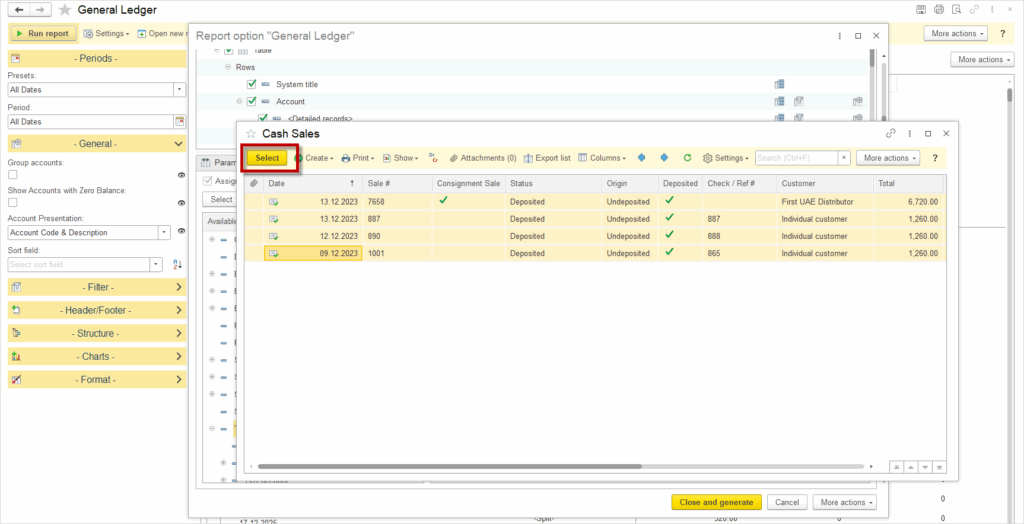
All documents of the selected type will be displayed. Select all of them and click the Select button.
Final step: click the Close and Generate button.
Adding new filter in reports #
To add a new filter to an existing report, the user must access the filter configuration section within the report itself. For example, by adding a new filter for the field Company, the user defines the criterion based on which only documents belonging to a specific company will be displayed in the report.
The steps for adding a new filter are outlined below:
Open the report and click More Actions, then select Advanced Settings.
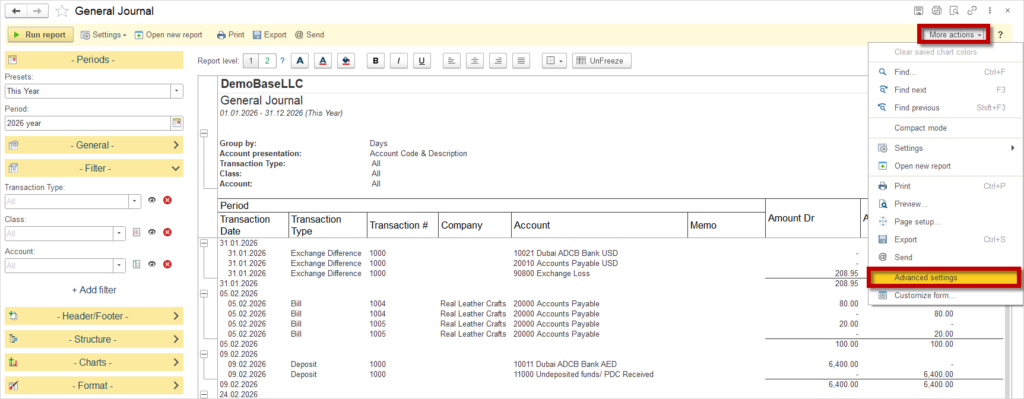
Click on the Filters tab, and within this tab, click the Add new item button.
For the Left Value, select Recorder.Company; for Comparison Type, select In List; and for the Right Value, select Company that should be displayed in the report
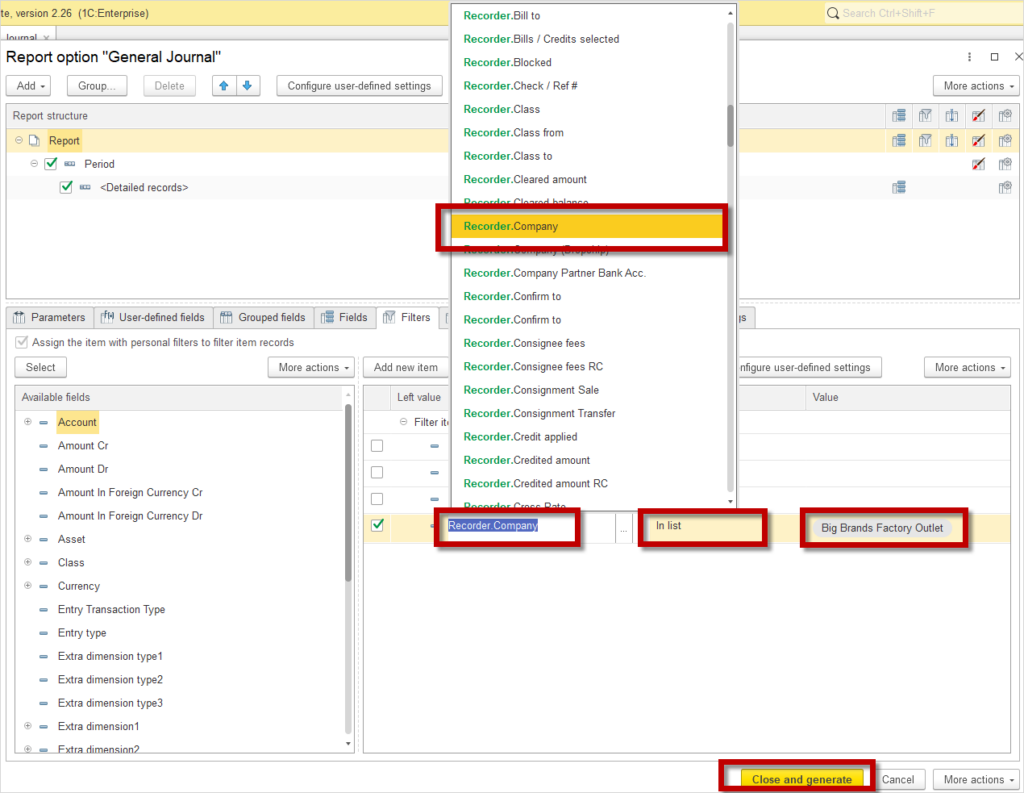
Final step: click the Close and Generate button.
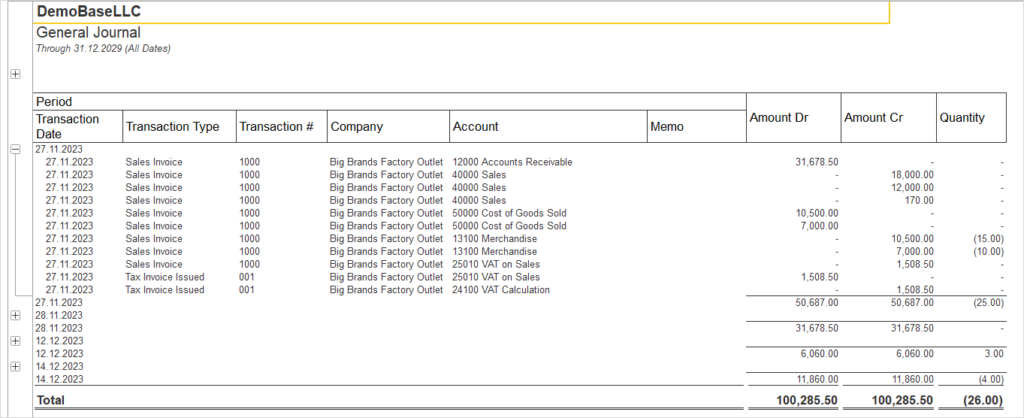
See for more:
How to use Custom field as a filter in the report